
Introduction
- Thank you for choosing the Tindo app. We are pleased to have you with us. Enclosed is the documentation to help you set up and launch the app easily. Please read it carefully, as it contains important information. If you need any assistance or have questions, our support team is just a message away.
Prerequisites
- Android Studio Version: Android Studio Meerkat | 2024.3.1 Patch 2
- JDK Version: 17
- NDK Version: 27.0.12077973
- Compile SDK: 34
- Flutter Version: 3.27.4
- Dart Version: 3.6.2
- To change the Compile SDK version, navigate to:
android/app/build.gradle - To change the NDK version, navigate to:
android/build.gradle - This project was originally created using Flutter version 3.27.4 and the corresponding Dart SDK. Please upgrade or adjust as needed based on your current setup.
- Before modifying the project, ensure that both Flutter and Dart are properly installed and configured on your system.
- If you already have the Android SDK set up, you can follow the official steps to install and configure Flutter:
- Download the Flutter SDK from the official website and extract it.
- Add the path to the previously extracted SDK to your PATH variable.
- Run the flutter doctor tool to verify if everything is configured correctly.
Android Studio Windows Setup
- Download Android Studio from the official website:https://developer.android.com/studio/
- Access the Flutter SDK through:https://flutter.dev/docs/get-started/install
- For further information on Android Studio, visit:https://developer.android.com/studio/intro/
- Please download the provided installation bundle to access the latest stable release of the Flutter SDK.
- Upon downloading, extract the zip file and place the 'flutter' directory in your chosen installation directory for the Flutter SDK (e.g., C:\src\flutter). Avoid installing Flutter in directories such as C:\Program Files, as it may require elevated privileges.
- Locate Flutter SDK Path
- Open Environment Variables
- Click on "Edit the system environment variables".
- In the System Properties window, click the "Environment Variables..." button near the bottom.
- Under User variables, select the Path variable and click Edit.
- Paste the path to the flutter\bin directory:
Step 1 : Get the Flutter SDK
Step 2 : Update your path
Step 3 : Run flutter doctor
- From a console window with the Flutter directory added to the PATH (as described above), execute the following command to check for any platform dependencies that may be required to complete the setup:
- If any complications arise during the environment setup, kindly refer to our online resources for guidance. Please click the following link to access:Click Here
Android Studio macOS setup
- Download Android Studio from the official website:https://developer.android.com/studio/
- Download Xcode from the App Store:https://apps.apple.com/us/app/xcode/id497799835?mt=12 .
- Access the Flutter SDK through:https://flutter.dev/docs/get-started/install
- For further information on Android Studio, visit:https://developer.android.com/studio/intro/
- Please download the provided installation bundle to acquire the latest stable release of the Flutter SDK.
- After downloading, extract the SDK by double-clicking on the downloaded file. Subsequently, copy the extracted folder and paste it into your desired location, such as Documents\flutter.
- To update the PATH variable and access the "flutter" command from the terminal, follow these steps:
Step 1 : Get the Flutter SDK
Step 2 : Update your path
- Open the terminal.
- For updating the PATH variable for the current terminal window only, enter the command:
- To update the PATH variable permanently, open or create the .bash_profile file by entering:
- Append the following line to the .bash_profile file, placing it at the bottom:
- Replace [PATH_TO_FLUTTER_SDK_DIRECTORY] with the actual path to the Flutter SDK folder.
- Refresh the PATH variables by running the command:
- Verify that the SDK is successfully installed by running:
- If the check list of Flutter SDK requirements is displayed, the SDK is successfully installed, and you can proceed with building Flutter apps.
- For troubleshooting during environment setup on macOS, refer to our online resourcesClick Here
Configure Firebase
- Please navigate to your Firebase project, which you may have created while following the backend documentation. If you haven't created one yet, please follow the steps below to set up a project:
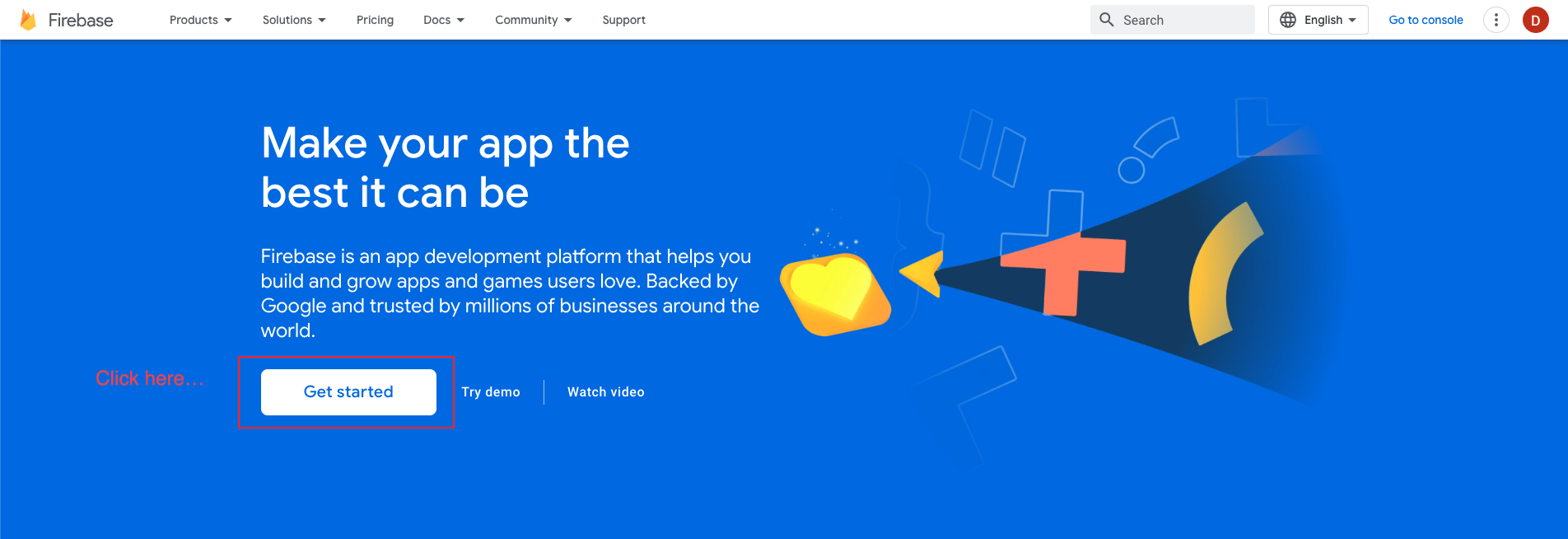
- Begin by visiting the Firebase website through the following link: https://firebase.google.com/
- If you do not already have a Firebase account, kindly sign up for one. Otherwise, proceed to sign in with your existing account credentials.
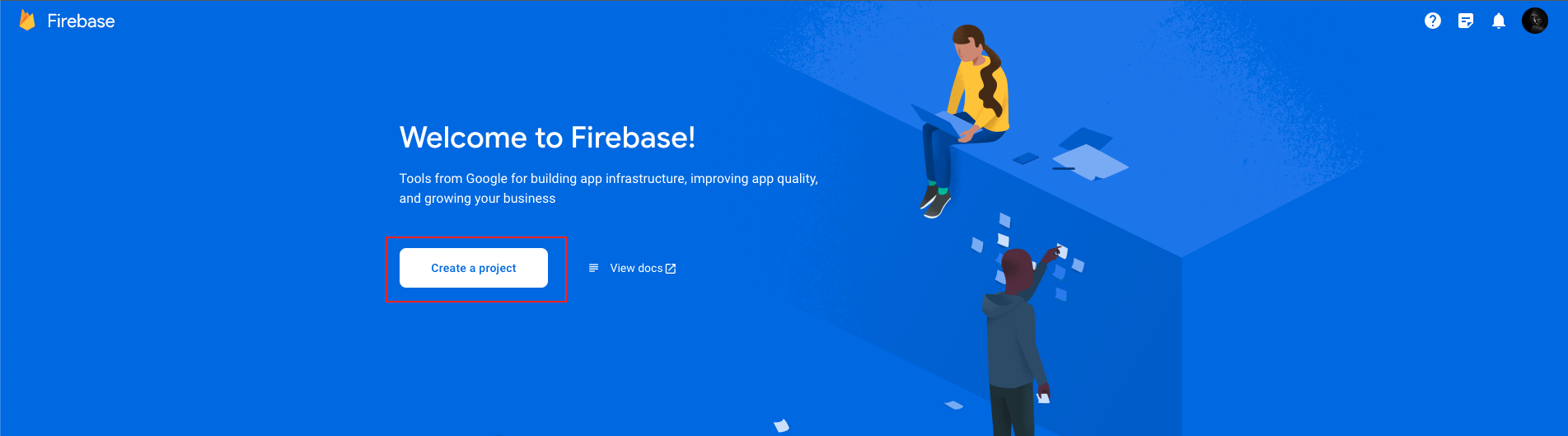
- Upon successful login, you will be directed to the Firebase Console. Click on the "Add project" button to initiate the creation of a new project.
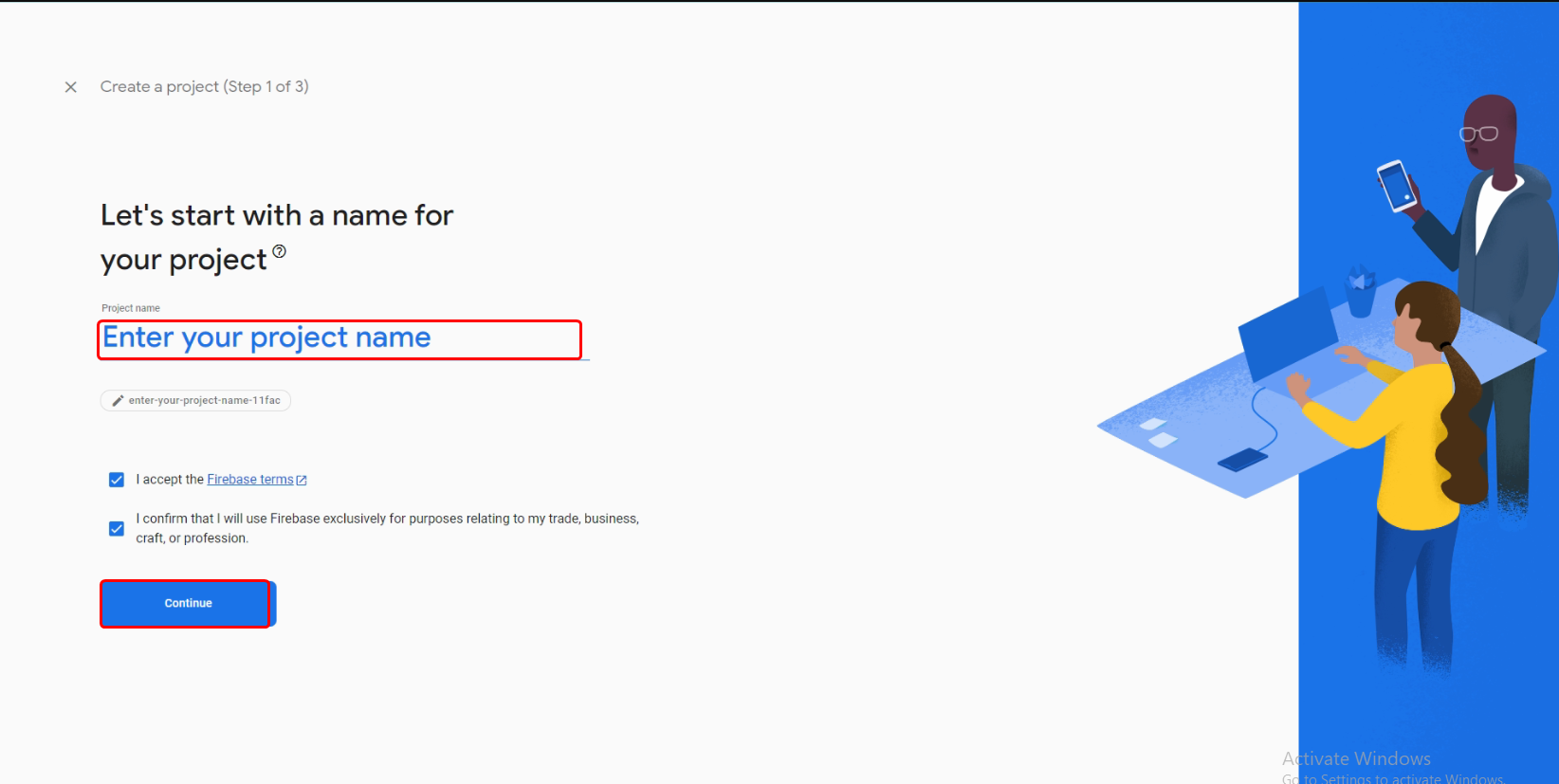
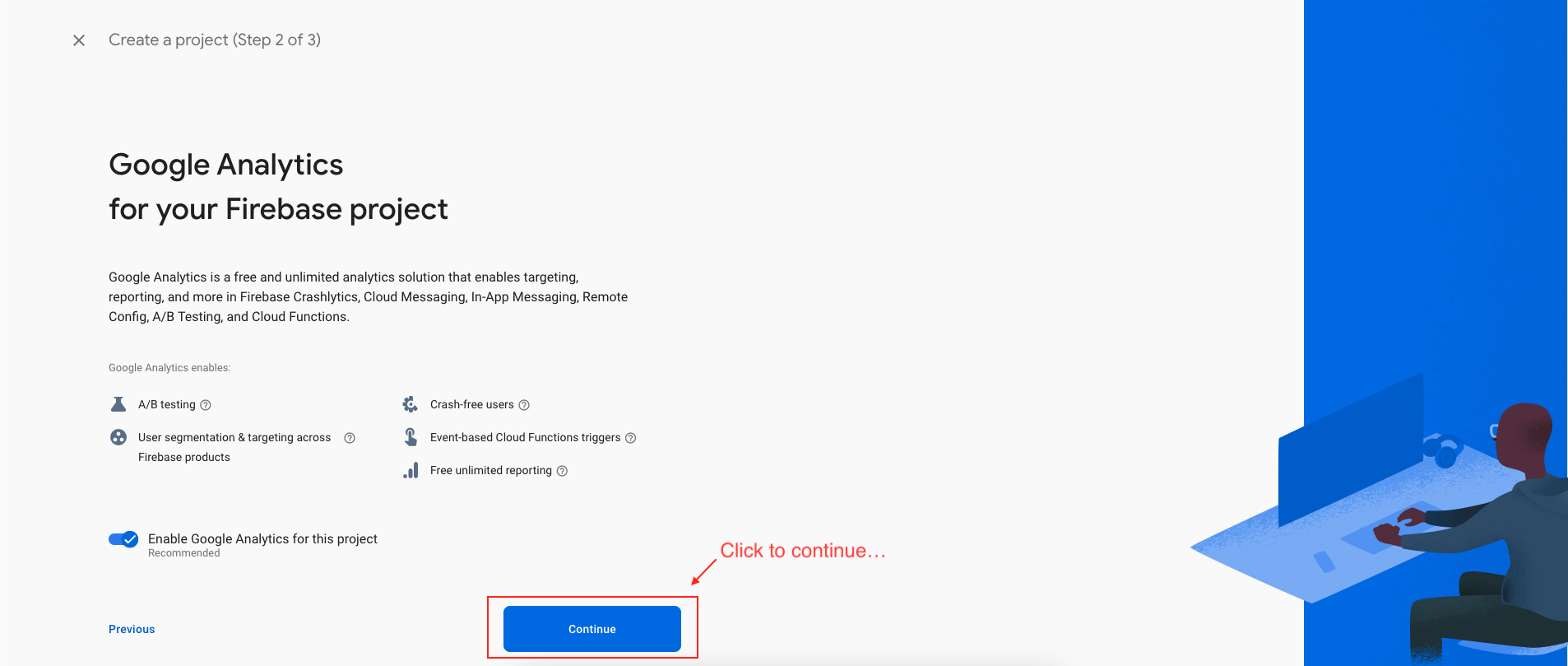
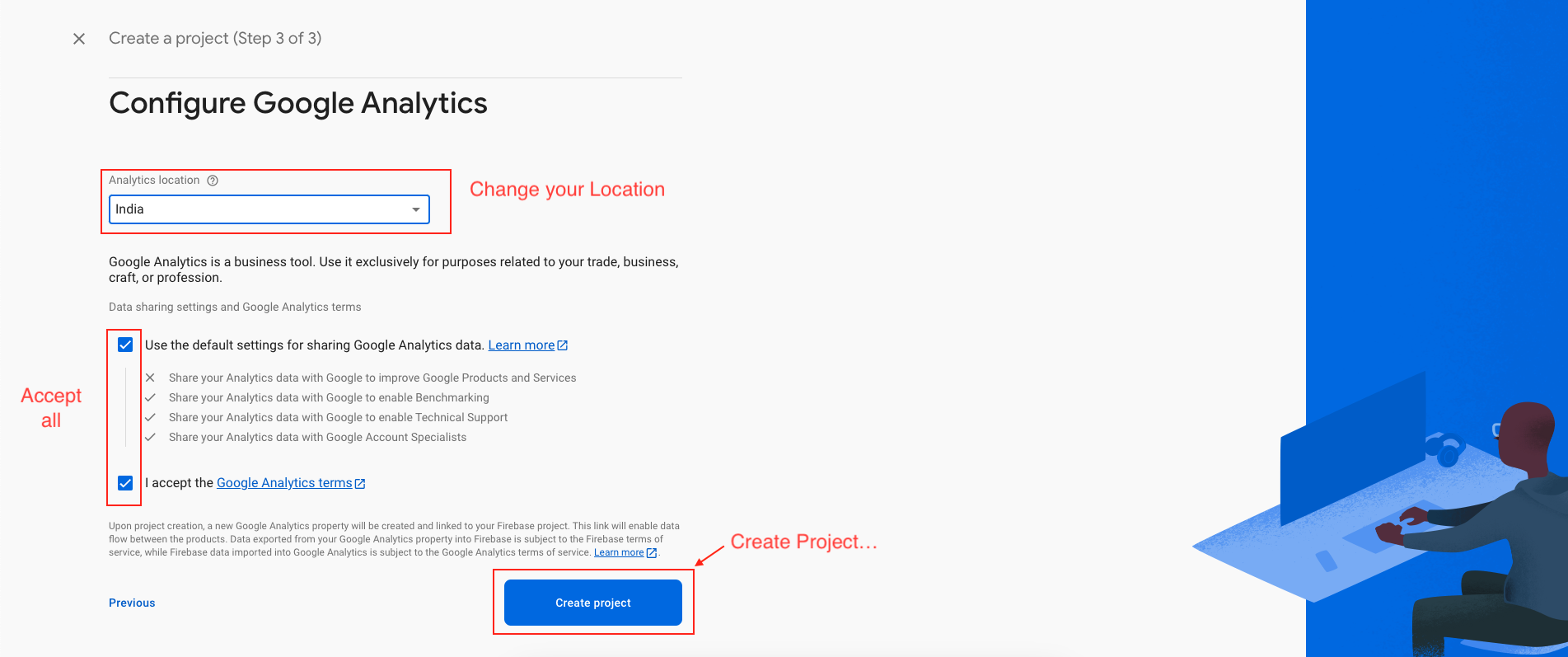
- Enter a suitable name for your project and configure your preferred options for Firebase Analytics and Google Analytics. Subsequently, click on the "Continue" button.
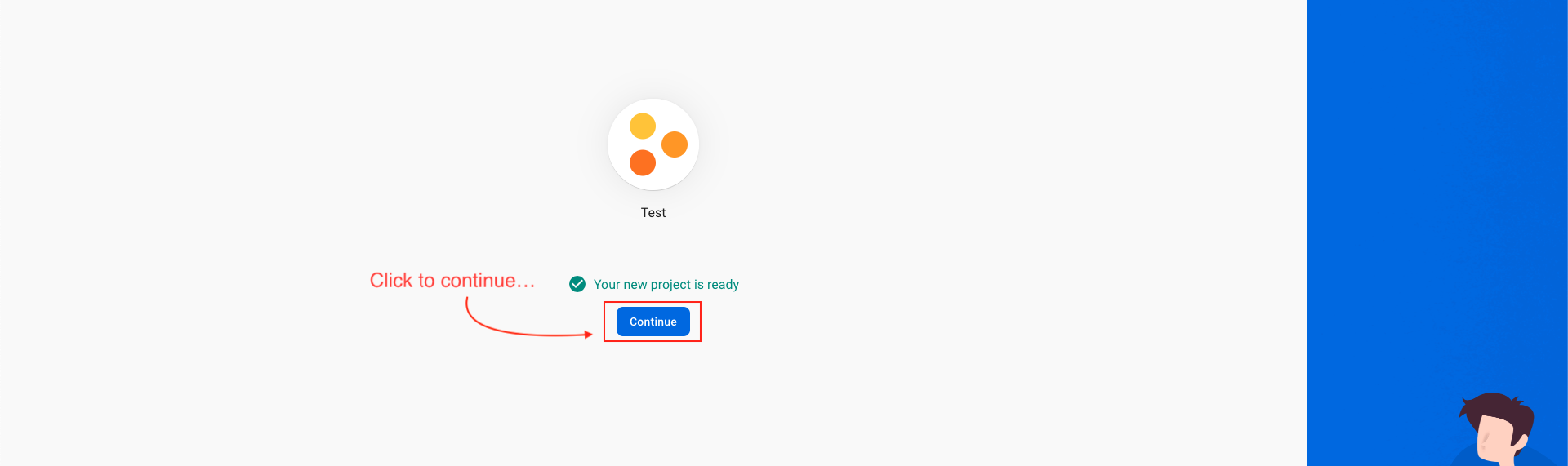
- First, select the default Firebase account, then proceed to create the project.
Download Firebase Private Key
- Here's a step-by-step guide to downloading your Firebase private key in a professional manner:
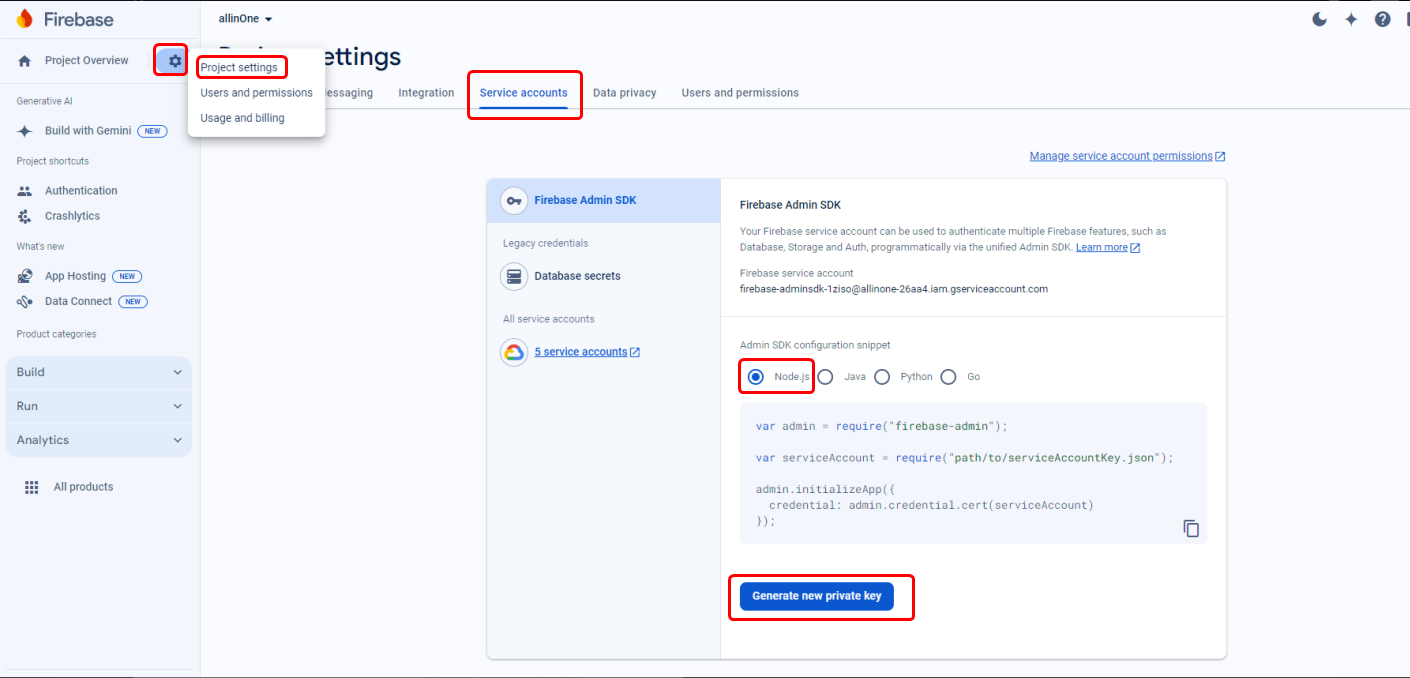
- If you have multiple projects, select the Firebase project for which you need the private key.
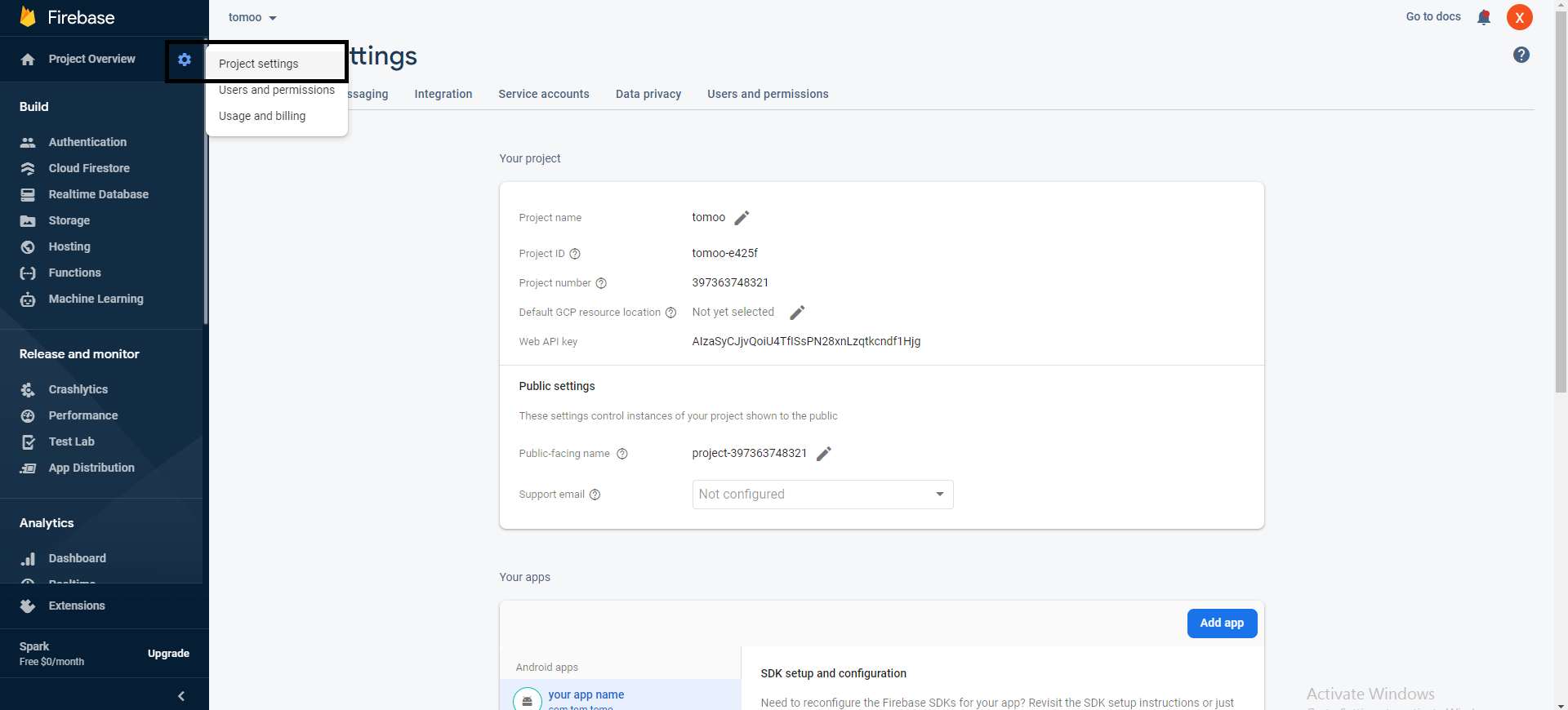
- Click on the gear icon (Settings) next to "Project Overview" on the top left corner of the Firebase Console.
- In the project settings, navigate to the "Service Accounts" tab.
- Scroll down to the "Firebase Admin SDK" section.
- Click on the "Generate New Private Key" button.
- A prompt will appear asking you to confirm your action.
- Once downloaded, store the JSON file containing the private key securely on your local machine.
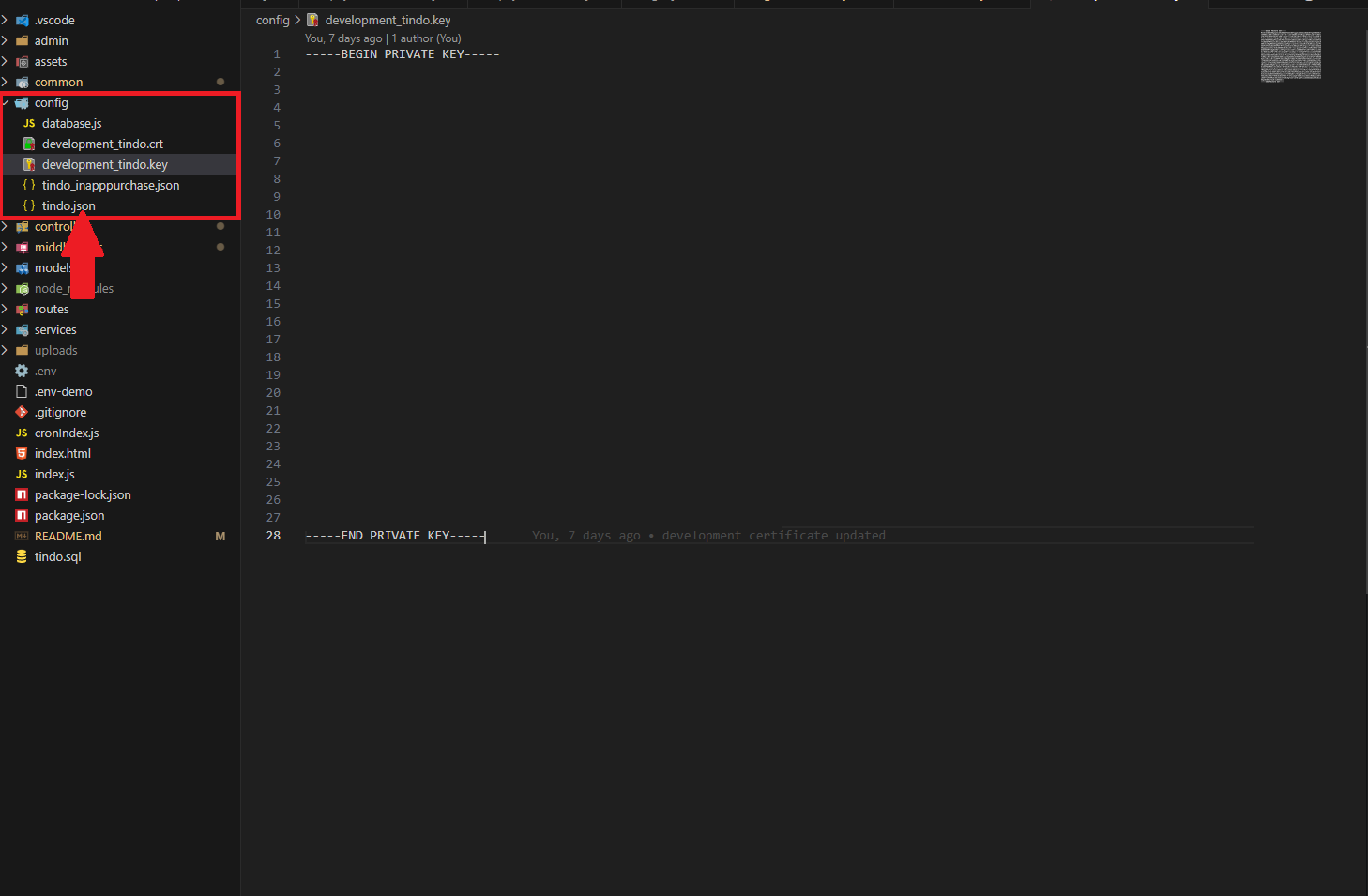
- Please update the downloaded private key file in the 'config' folder of the code and rename it to tindo.json.
Add Android App To Firebase
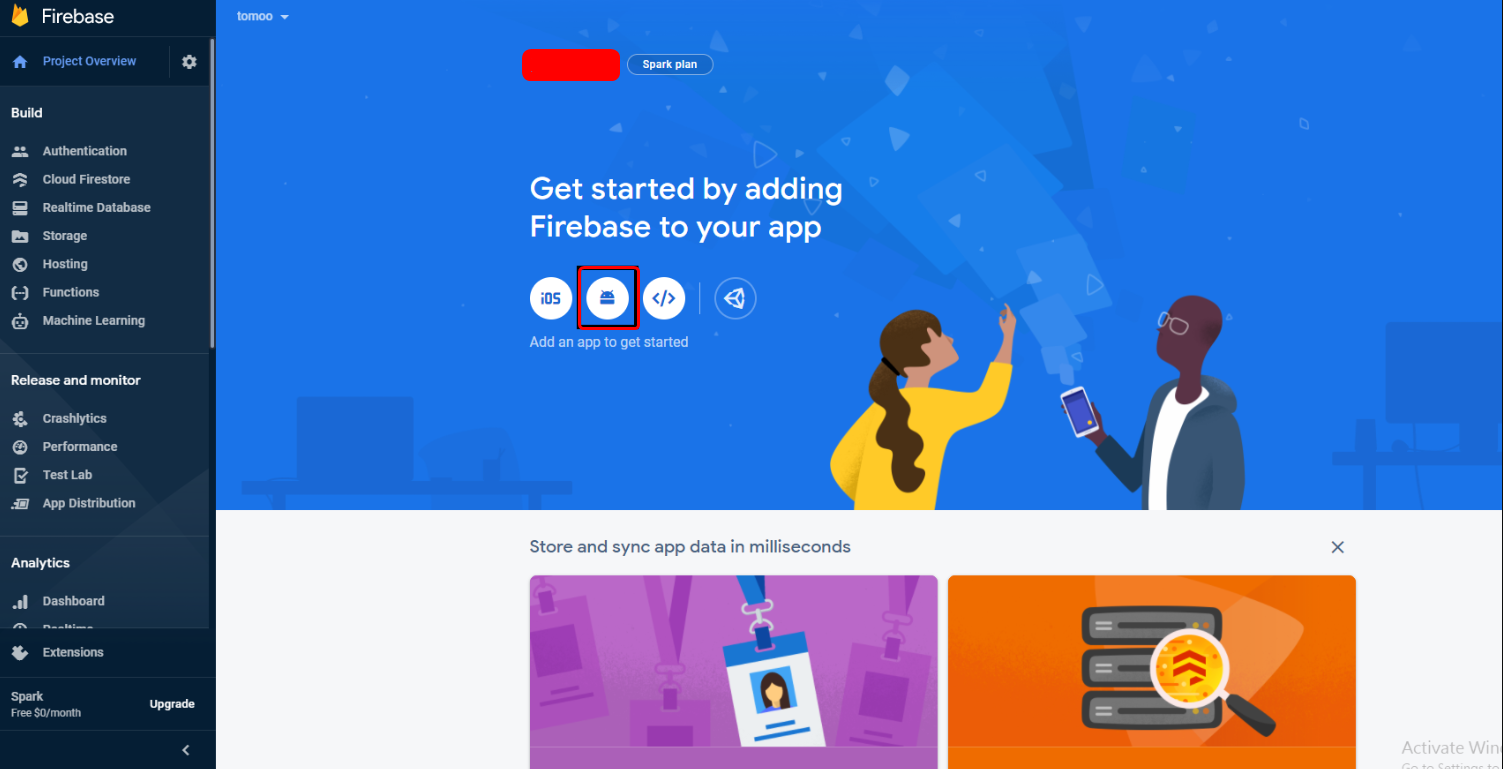
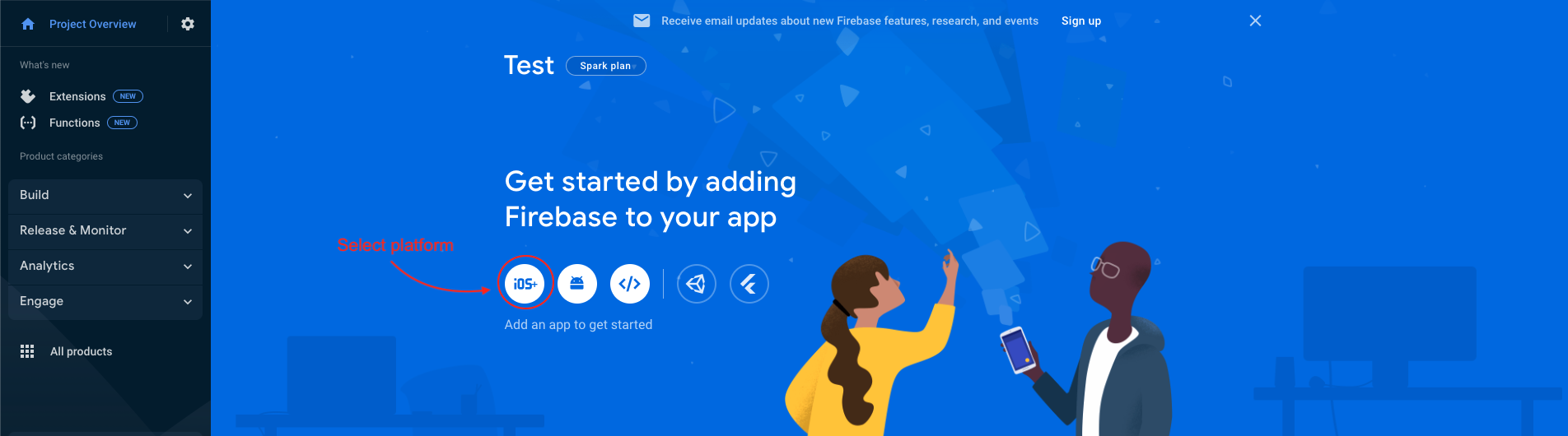
- In the next step, we have to choose the platform to add Firebase to our application. Click on Android.
- The platform can be Android, iOS, Web etc..
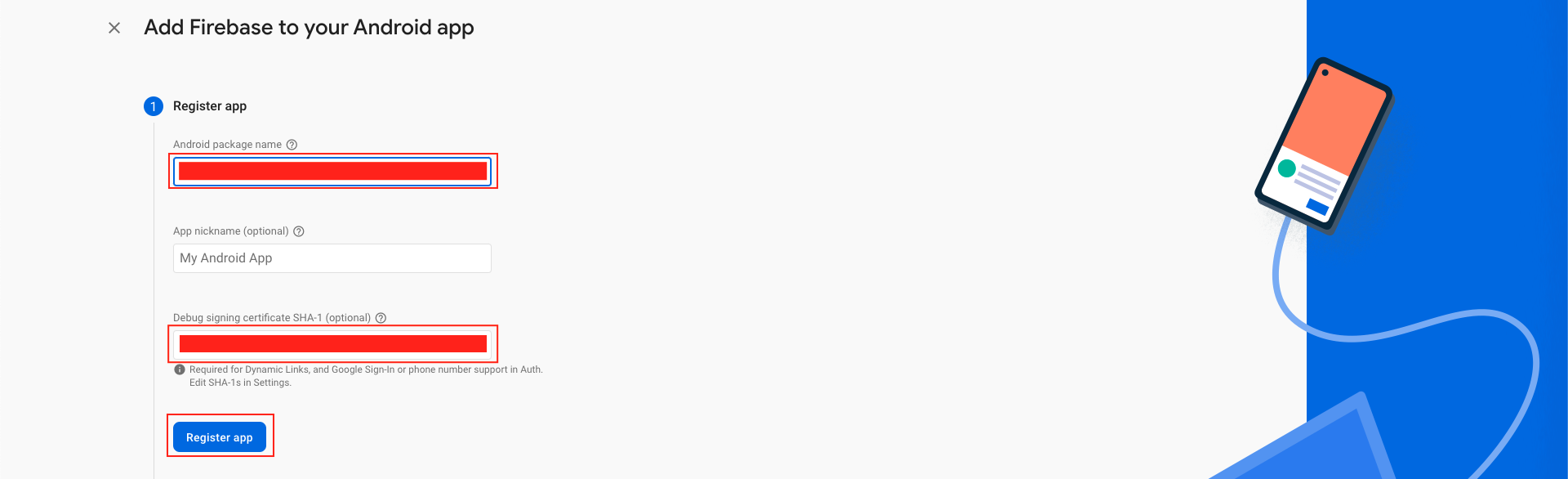
- Your package name is generally the applicationId in your build.gradle (app-level) file
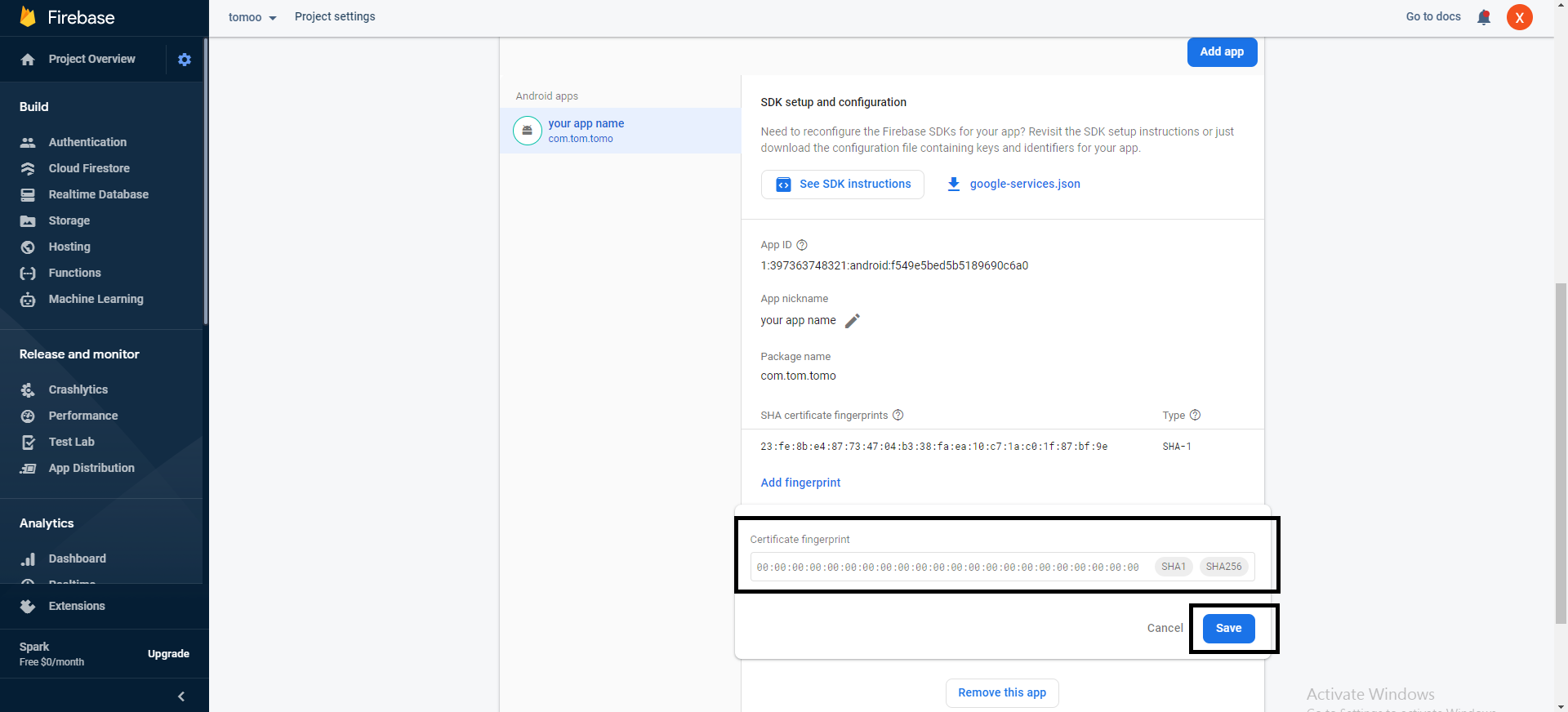
- Refer to thePagefor guidance on utilizing keytool to obtain the SHA-1 hash of your signing certificate.
- Add your applicationid in the first field and SHA-1 to the third field as shown in the image below.
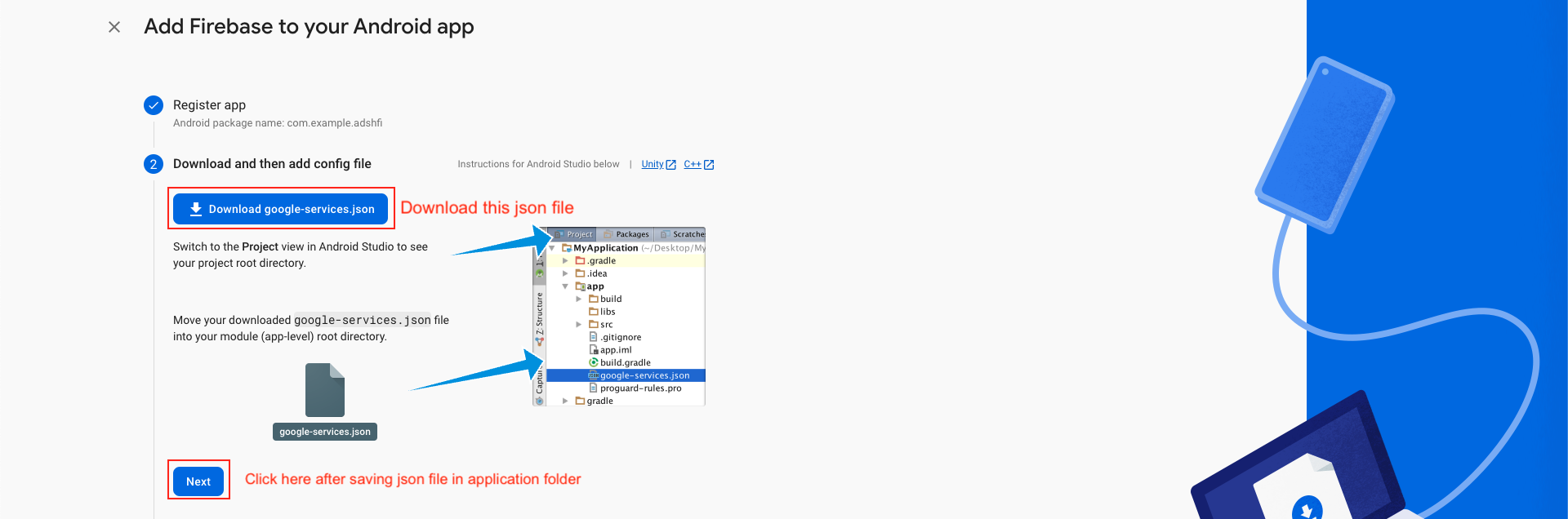
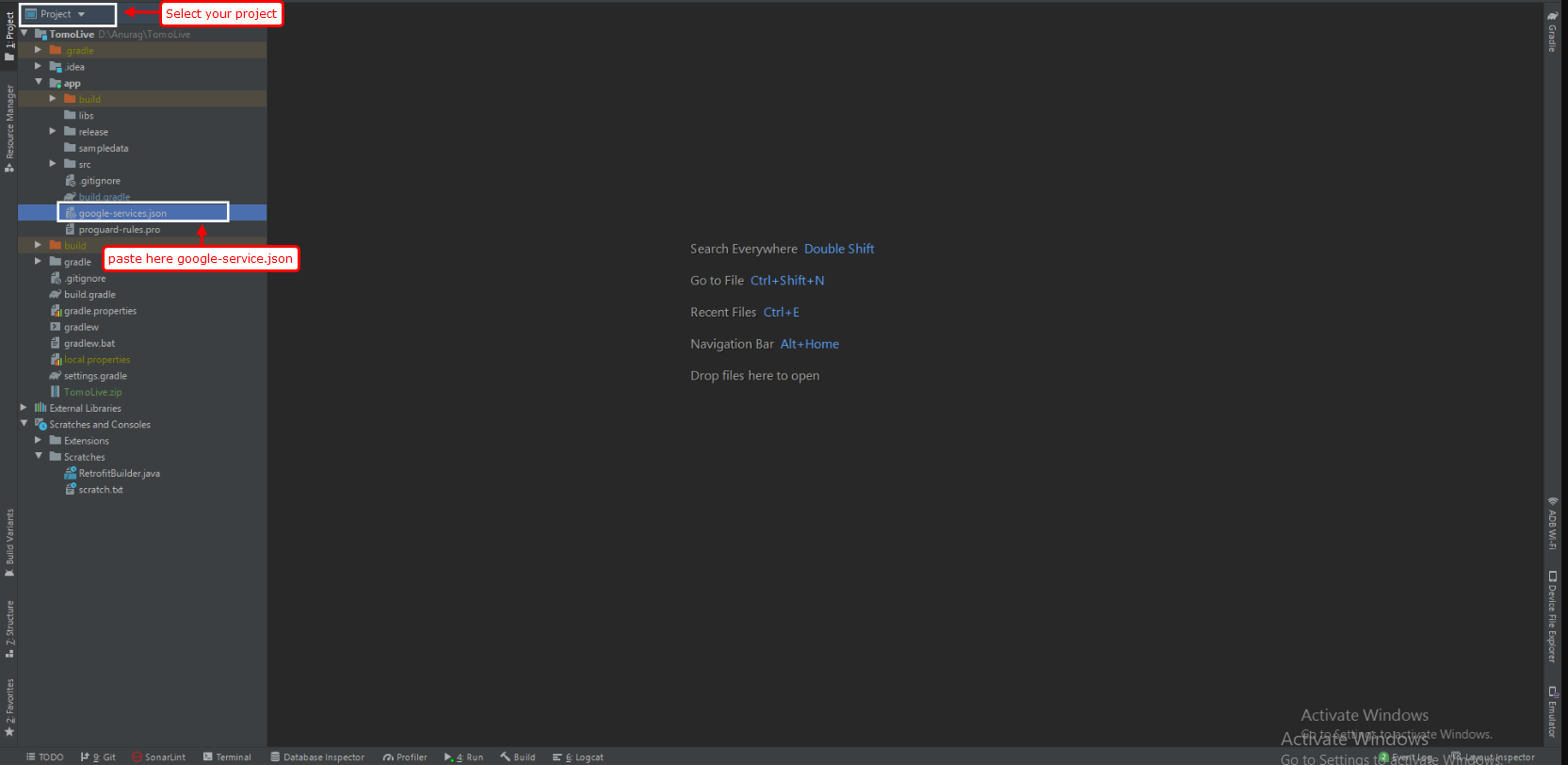
- Download the google-services.json file & place it in your project's app root directory.
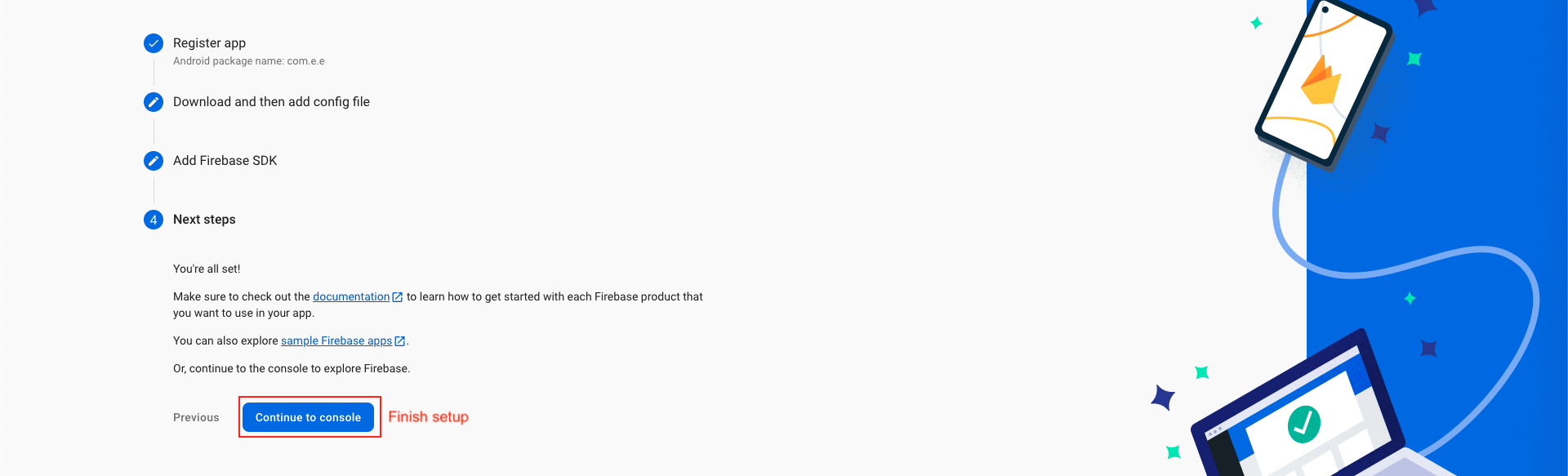
- Back in the Firebase console-setup workflow, click Next to skip the remaining steps and then finish and complete
Step 1 : Enter SHA Key in firebase console
- If you fail to provide the SHA-1 key in the Firebase project, functionalities such as phone login and Google login will be impaired.
- It is essential to add your SHA-1 keys for both debug and live modes to ensure seamless operation.
Add IOS App In Firebase
- we have to choose the platform to add Firebase to our application. Click on iOS.
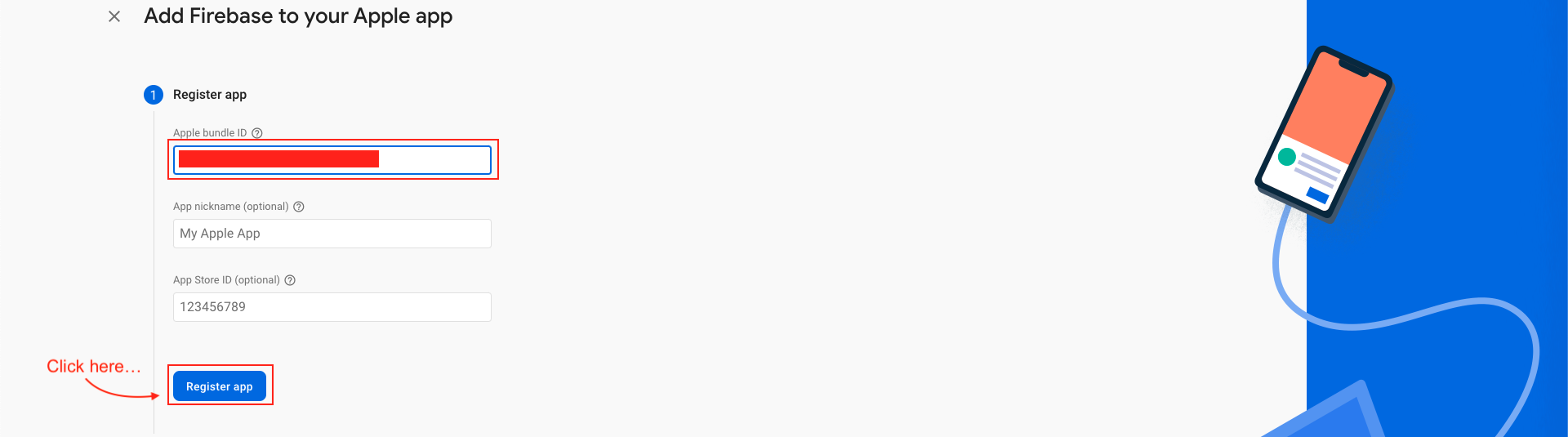
- On the next screen, enter your iOS bundle ID & App nickname and click on Register App. You can find your bundle ID in the General tab for your app's primary target in Xcode. If specified, the app nickname will be used throughout the Firebase console to represent this app. Nicknames aren't visible to users.
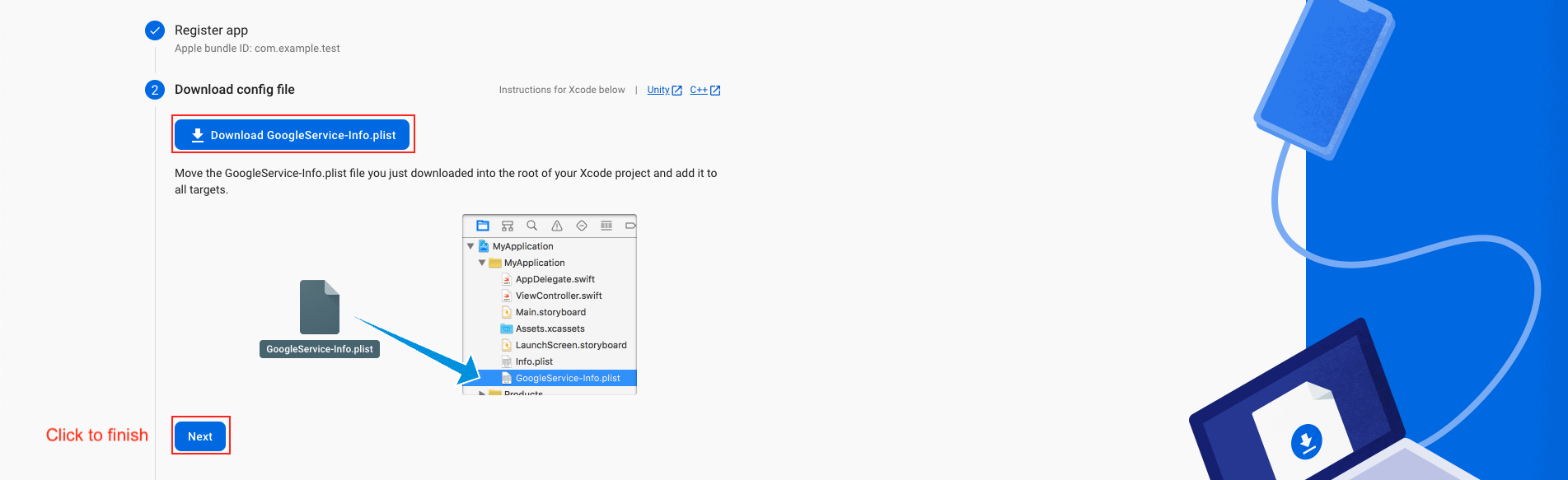
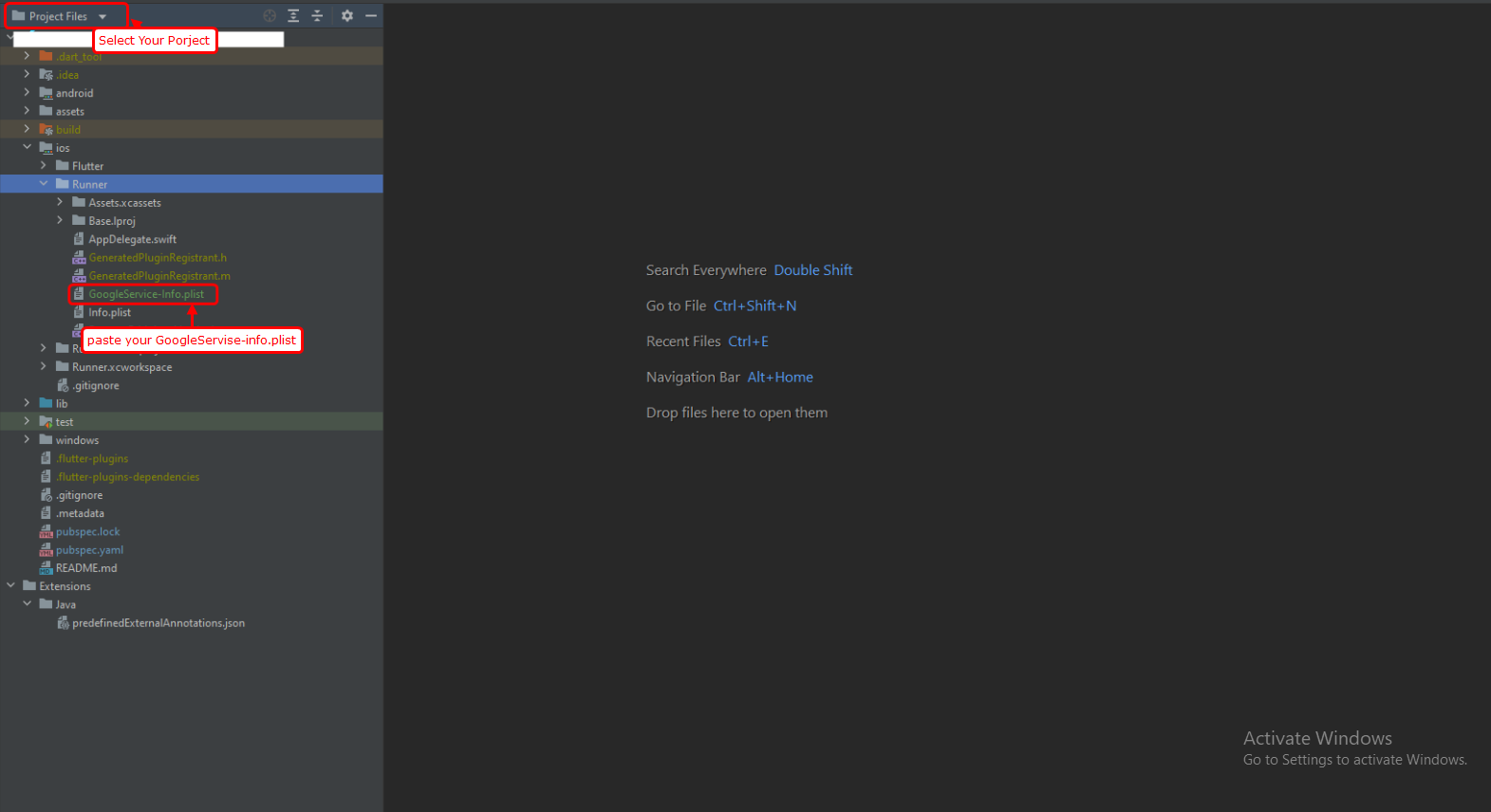
- Download the GoogleService-Info.plist file & move the GoogleService-Info.plist file you just downloaded into the root of your Xcode project and add it to all targets.
- Back in the Firebase console-setup workflow, click Next to skip the remaining steps and then finish and complete
- If you fail to provide the SHA-1 key in the Firebase project, functionalities such as phone login and Google login will be impaired.
- It is essential to add your SHA-1 keys for both debug and live modes to ensure seamless operation.
Step 1 : Enter SHA Key in firebase console
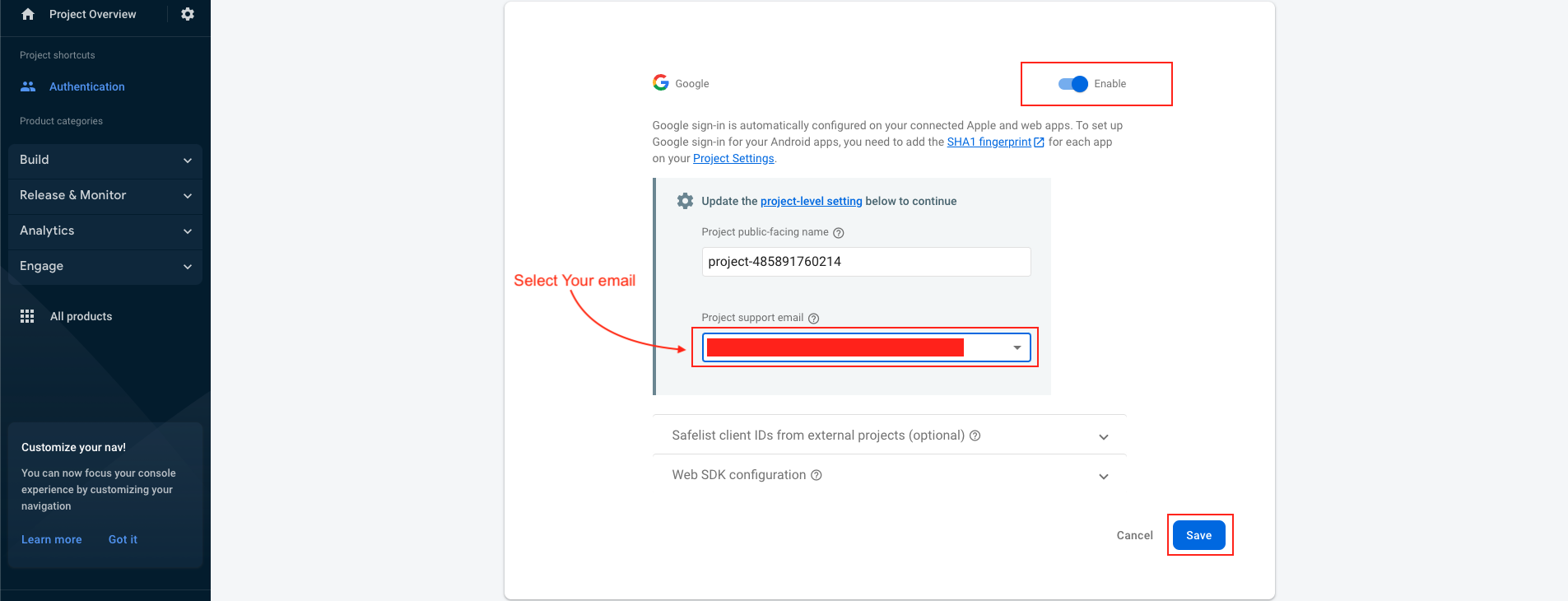
Google Sign In Configuration
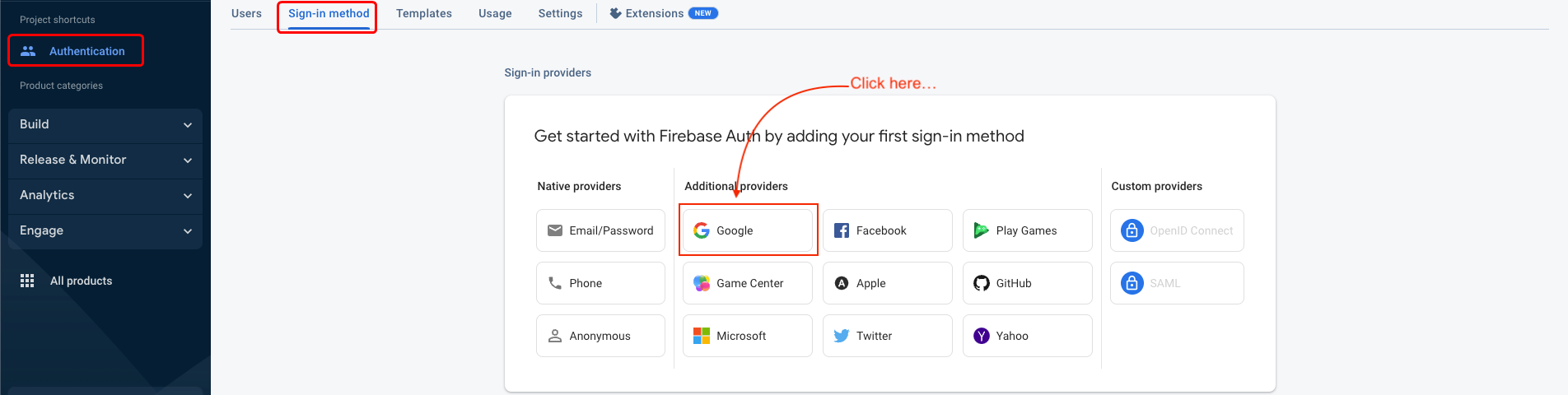
- Navigate to the "Authentication" section and select the "Sign-in method" tab.
- Click to Enable
- Select your support email and save
- Google sign-in method has been successfully enabled.

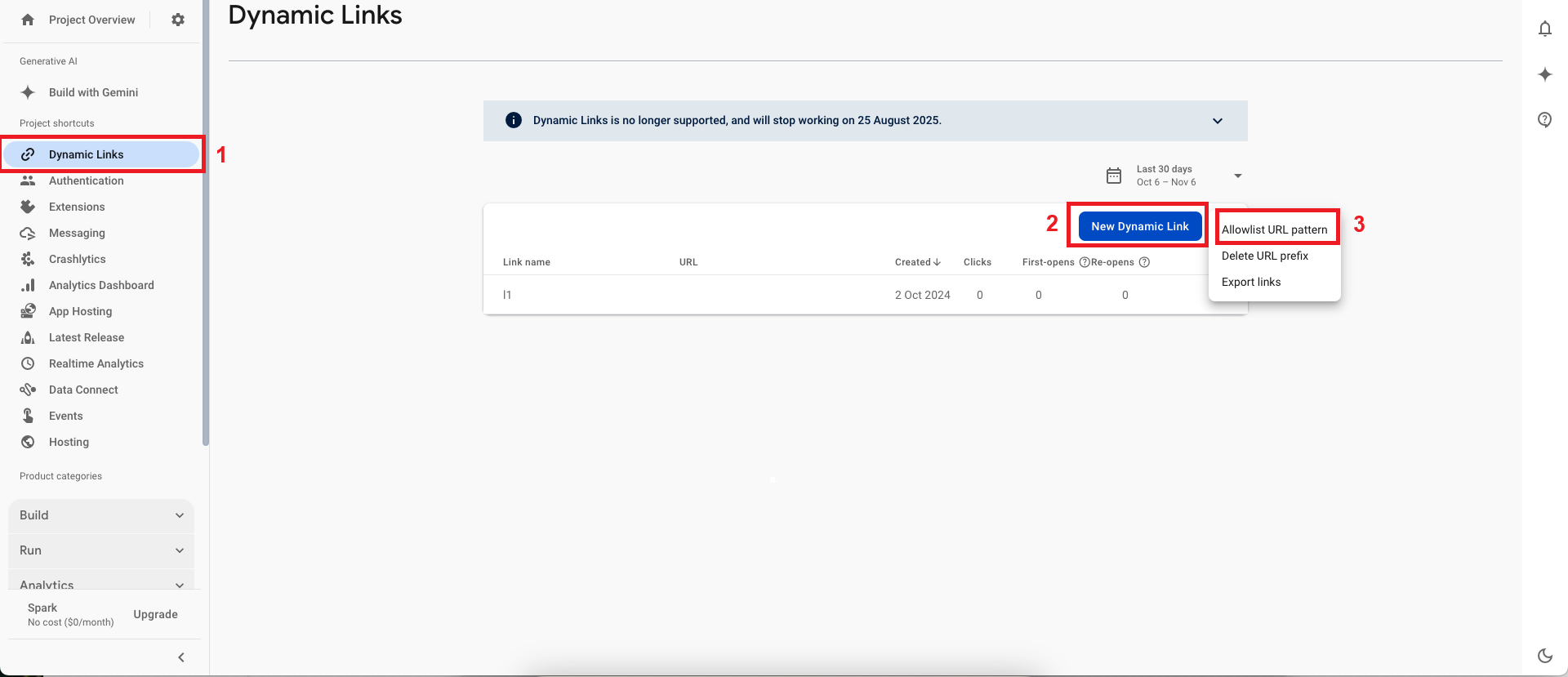
Dynamic Links Configuration
- Navigate to the "Dynamic Links" section and click the three dots.
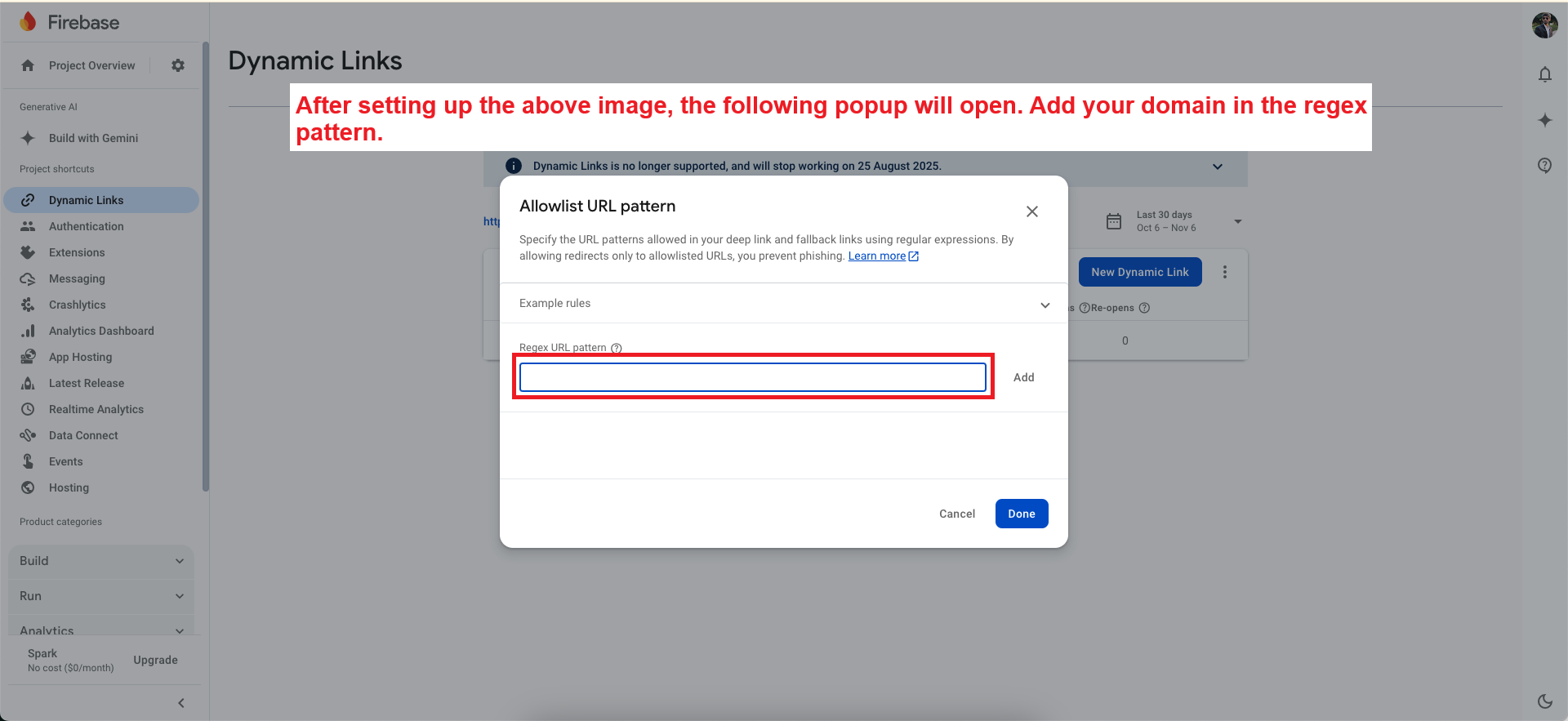
- Click to Allowlist URL pattern
- In Regex URL pattern add your domain same as below example
Create APNs Auth Key For Push Notification
- Navigate to https://developer.apple.com/account.
- Log in using your Apple developer credentials.
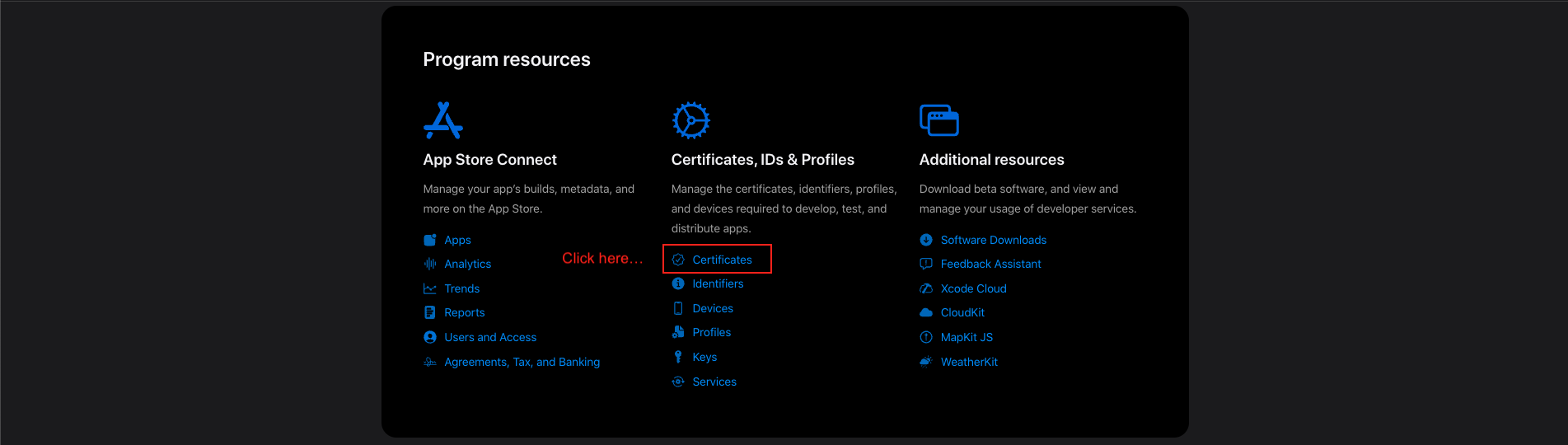
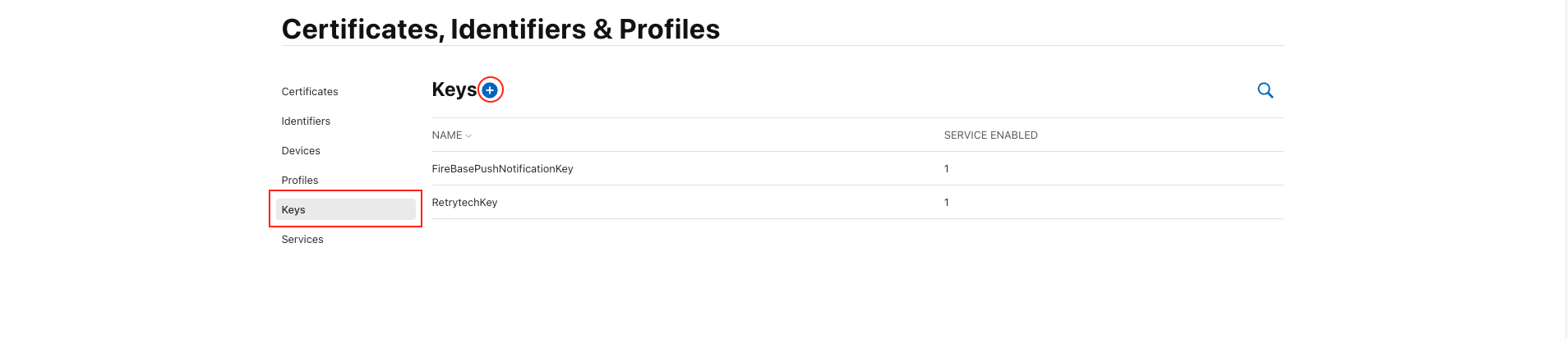
- Obtain a provider certificate from your developer account. This can be found in the "Certificates" section, as depicted in the image below.
- Select the "Certificate, IDs & Profiles" tab.
- Select the "Keys" tab.
- Click on the "+" button.
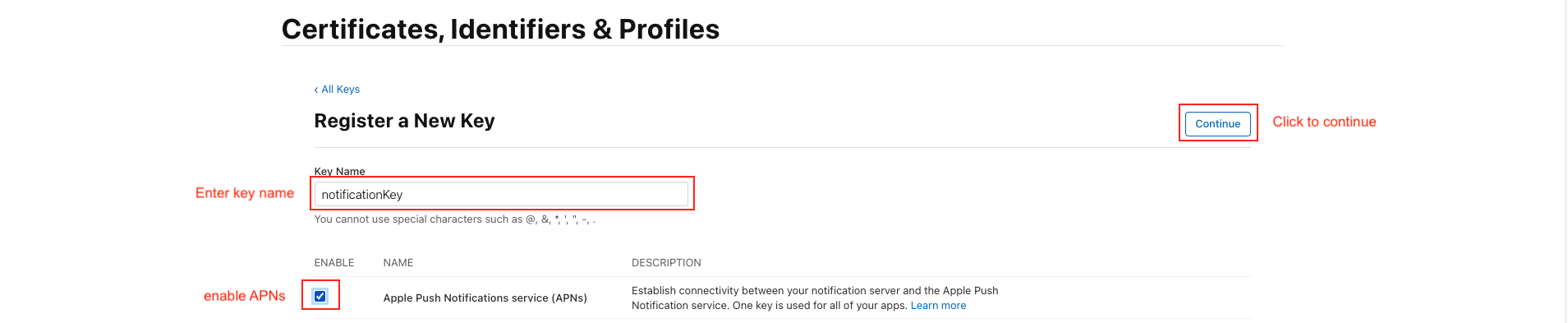
- A key can be generated which gives the FCM full access over the Apple Push Notification service (APNs). On the "Keys" menu item, register a new key. The name of the key can be anything, however you must ensure the APNs service is enabled.
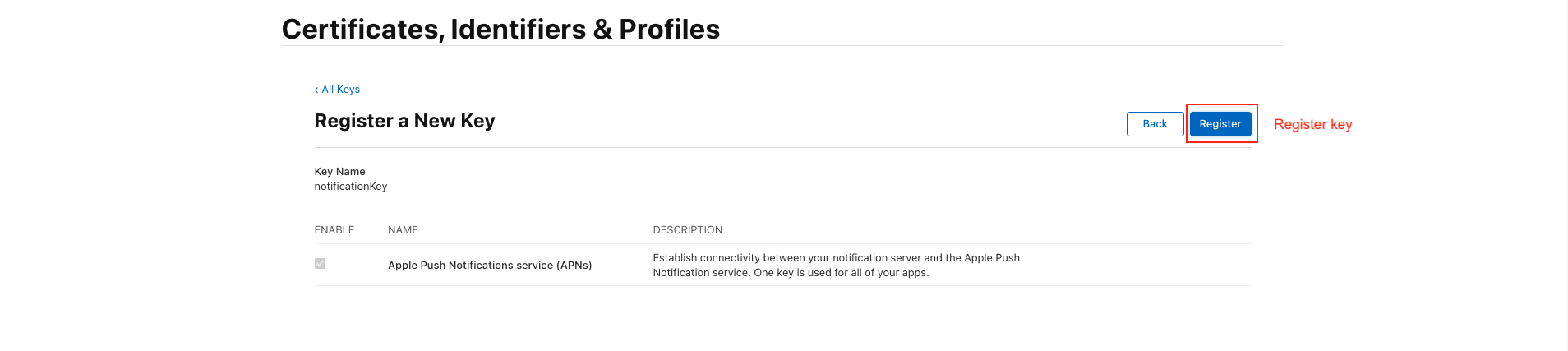
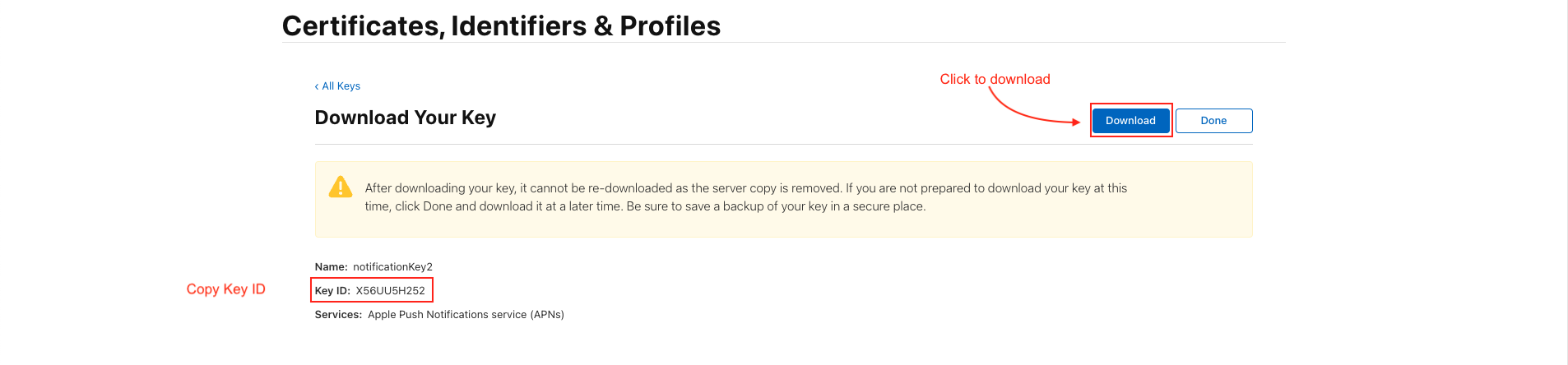
- Click "Continue" & then "Save". Once saved, you will be presented with a screen displaying the private "Key ID" & the ability to download the key. Copy the ID, and download the file to your local machine.
- Copy the Key ID and download the file.
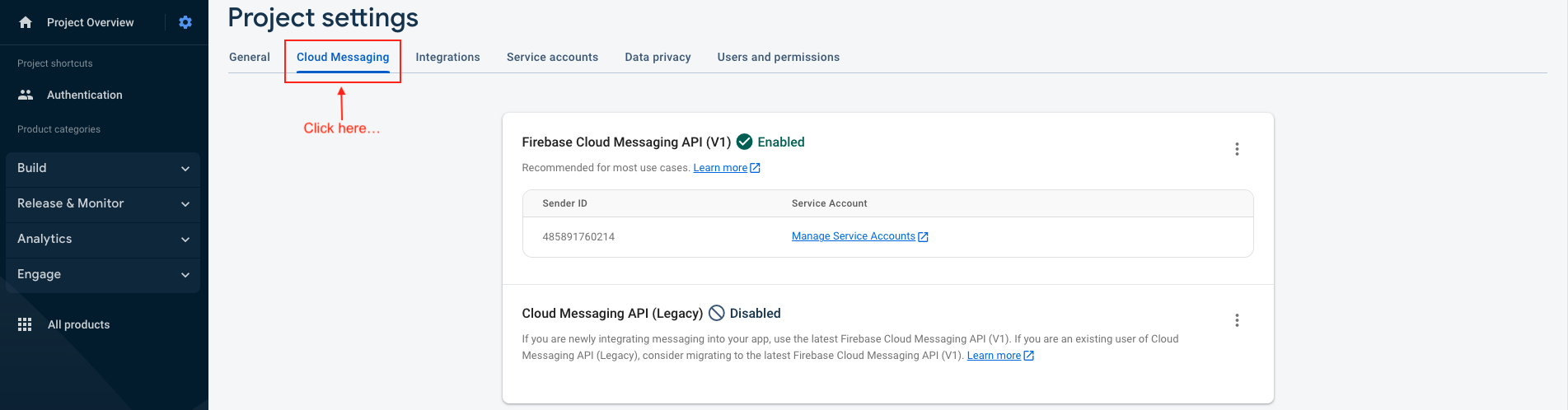
- The file & Key ID can now be added to your Firebase Project. On the Firebase Console, navigate to the "Project settings" and select the "Cloud Messaging" tab. Select your iOS application under the "iOS app configuration" heading.s
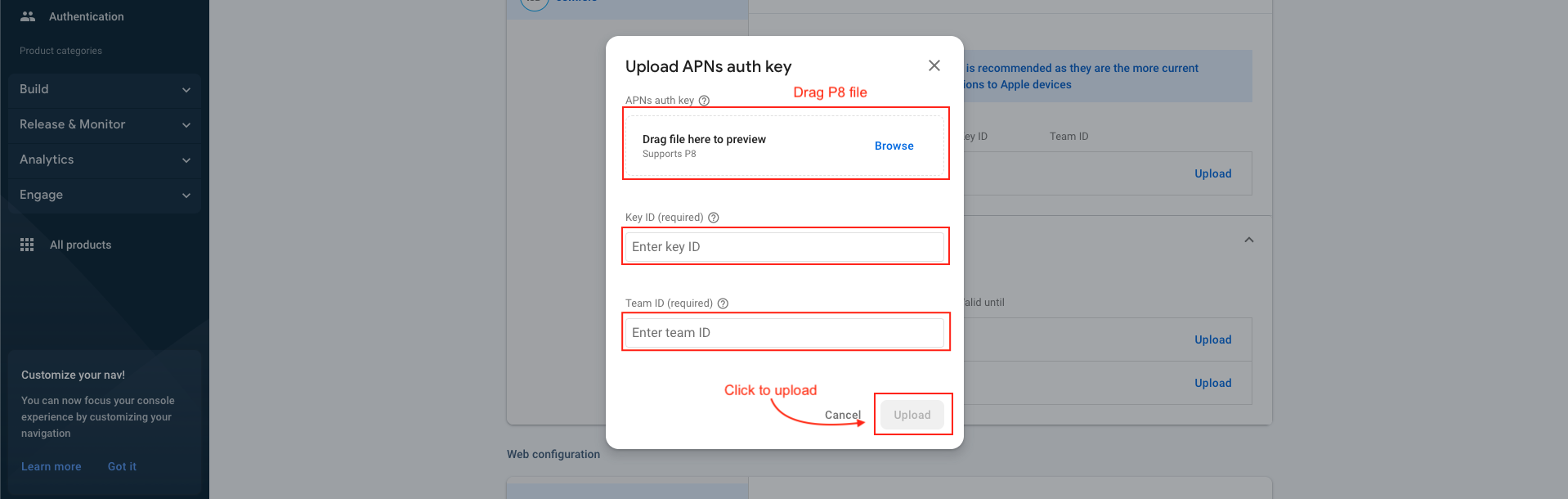
- Upload the downloaded file and enter the Key & Team IDs;

Adjust Configuration
Step 1 : Adjust Setup
- Navigate to https://www.adjust.com/.
- Log in using your Adjust credentials.
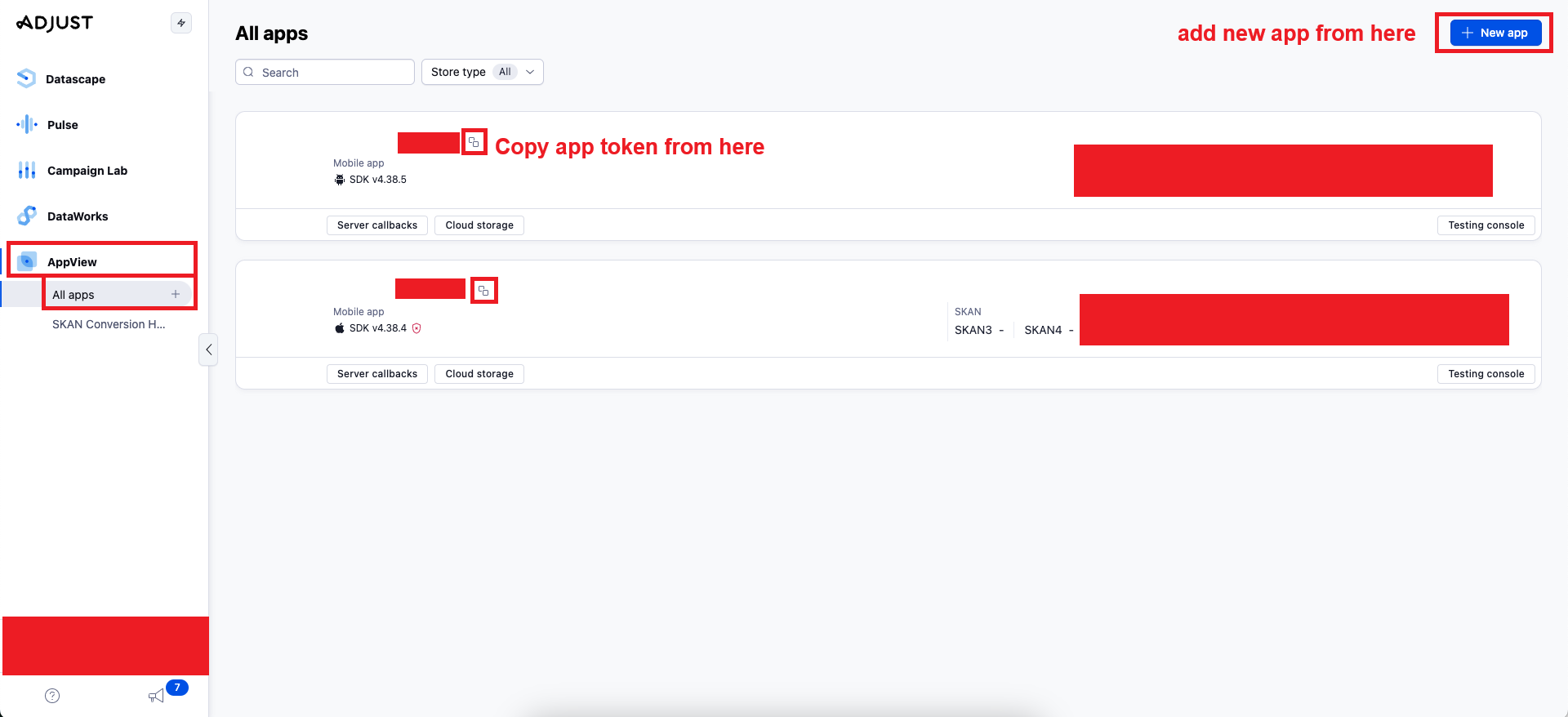
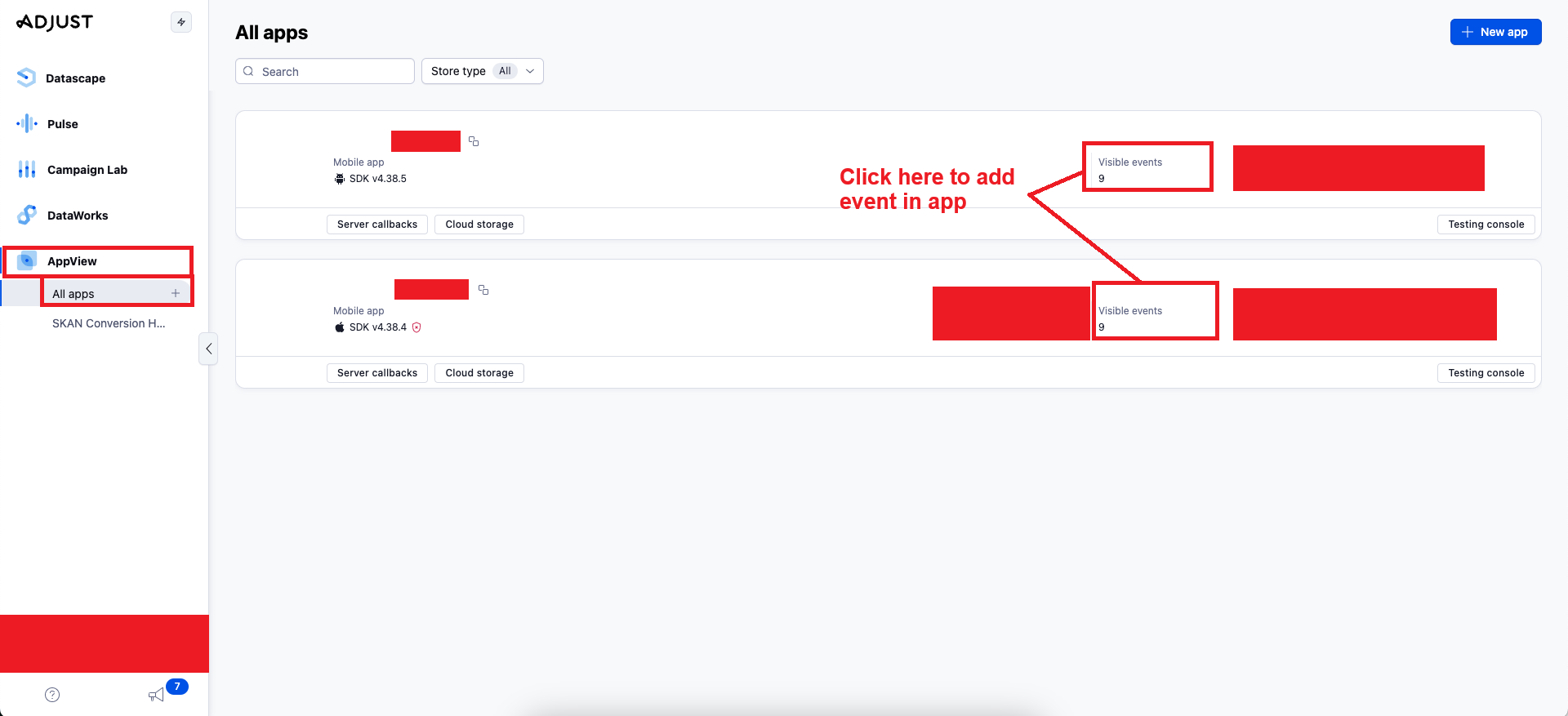
- Navigate to the "App View" section and select the "All apps" tab.
- Once your App is created, copy the App token for future use.
Step 2 : Adjust Event Setup (For Example)
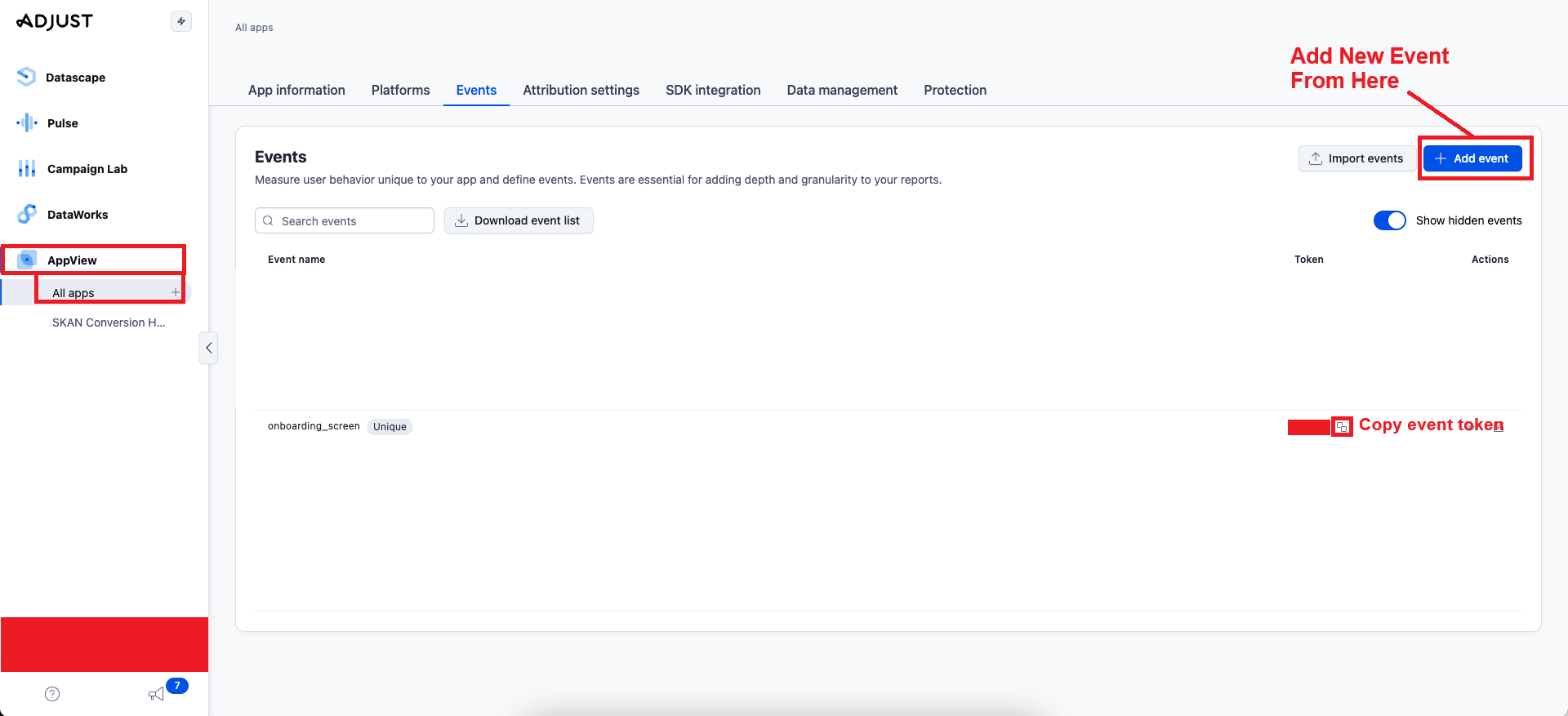
- Click to the "Visible events" tab.
- Click to the "Add Event" button on top right and fill the detail.
- Once your event is created, copy the event token for future use.
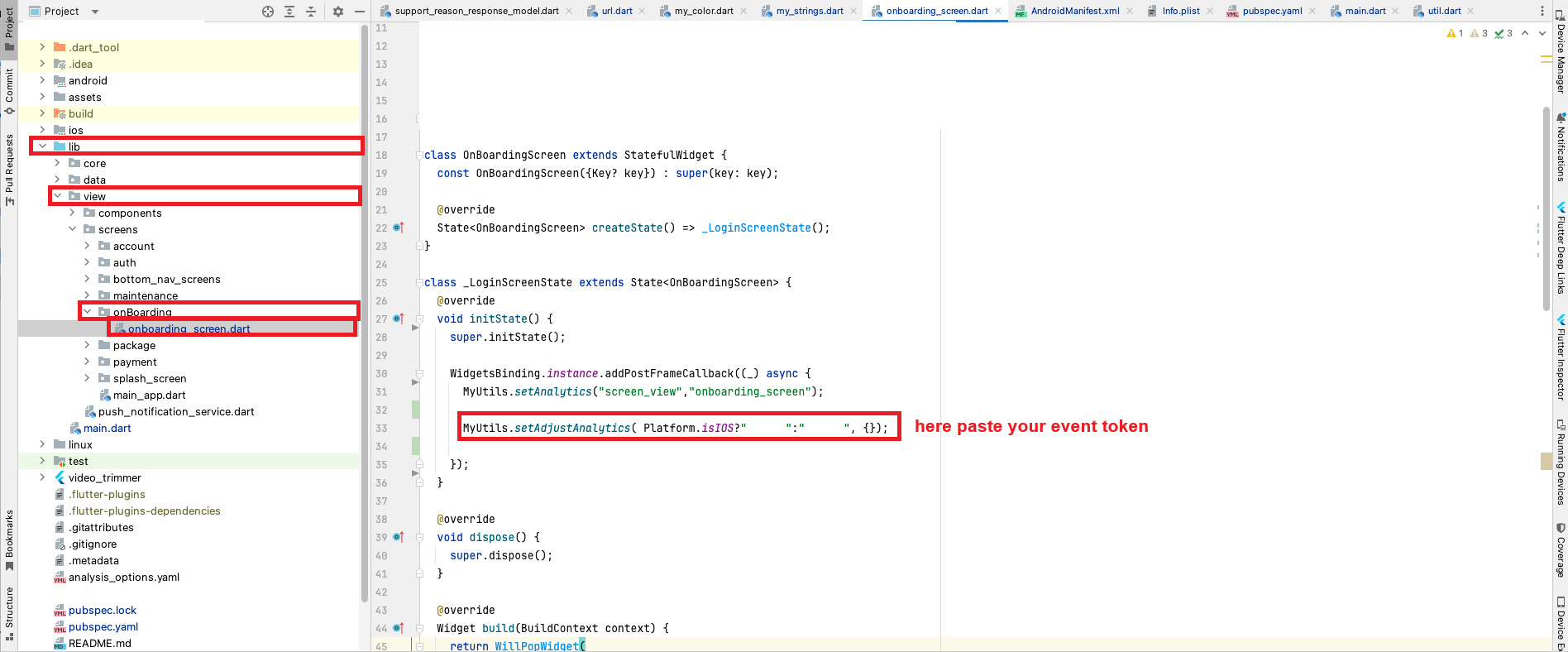
- Paste copied event token on particular screen.
Facebook Event Configuration
- Navigate to https://developers.facebook.com/.
- Log in using your Facebook credentials.
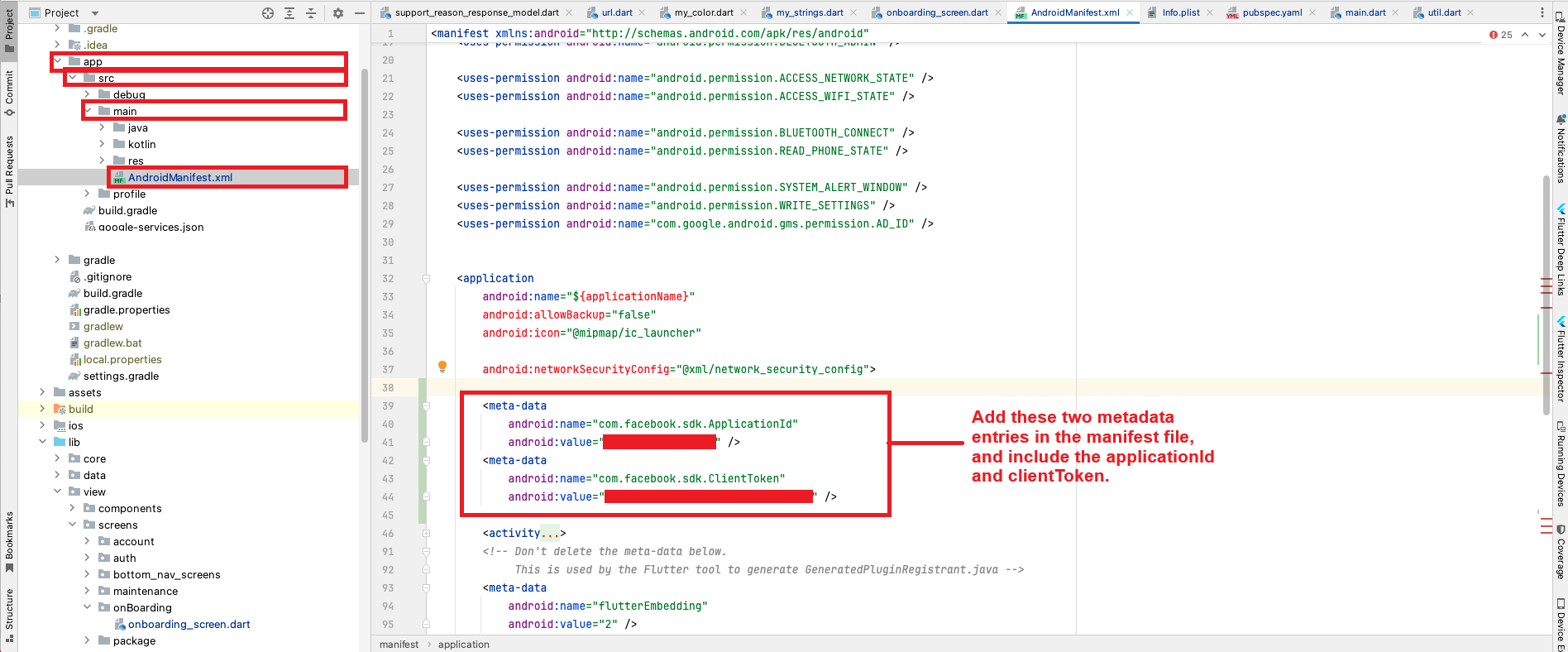
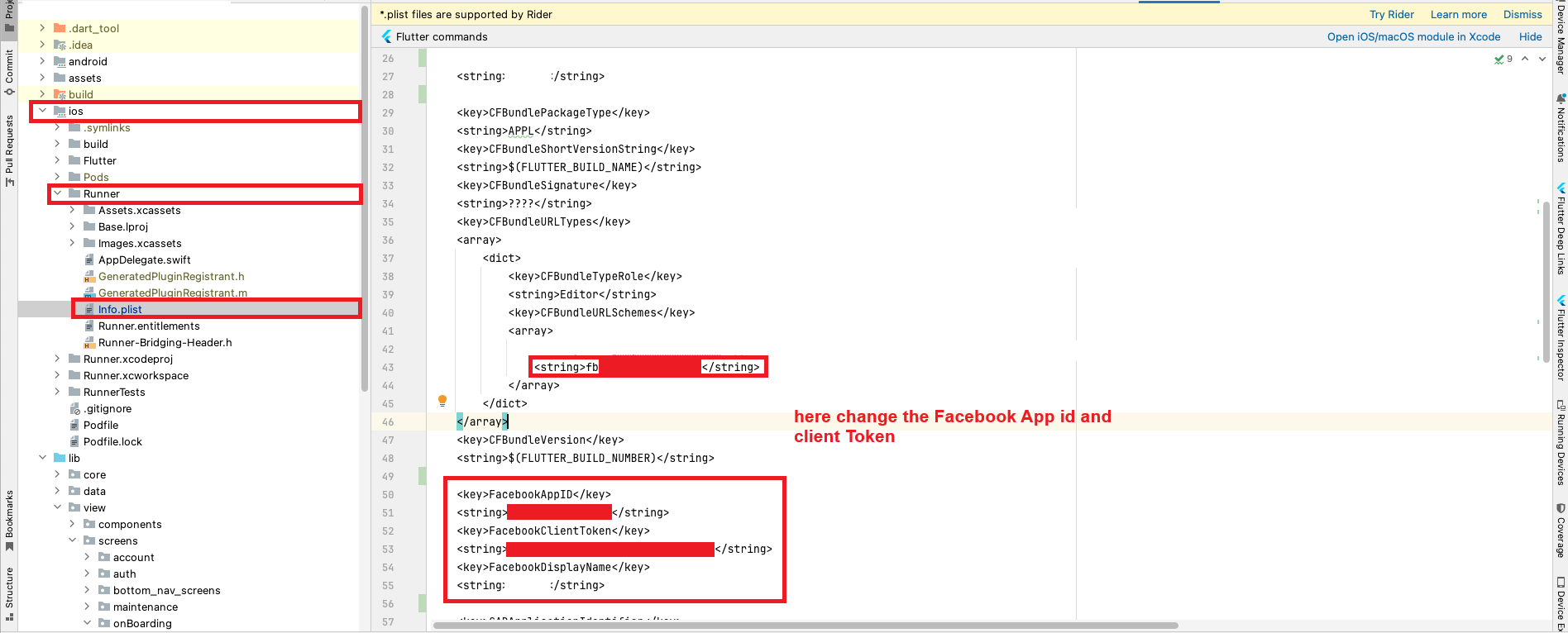
- Get your app id and client token. See "Facebook Doc: Client Tokens" for more information and how to obtain it. Android
 IOS
IOS
In App Purchase Configuration
Android
Step 1:
-
Publish Android App (mandatory)
- Pricing and distribution.
- Enter details in mandatory field.
- After you filled these 4 necessary blocks. You can roll-out your application (make sure you have filled all mandatory fields otherwise you will not be able to roll-out.)
- For more info: https://support.google.com/googleplay/android-developer/answer/113469?hl=en
- It will take some time to available live on Google play store for testing (1 to 2 days approx).
Step 2:
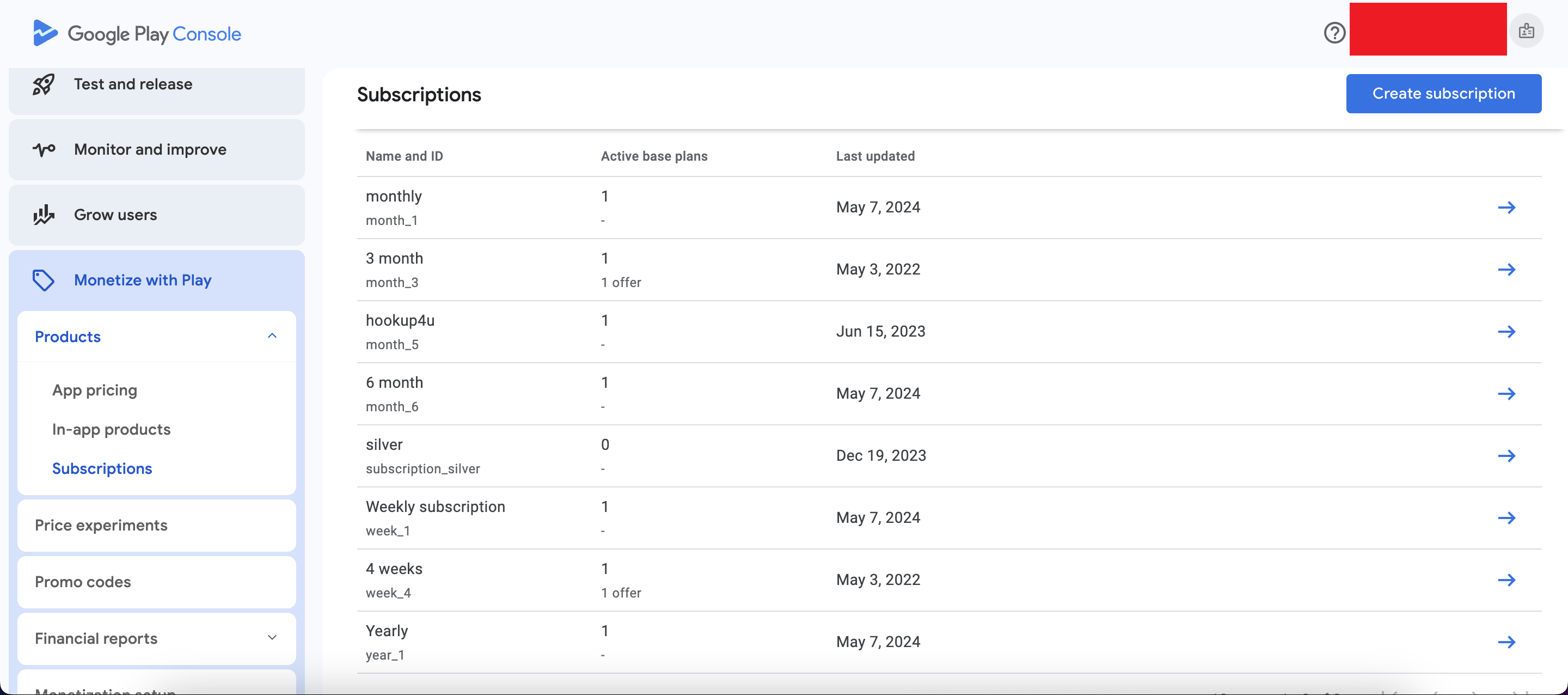
- Enter field’s requirements as per your choice (Product ID, name, description, price, free trail etc). Save and activate the subscription.
After App is live you will see the option of in-app products on Google play console under App<title>>Store presence>in-app products>Subscriptions>Manage subscriptions>Create Subscription
Note: you need to setup a merchant account for create subscription otherwise you will not able to create subscription (you will see a message under Subscriptions to create a merchant account if you have not created yet).
Create subscriptions
Step 3:
Note: You need to setup your admin panel first to activate the in app packages.Setup Admin panel
After setup admin panel successfully..
Go to project admin panel and open side Nav bar > plugins > site pricing > add new one
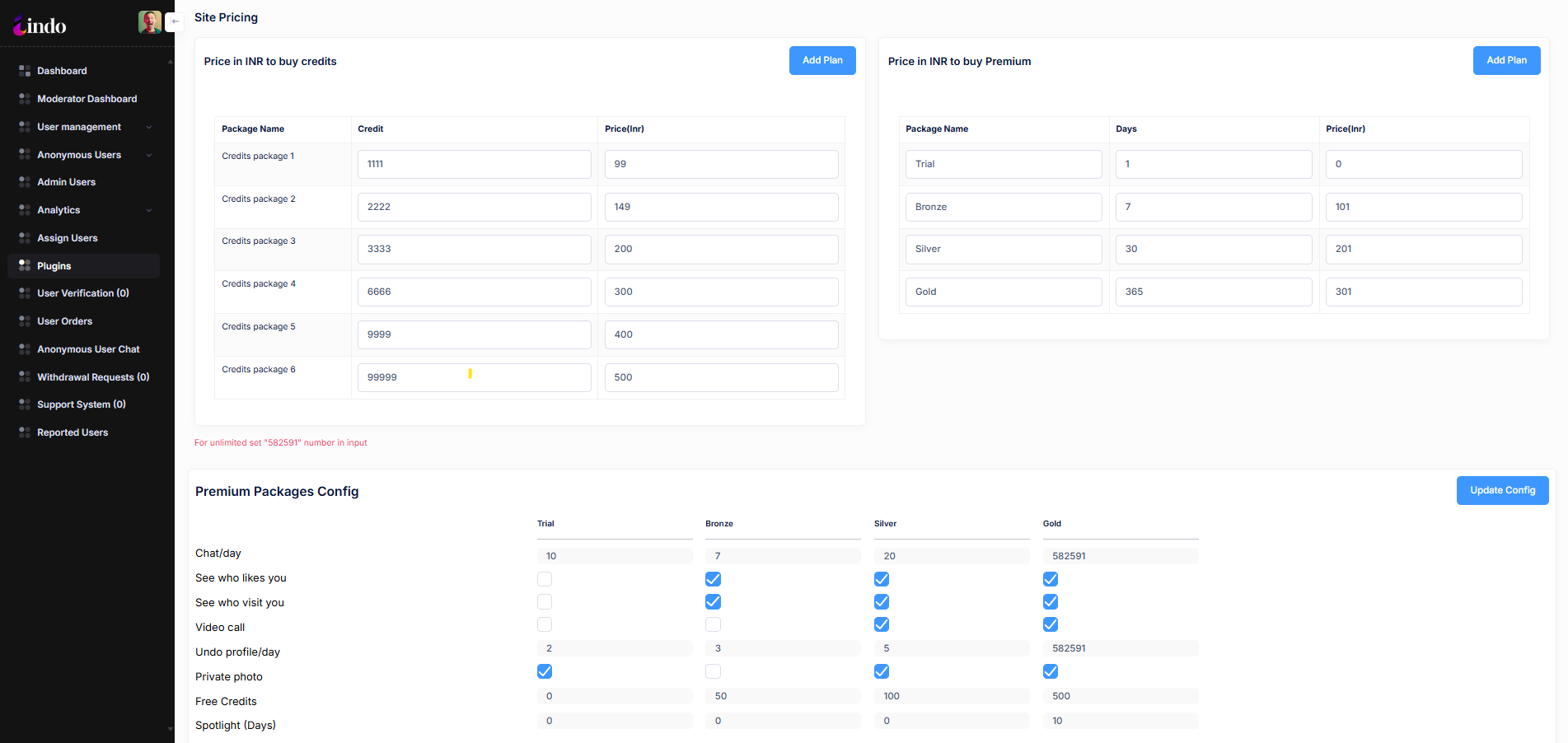
After add new subscription you can check in your app the product will appear. And then you can make test payments.
Thats all, for in app purchase.
IOS
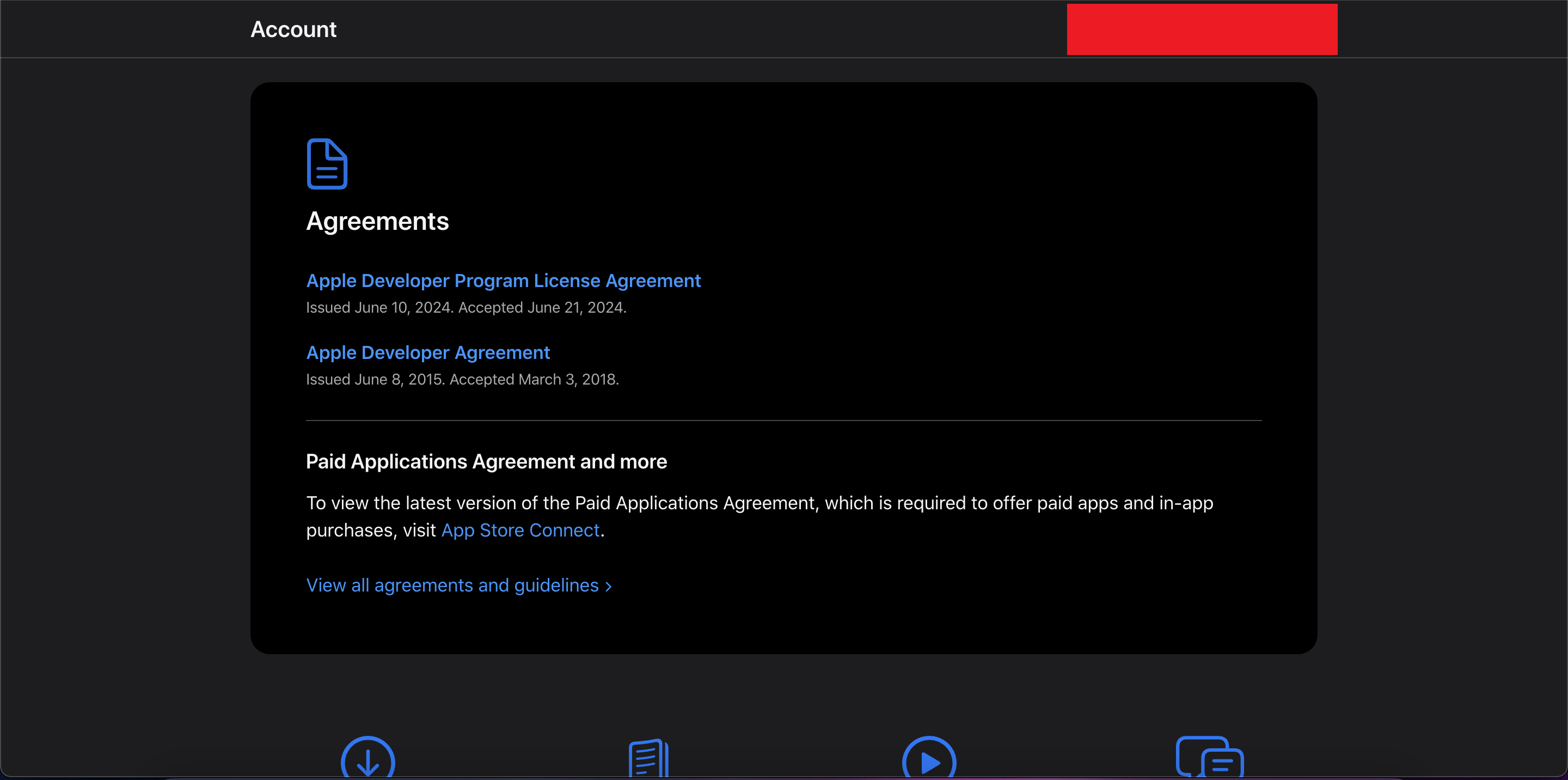
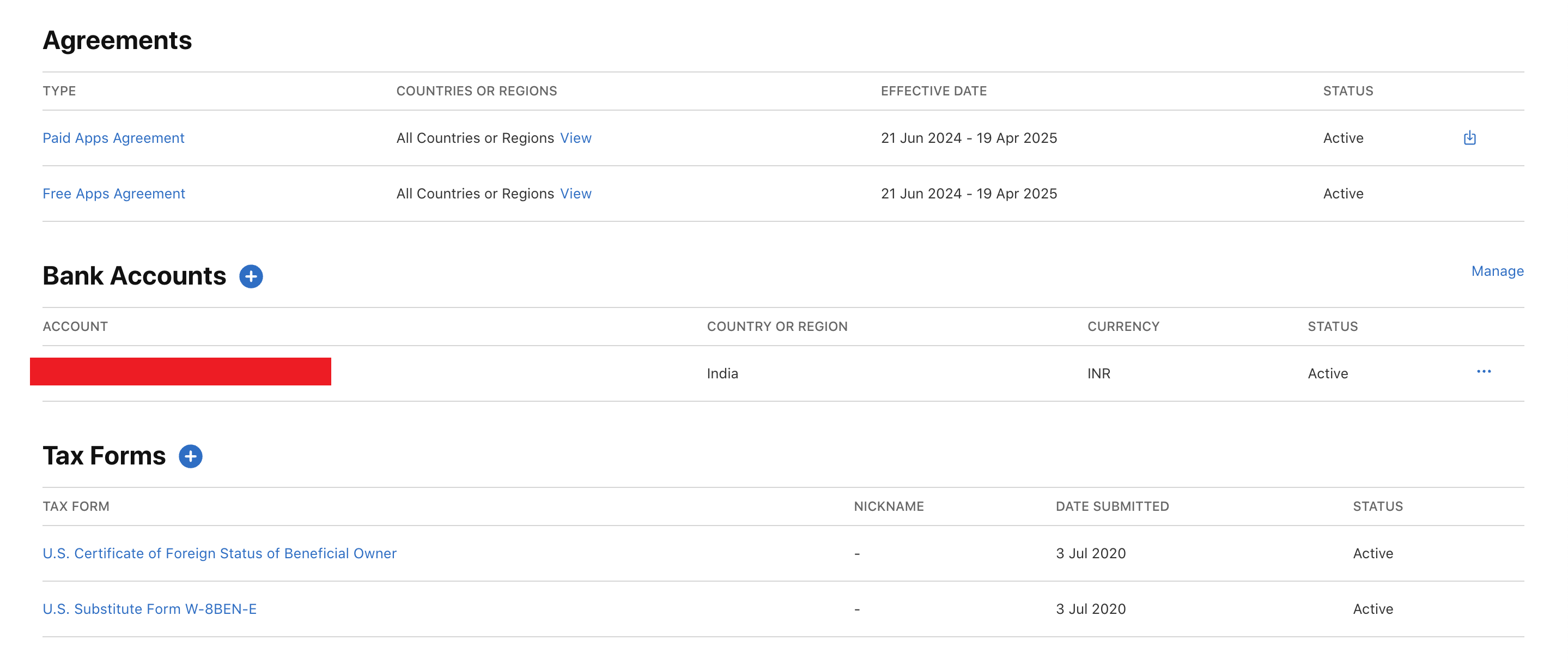
For using Auto Renewable Subscription,you are required by Apple to request and fill out their Paid Applications contract.
- Log into your App Store Connect account here:https://appstoreconnect.apple.com/
- Go to the Agreements, Tax, and Banking In this section, you will see the ability to request the Paid Applications contract towards the top of the page.
- Request and fill out the Paid Applications contract. If any of these are not filled out, the In-App Purchases will not work.
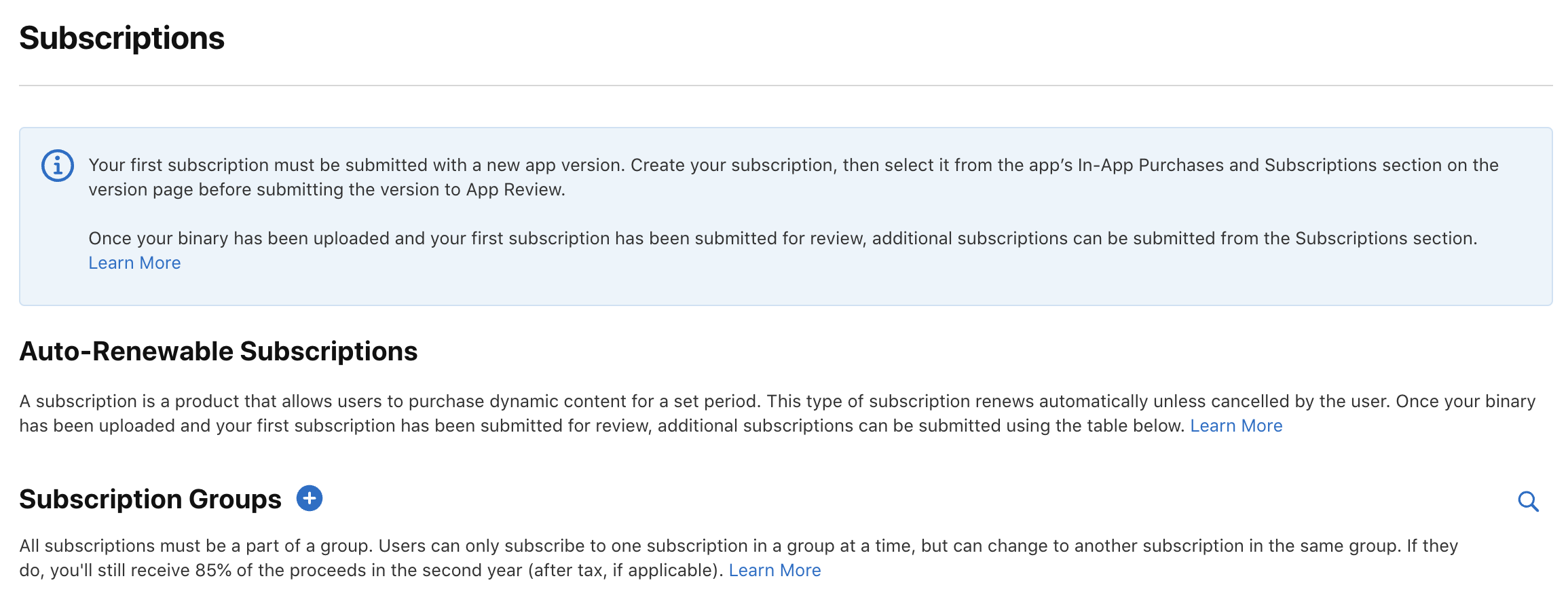
- Navigate to the app page section and select ‘Subscriptions’ in Monetization section and select + to add
- After creating Auto-Renewable subscription group select the subscription group and create different subscription.
- Adding Values to IAP
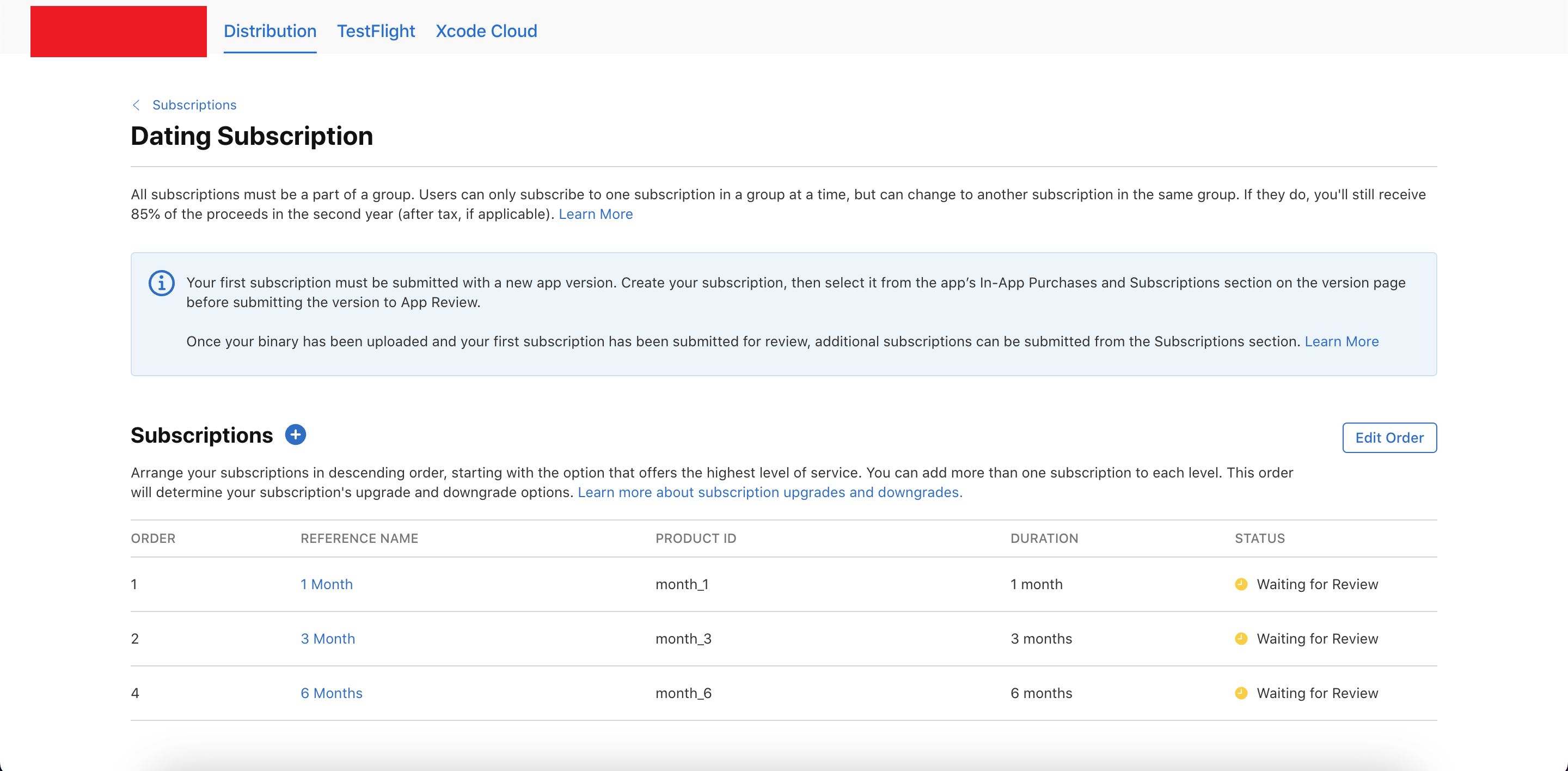
- Reference Name : The reference name will be used on iTunes Connect and in Sales and Trends reports. It won’t be displayed on the App Store. The name cannot be longer than 64 characters.
- Product ID : A unique alphanumeric ID that will be used for reporting.
- Click Next and you will ask to create Create Subscription Group
- Subscription Group Reference Name : The subscription group reference name will only appear on iTunes Connect and in Sales and Trends reports. It won’t appear on the App Store.
- Click on Create will create the subscription group and in-app purchase product. This process will take some time to create the product
After creating the product we have to configure the in-app by giving these information on the in-app configuration screen
Check the Clear for sale box
- Select the duration from drop-down
- Select Subscription Prices
- Add Localization
- App Store Promotion (Optional)
- Review Information: Screenshot, Review Notes
RevenueCat Configuration
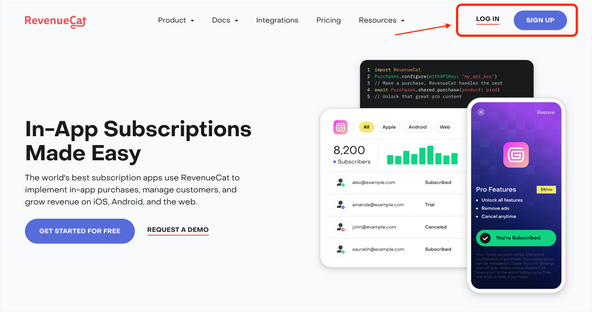
Step : 1 Connect With RevenueCat
- Navigate to https://www.revenuecat.com/.
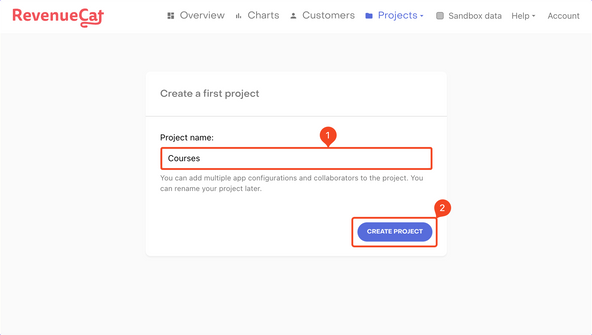
- If you have created a new account, you will be automatically prompted to create your first project. Enter a Project name and click "CREATE PROJECT" button.
- Next, you need to add your Android and iOS apps to RevenueCat in order to use and manage the subscriptions.
Step : 2 Adding Android App
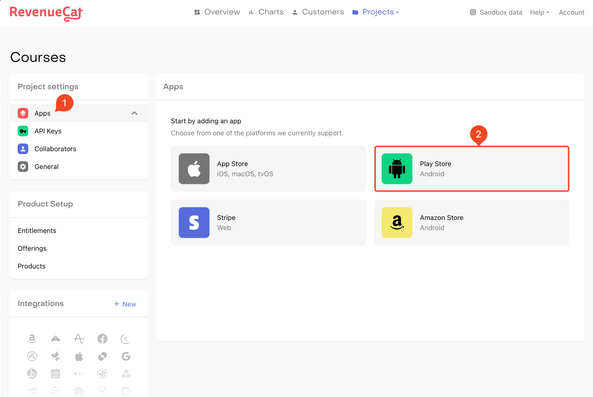
- Go to Apps under Project settings (from the left menu). Select Play Store
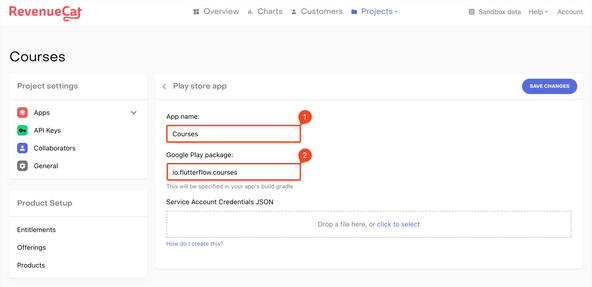
- Enter the App name and the package ID.
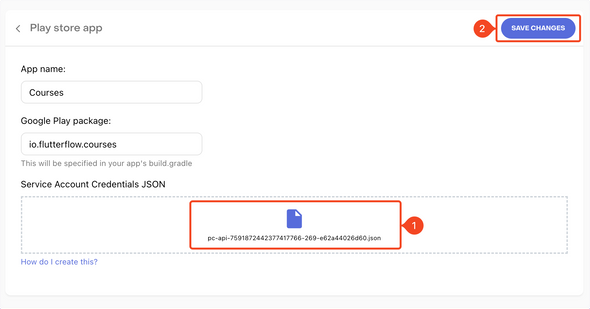
- You need to create another Service Account for RevenueCat. Follow this guide to generate the credentials in JSON format. Drag and drop the Credentials JSON file. Click "SAVE CHANGES".
- This completes the Android app setup on RevenueCat.
Step : 3 Adding iOS App
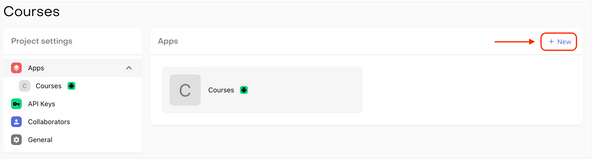
- Go back to the Apps page and click on "+ New".
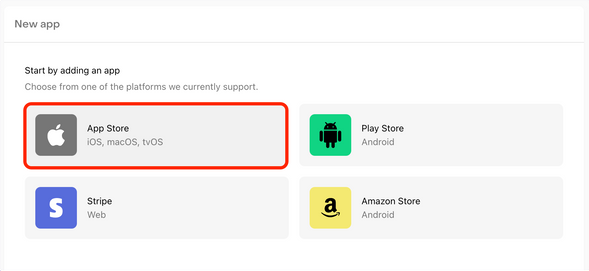
- Select App store
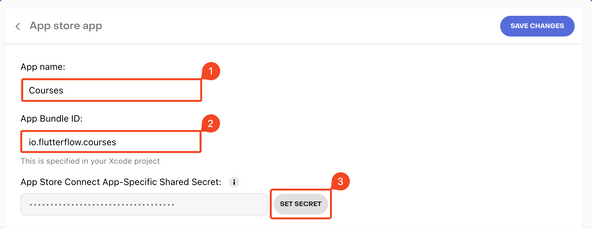
- Enter an App name, Bundle ID, and App-Specific Shared Secret. To generate an App-Specific Shared Secret, follow the guide here. Once you have the key, click "SET SECRET", enter the value, and click Set. Then click "SAVE CHANGES".
- This completes the iOS app setup on RevenueCat.
Step : 4 Define subscriptions on RevenueCat
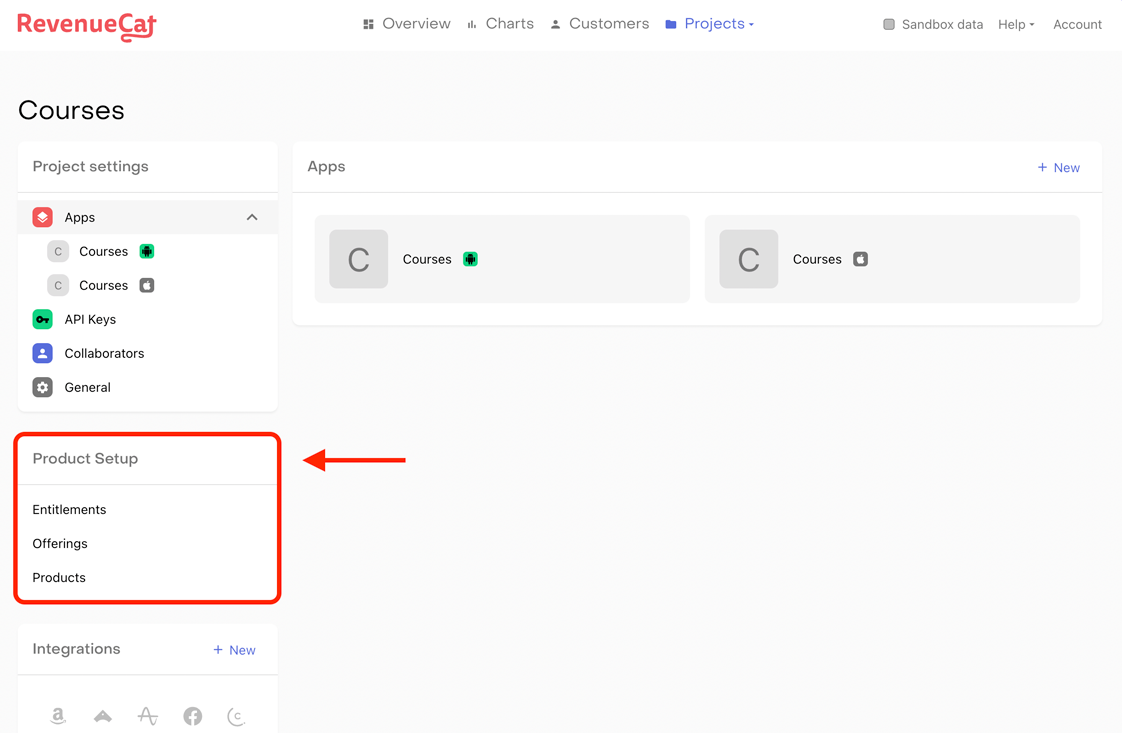
- You will find these configuration levels on the left menu of the RevenueCat dashboard under the section Product Setup:
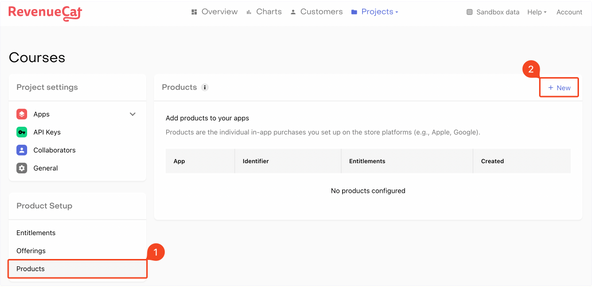
- In this configuration, you need to add all the subscriptions for both your Android and iOS app that the user can purchase. This is like a 1-to-1 mapping of the products in RevenueCat that you have already added to the stores (Google Play Store and Apple App Store). To add products, follow these steps:
- Select Products under the Product Setup section. Click "+ New".
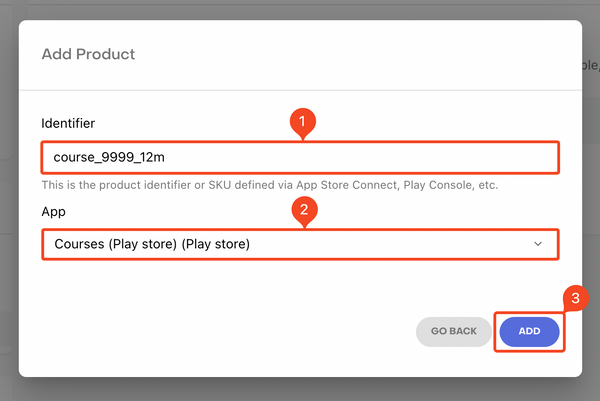
- You need to enter the product Identifier and the App. Make sure you use exactly the same product ID you used for the Android/iOS subscription. Click ADD.
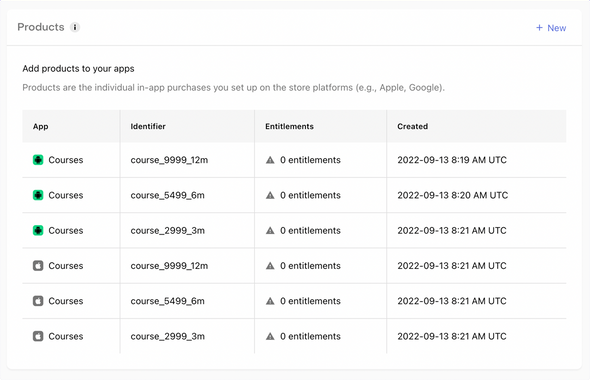
- Similarly, add the other subscriptions as well (for both Android and iOS).
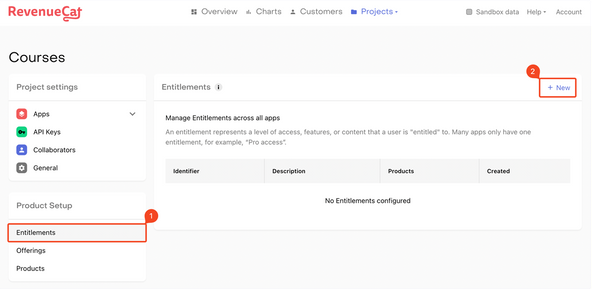
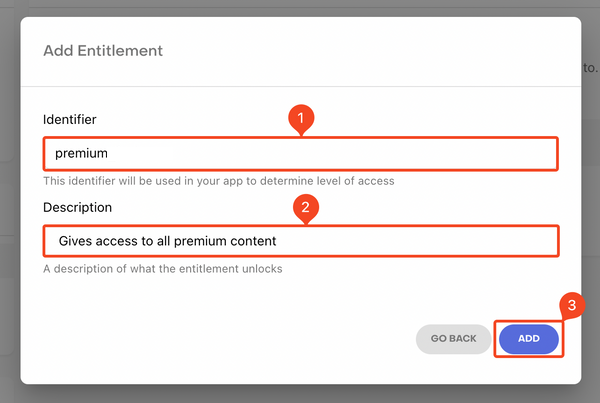
- In our app, we just need a two entitlement – premium and credit.
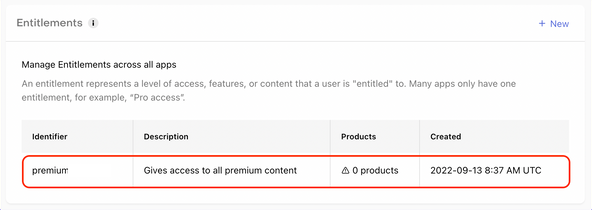
- Select Entitlements under the Product Setup section. Click "+ New".
- Enter an Identifier and Description for the entitlement. Click ADD.
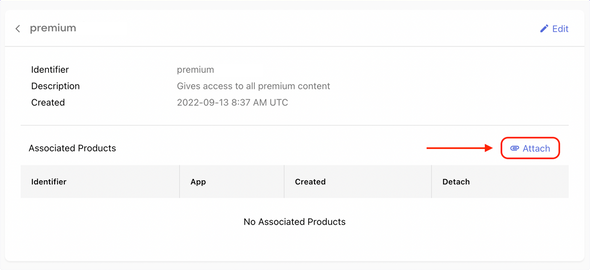
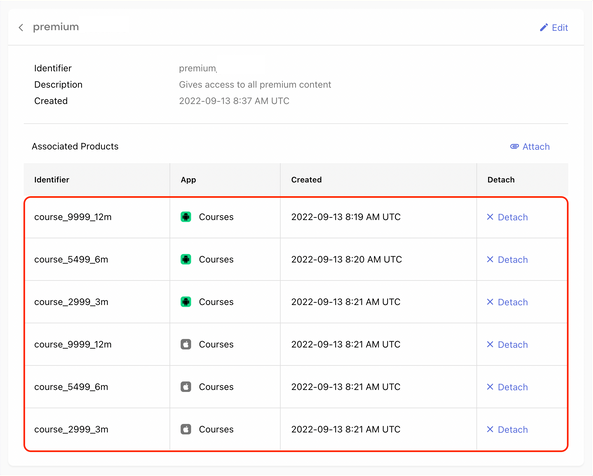
- Next, you need to attach the products to this entitlement. Click on the entitlement that you just created.
- Click on Attach.
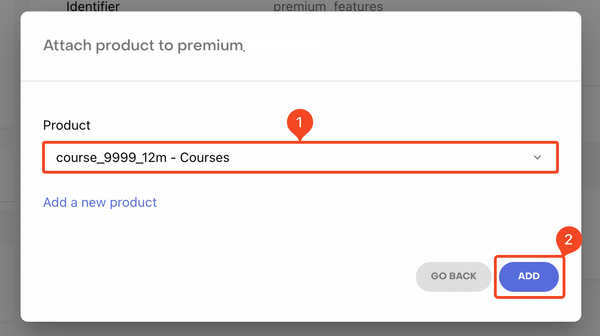
- Select a Product from the dropdown and click ADD.
- Similarly, attach all the other products to this entitlement.
- As our app will be available for both Android and iOS users, each of the offerings will consist of two packages. – default and credit.
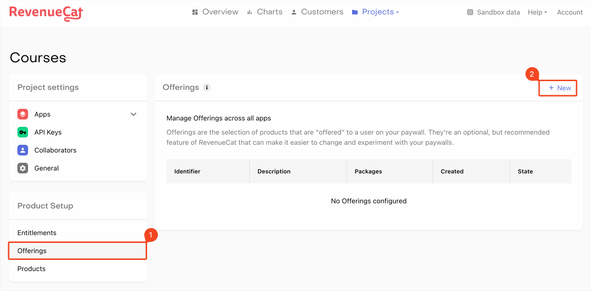
- Select Offerings under the Product Setup section. Click "+ New".
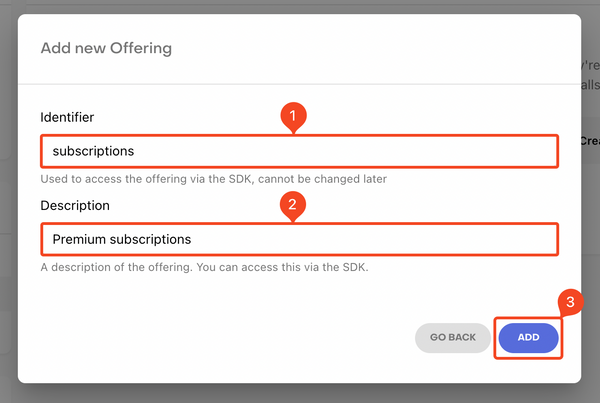
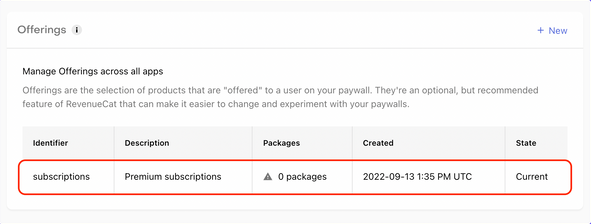
- Enter an Identifier and Description for the entitlement. Click ADD.
- Click to open the offering that you just created.
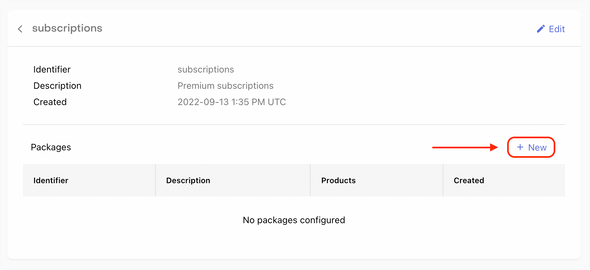
- Click on "+ New" beside the Packages..
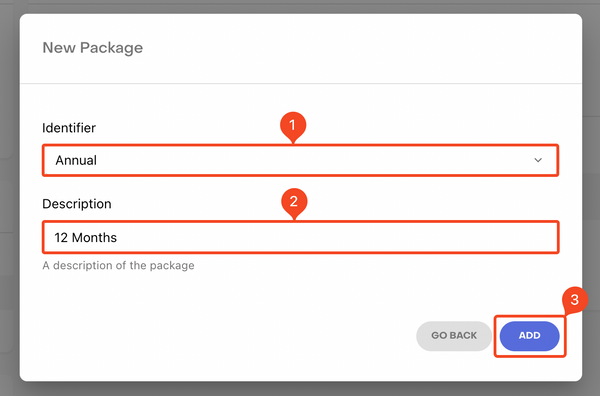
- Enter an Identifier for the package from the dropdown and add a Description. Click ADD.
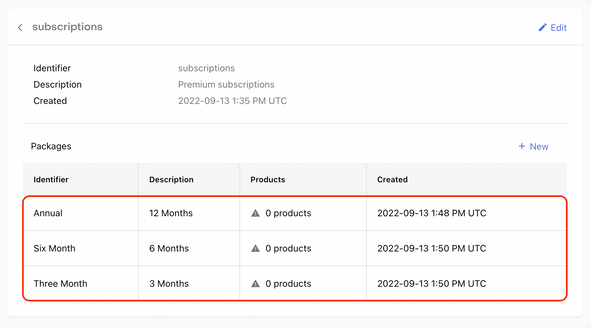
- Similarly, add the other packages as well.
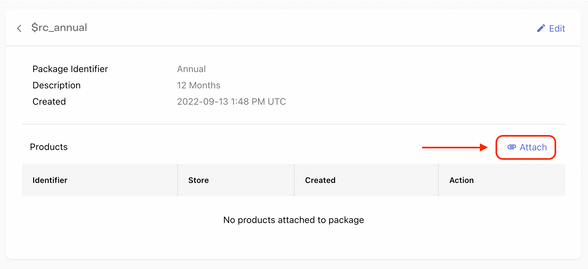
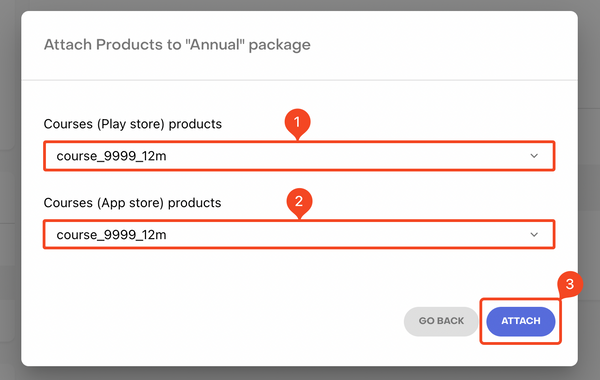
- Click to open a package. Then click Attach.
- Select the respective Play Store and App Store products from the dropdown. Click Attach.
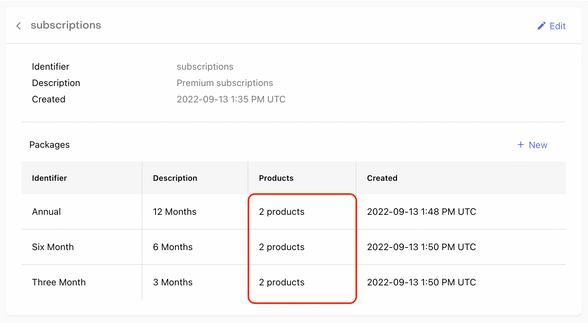
- Similarly, attach the correct products to the other two packages as well.
- This completes the three levels of configuration on the RevenueCat.
Product
Entitlements
Offerings
Step : 5 Setup Api Keys
- Navigate to https://www.revenuecat.com/.
- Log in using your RevenueCat credentials.
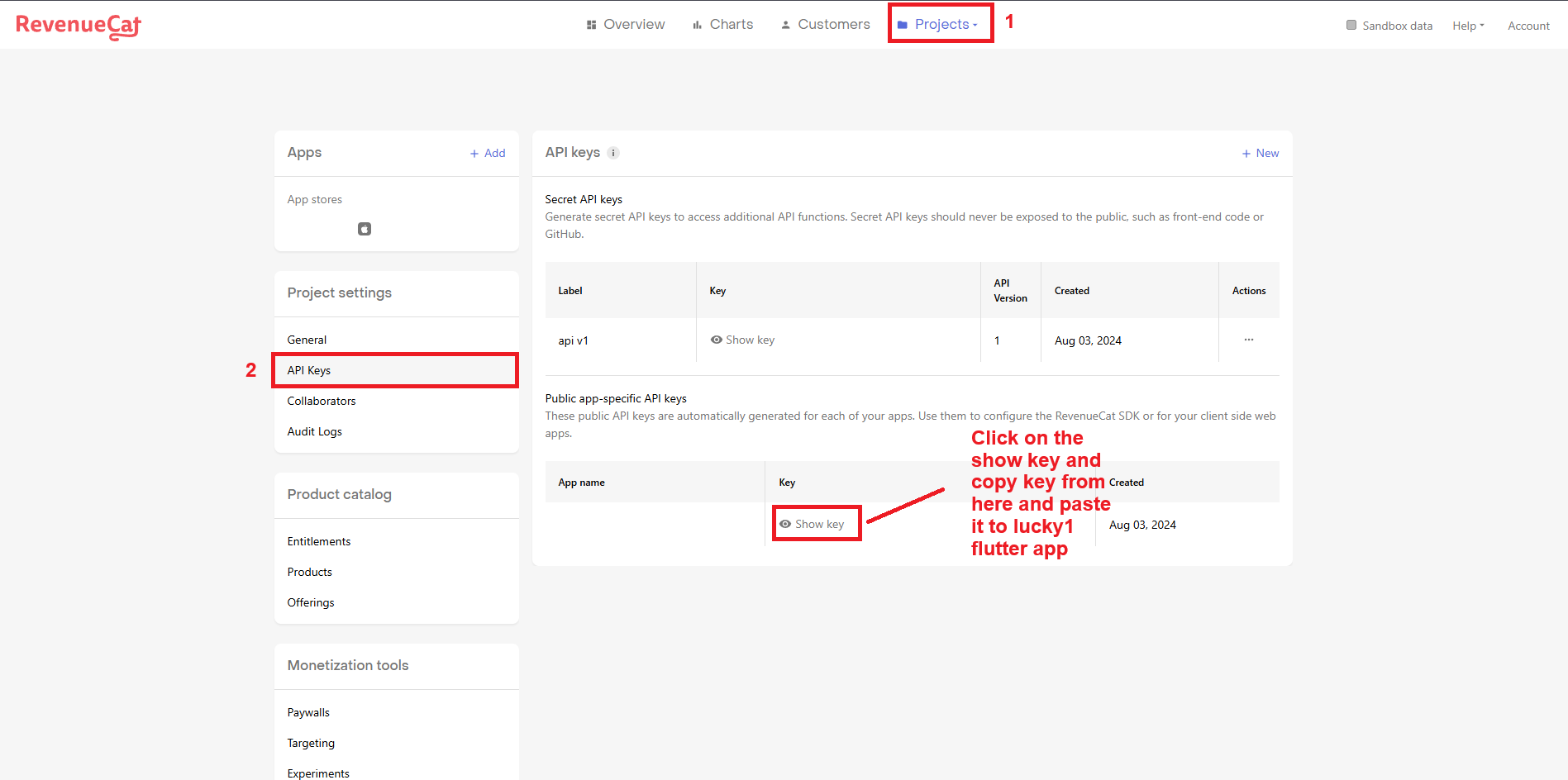
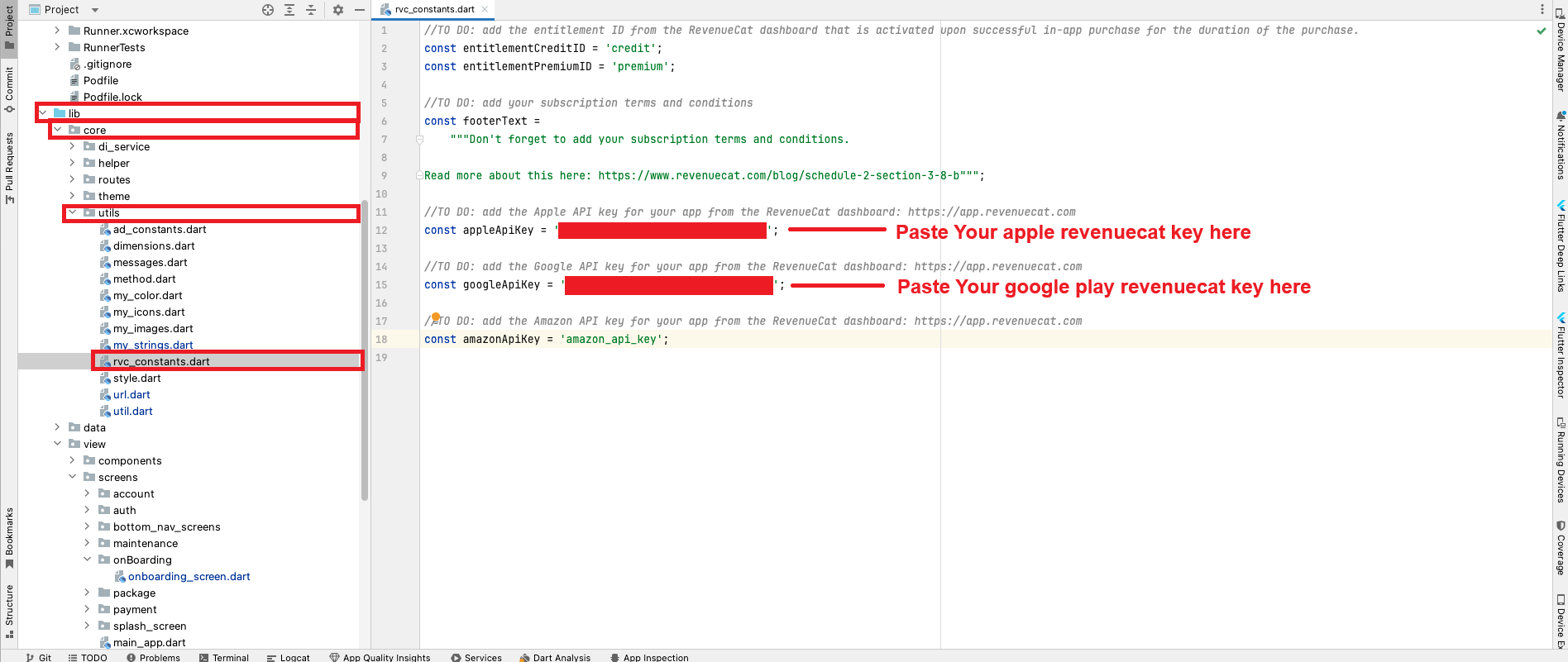
- Next, you need to add the App Store Key and Play Store Key to code. You can get these keys by going to the RevenueCat dashboard > API Keys > Public app-specific API keys. Copy and paste these keys into the respective fields of code.
- Copied key paste to lib > core > utils > rvc_constants.dart.
SetUp Agora
- How to setup project at agora and getting credentials
- Sign up at theAgora Console.
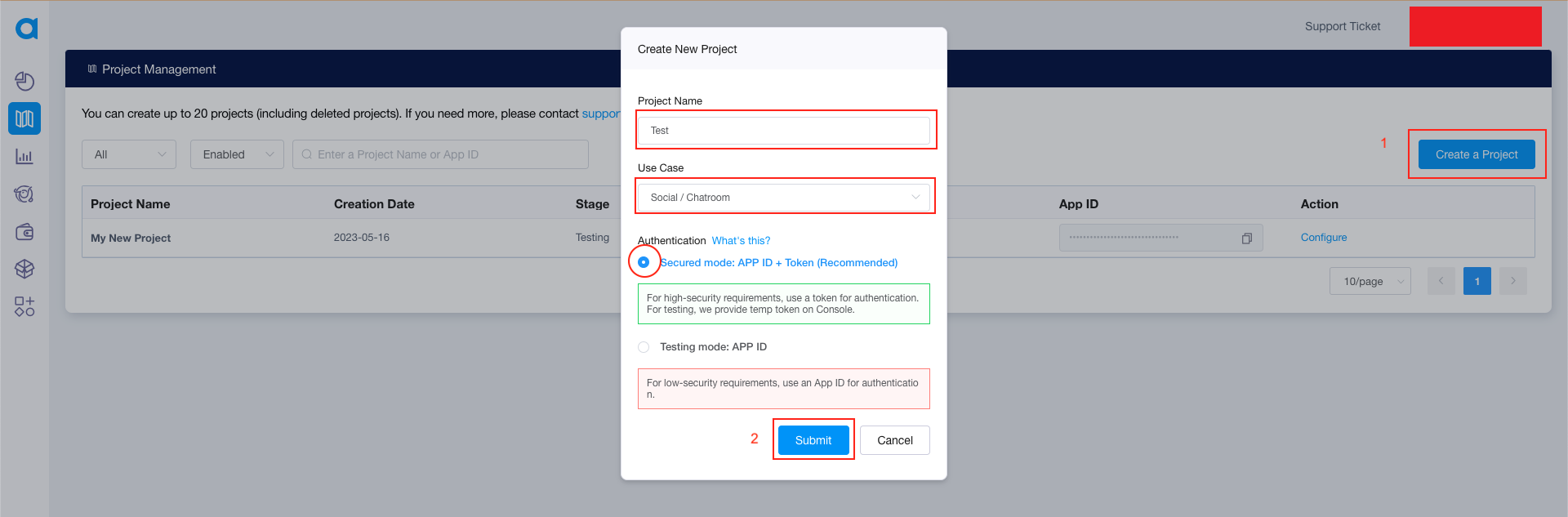
- Navigate to the sidebar and click on "Project Management."
- Select "Create New Project."
- Fill in all the required information.
- Click on "Submit" to finalize the creation of your new project.
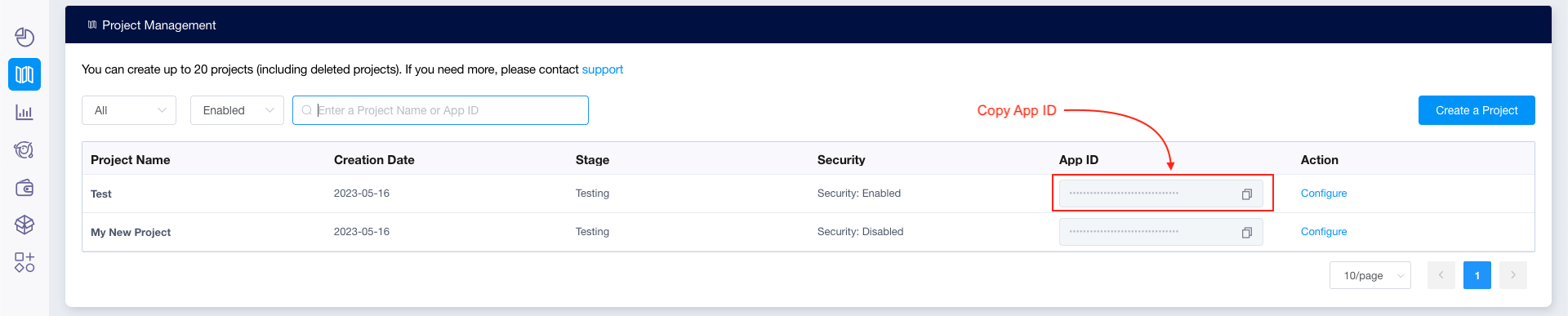
- Once your project is created, copy the Agora App ID for future use.
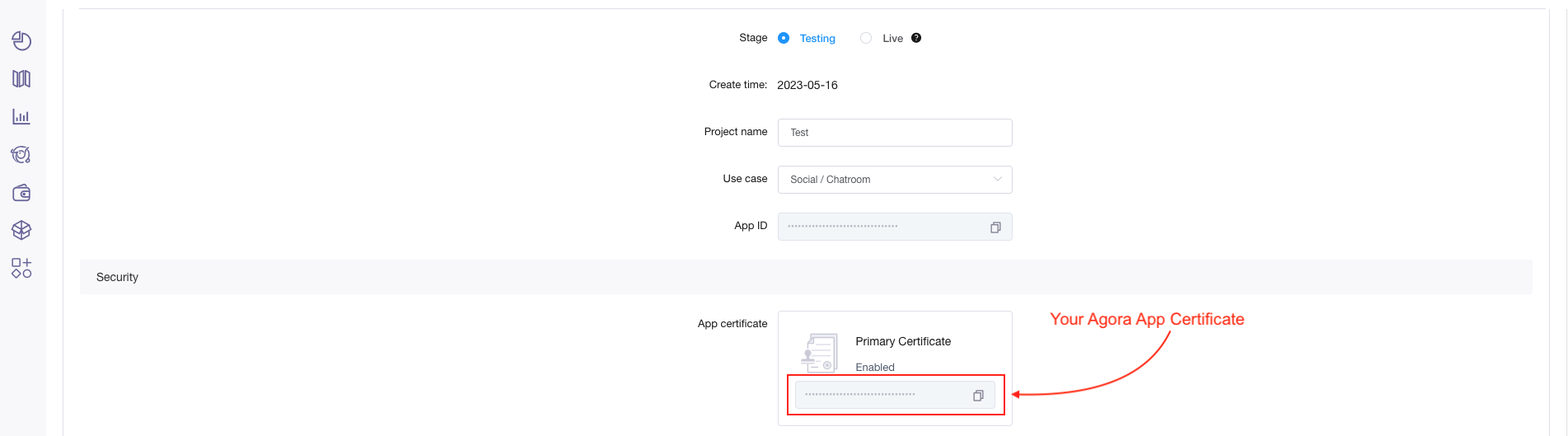
- Click on the "Configure" button. This will display the configuration page as shown below.
- On the configuration page, copy the Agora App Certificate for future use.
- This process allows you to obtain the App ID and App Certificate for your Agora project from the console.
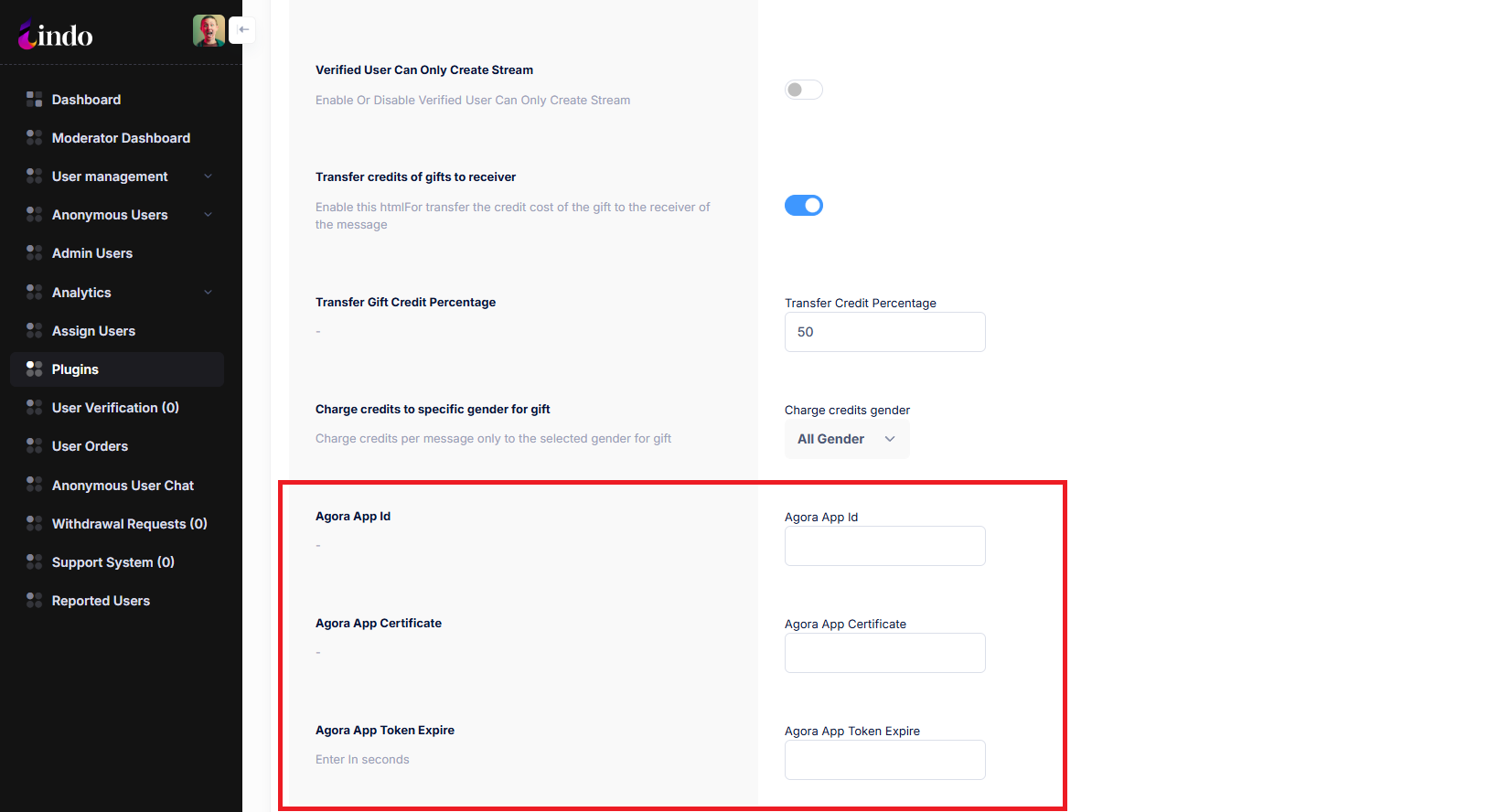
- Enter the Agora Key and Agora Certificate In details in the admin panel under the plugin section.

Set up admob in App
-
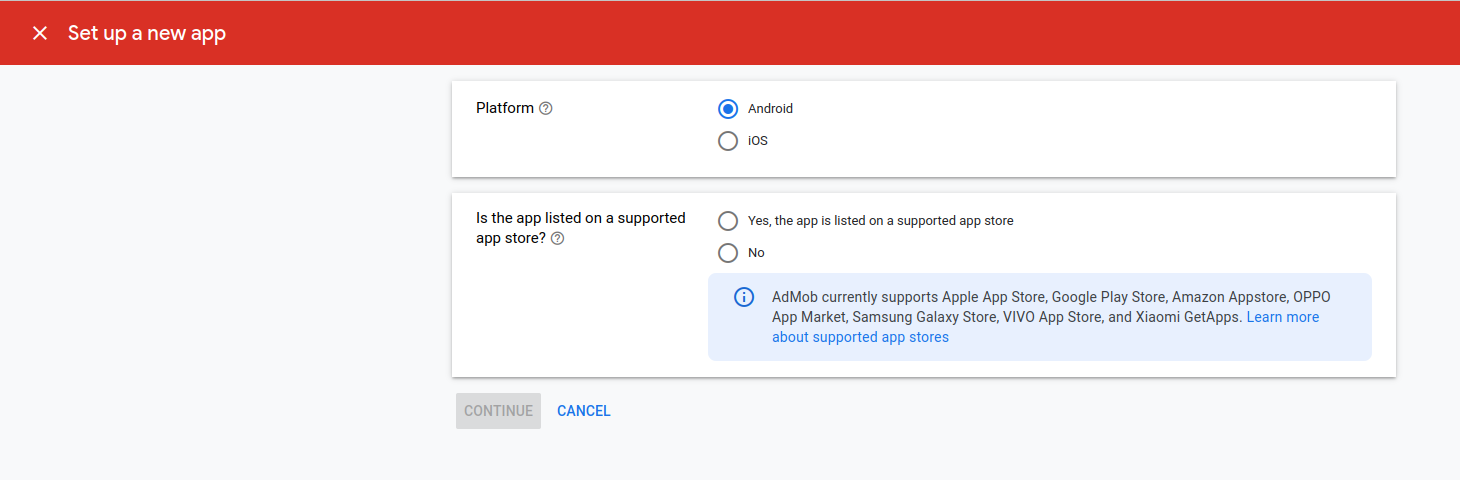
In the Admob console,
click add android app from the Apps menu.
-
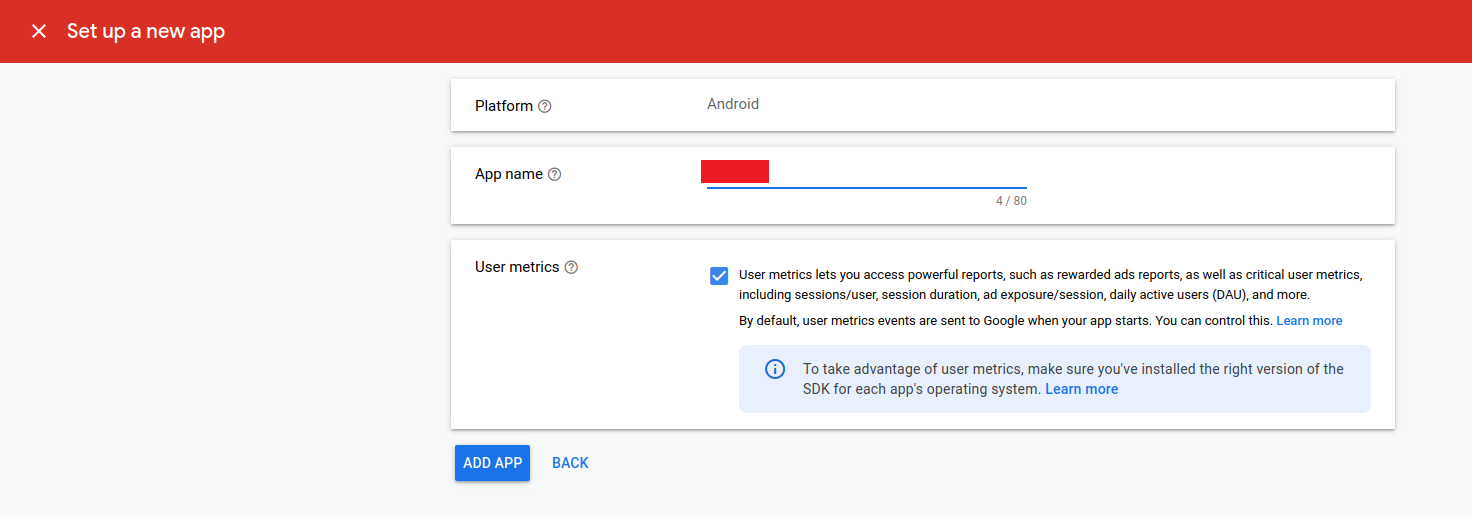
Enter your app name and Enabling user metrics is not necessary to complete this
codelab. However, we recommend that you do because it allows you to understand
user behavior in more detail and click on ADD APP button.
-
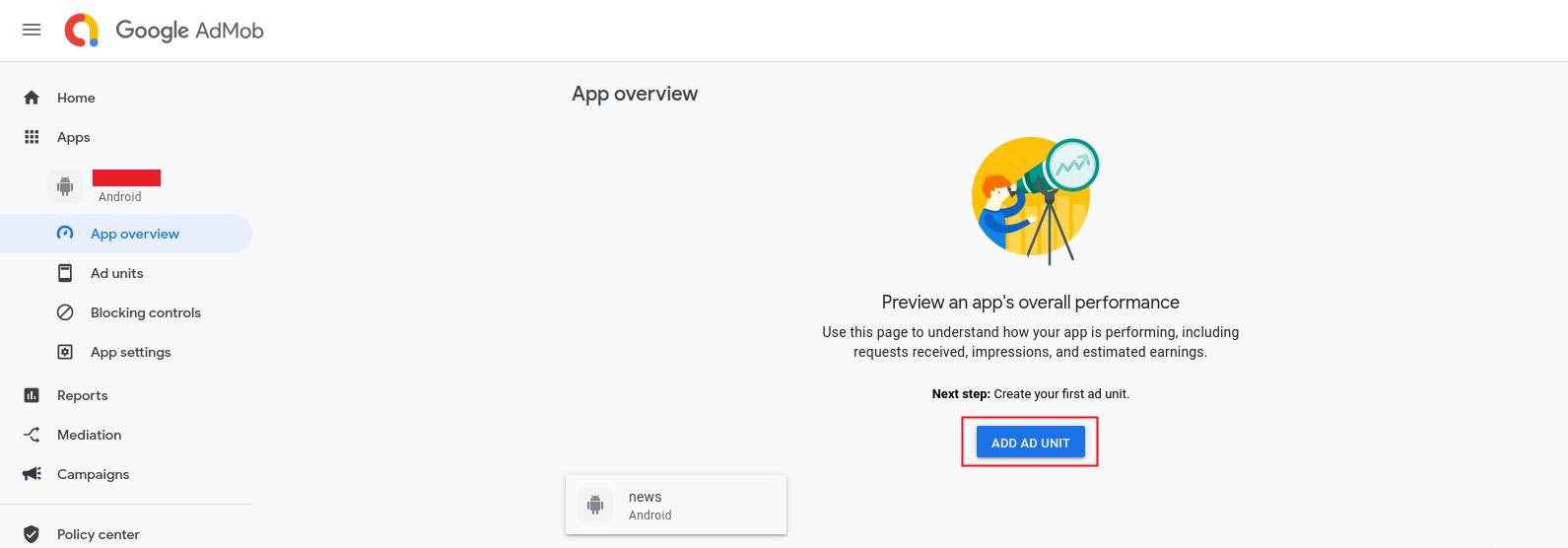
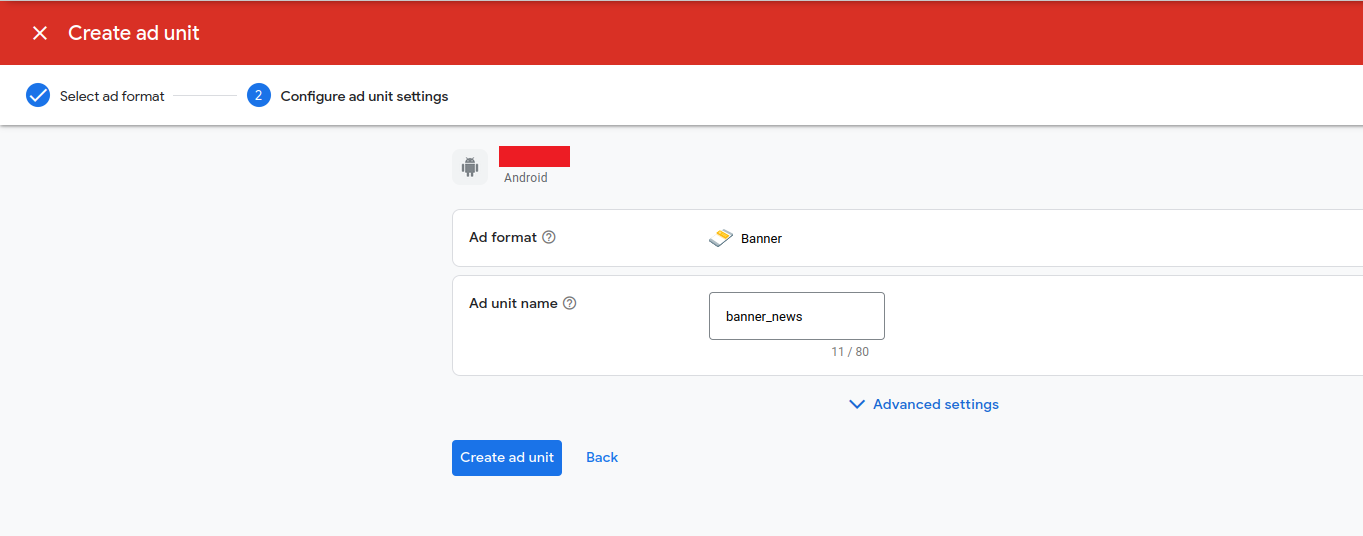
Create ad units.
-
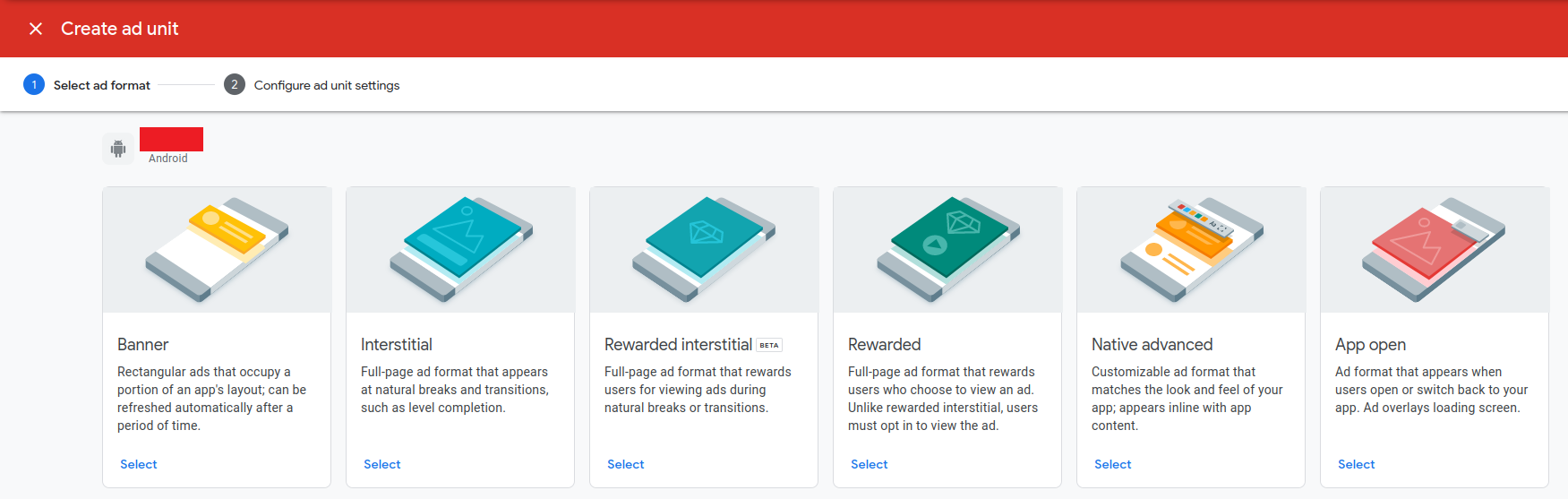
Select Banner unit ad and enter banner unit ad name then click on Create ad Unit
button.
-
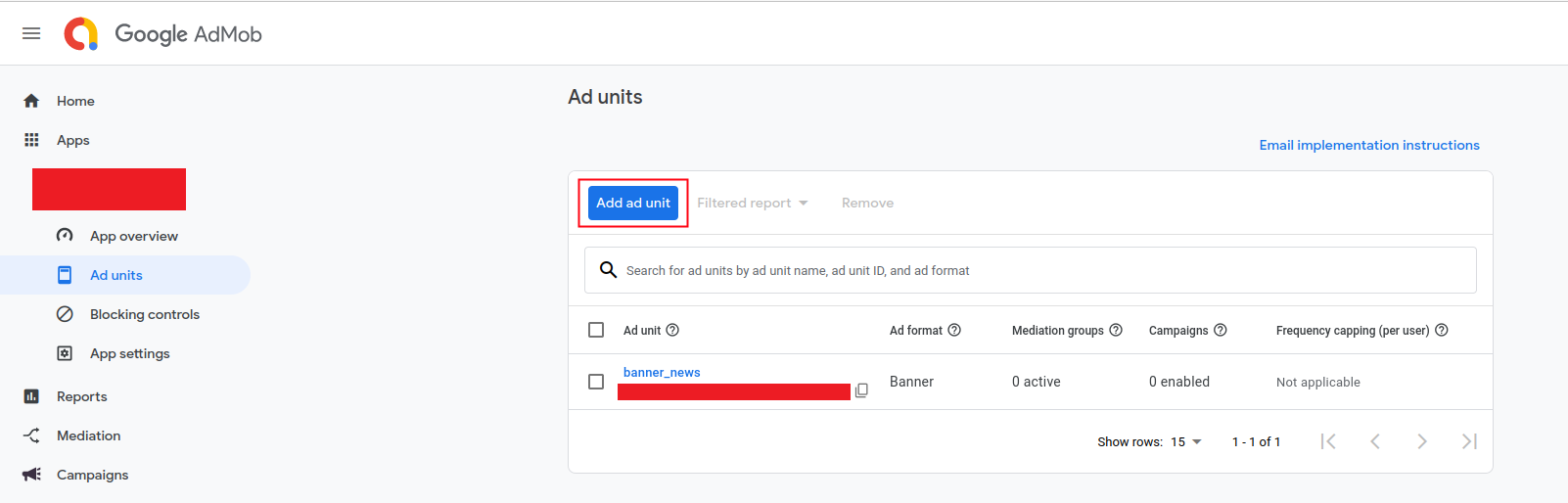
Then add another unit add shown in below image and Same as above create
Interstitial ads and native ads.
- Also add Google Admob ads appId as a value for android:name="com.google.android.gms.ads.APPLICATION_ID" in android/app/src/main/AndroidManifest.xml file.
- Add iOS App and add units in iOS app in same way.
- Also add Google Admob ads appId as a value for GADApplicationIdentifier in ios/Runner/info.plist File.
-
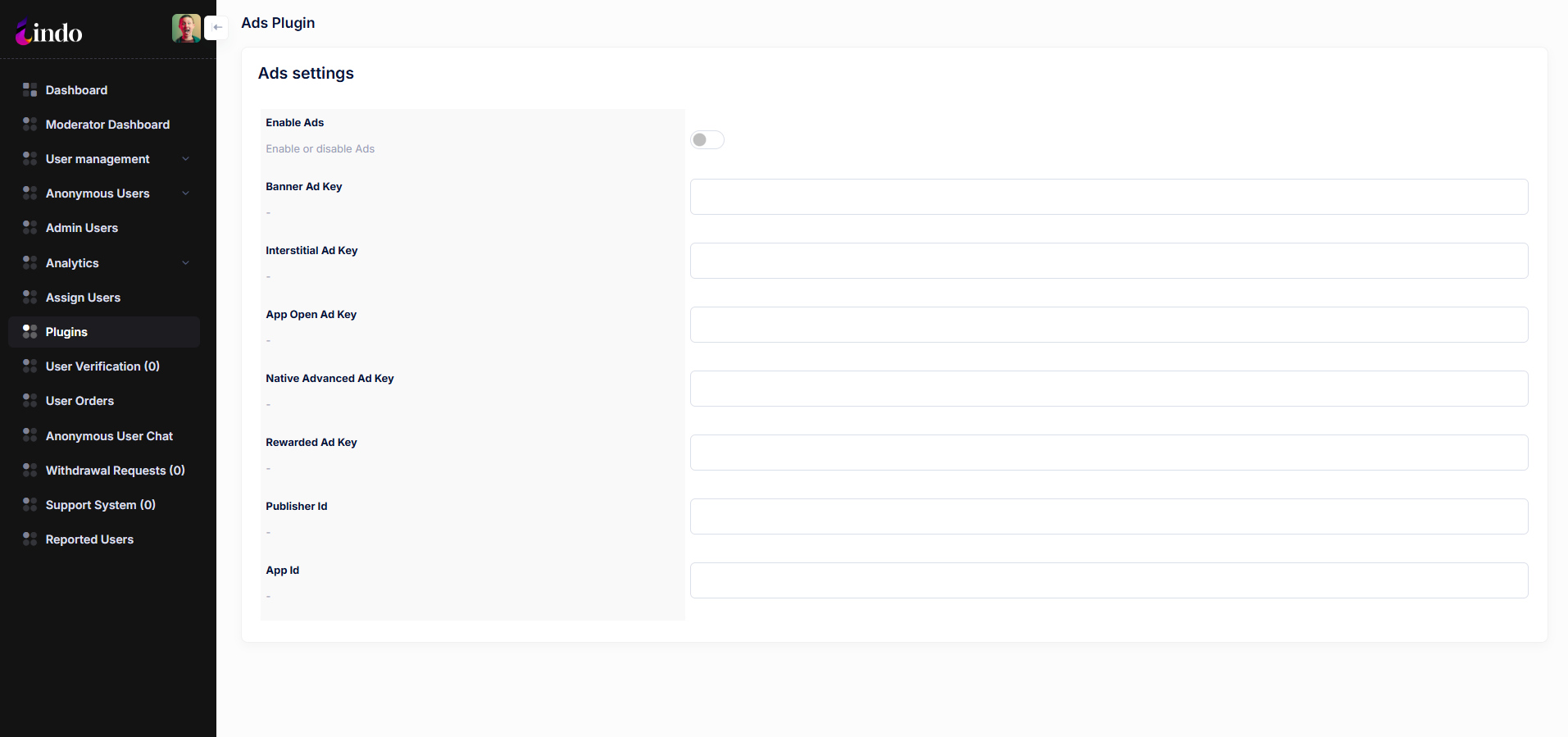
Add your ad unit id in admin panel -> Plugin -> Ads Plugin.
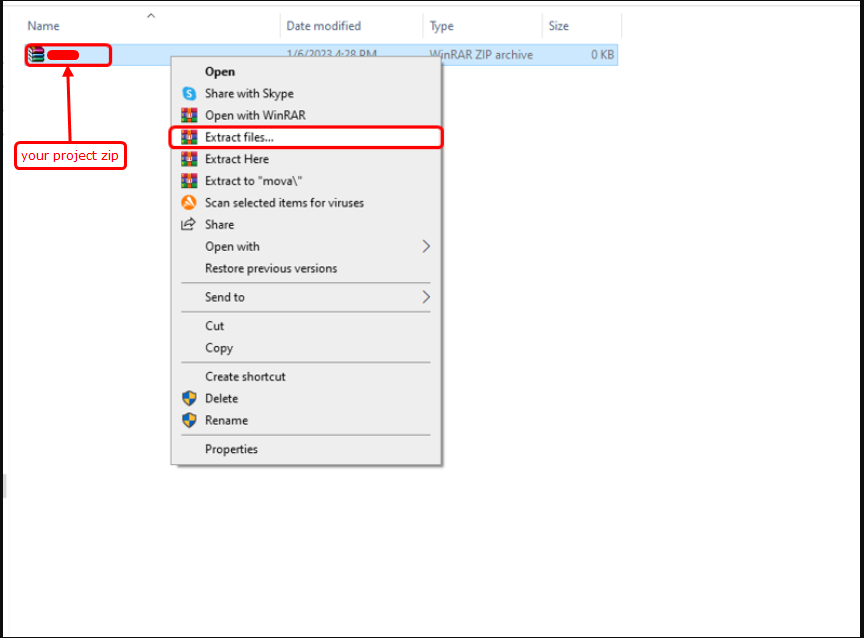
- To import the app, open Android Studio and import or open the template. Ensure that you wait for all processes, including the Gradle Build, to complete before proceeding to the next step.
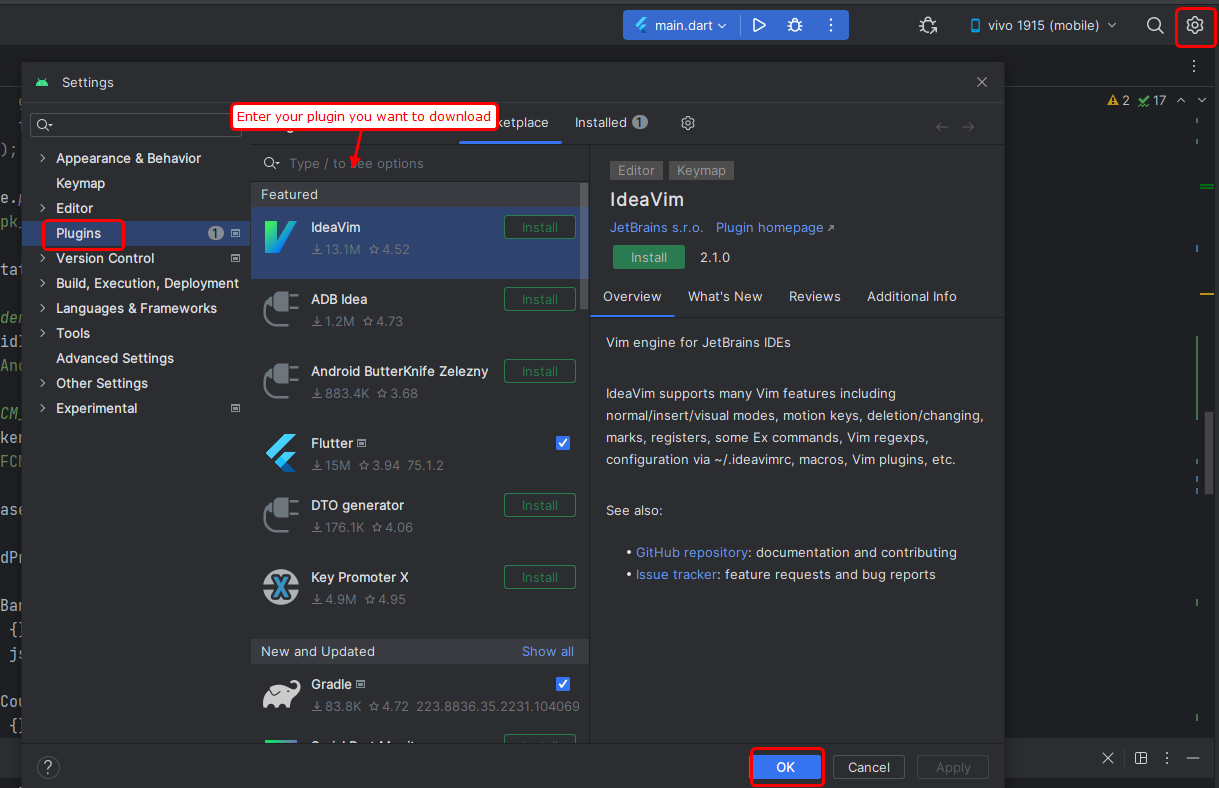
- To install the Flutter and Dart plugins, follow these steps:
Extract The Project
- Click on the settings button located in the corner.
- A pop-up will appear. Select "Plugins".
- In the search bar within the pop-up, enter the names of the plugins you wish to install (as shown in the image below).
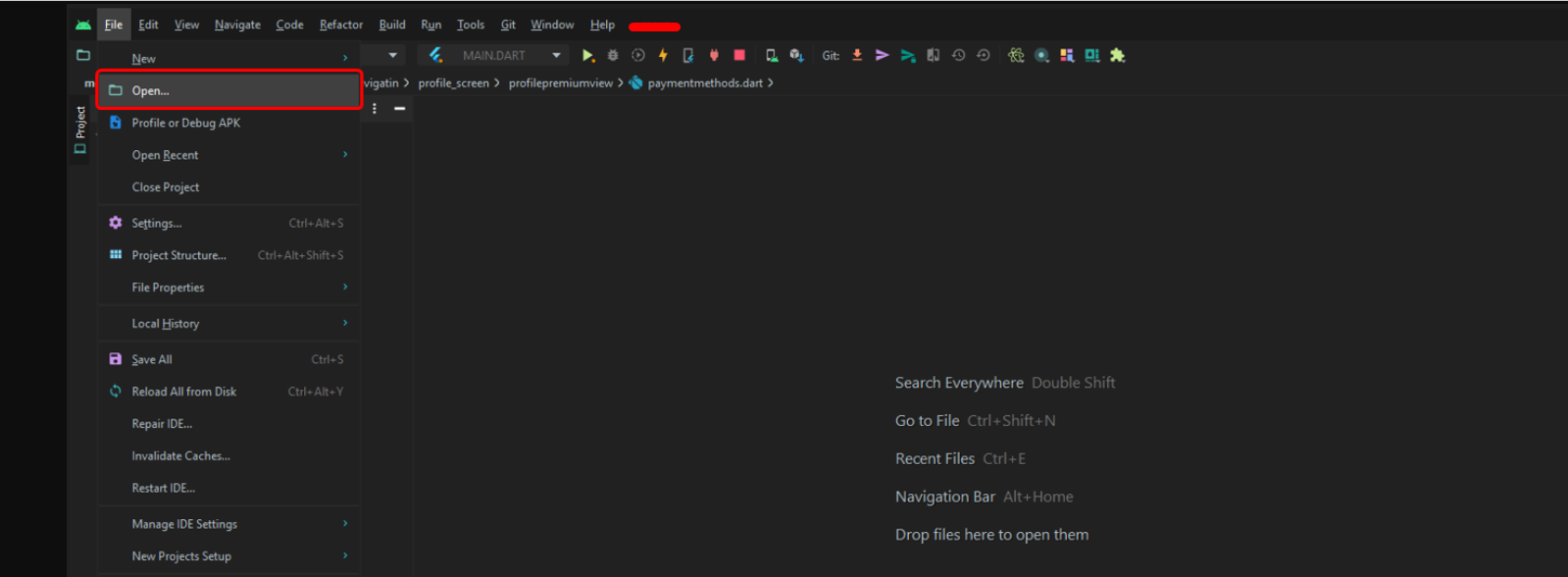
- Click on "Open" and open your project.
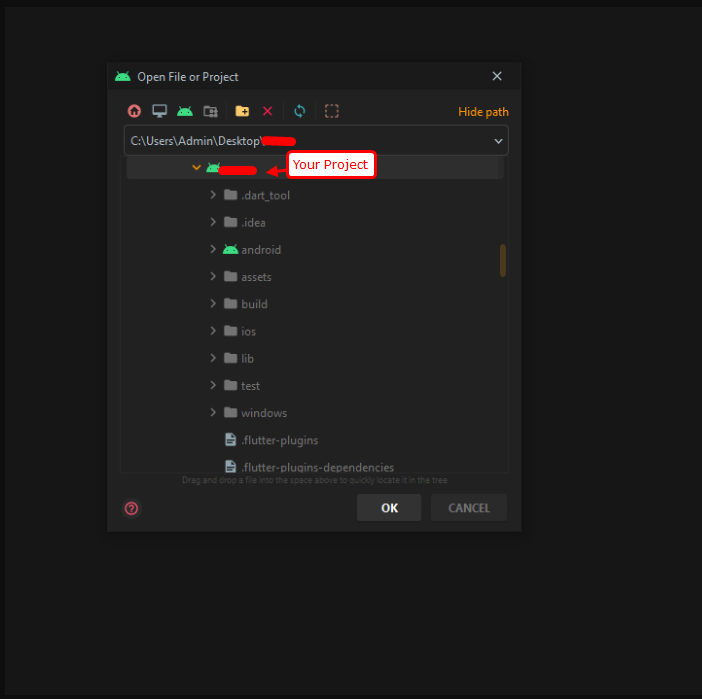
- A pop-up will appear; select your project and then click on the "Ok" button.
- In some cases, the Gradle Build may fail. If additional components are required, Android Studio will prompt you to download them in the 'messages' tab. Simply follow the instructions provided to install and download the necessary additional components.
Change baseURL And secretKey
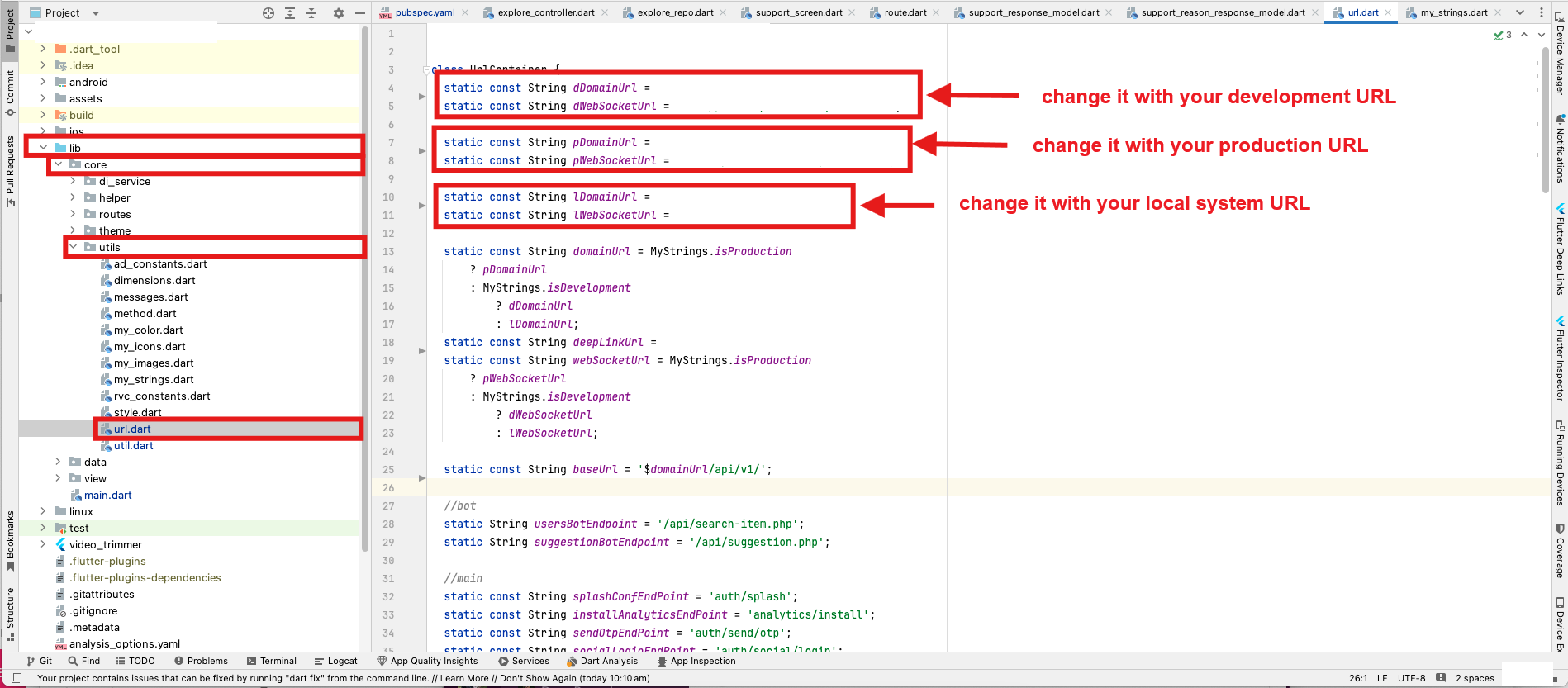
- Change domain url and websocket url in lib > core > utils > url.dart as shown in the image below.
- This domain url and websocket url should be consistently applied across ourback-end,front-endto ensure uniform protection.
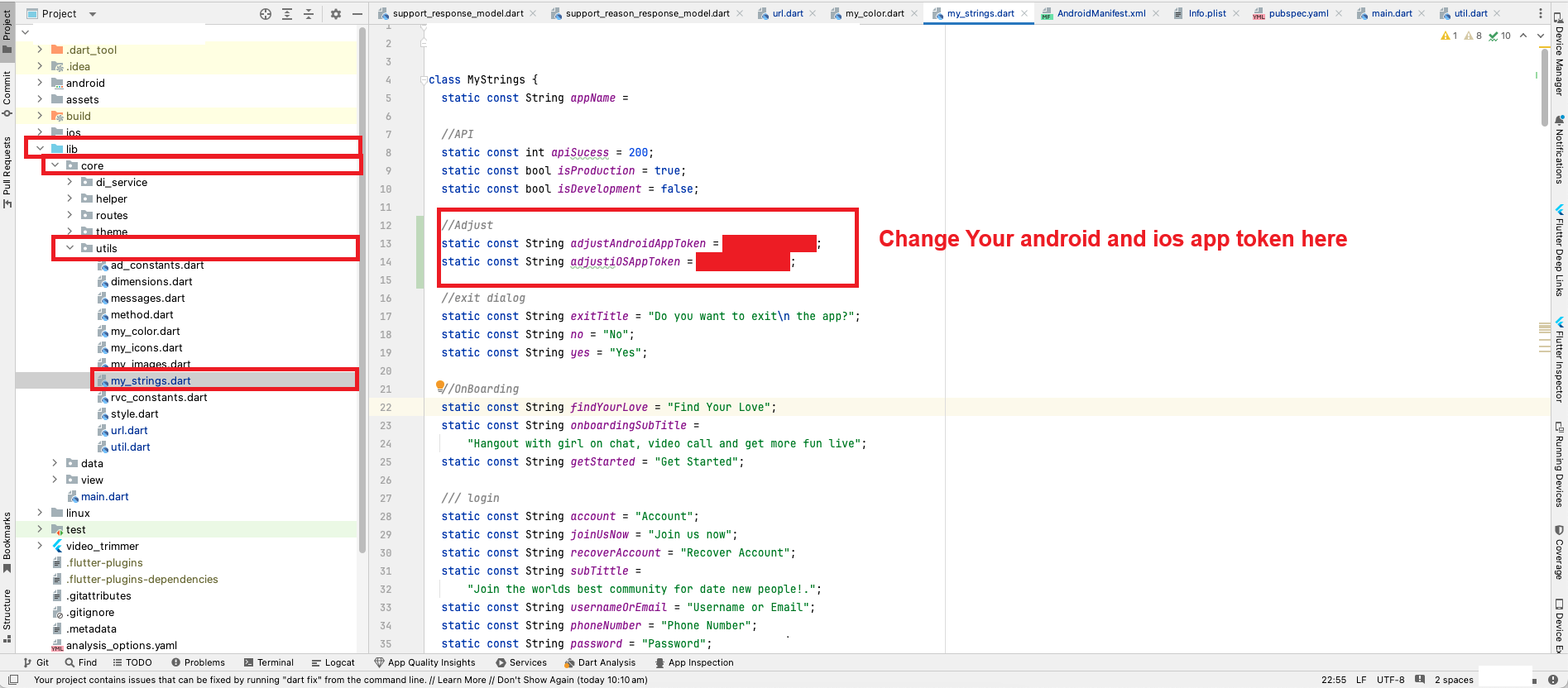
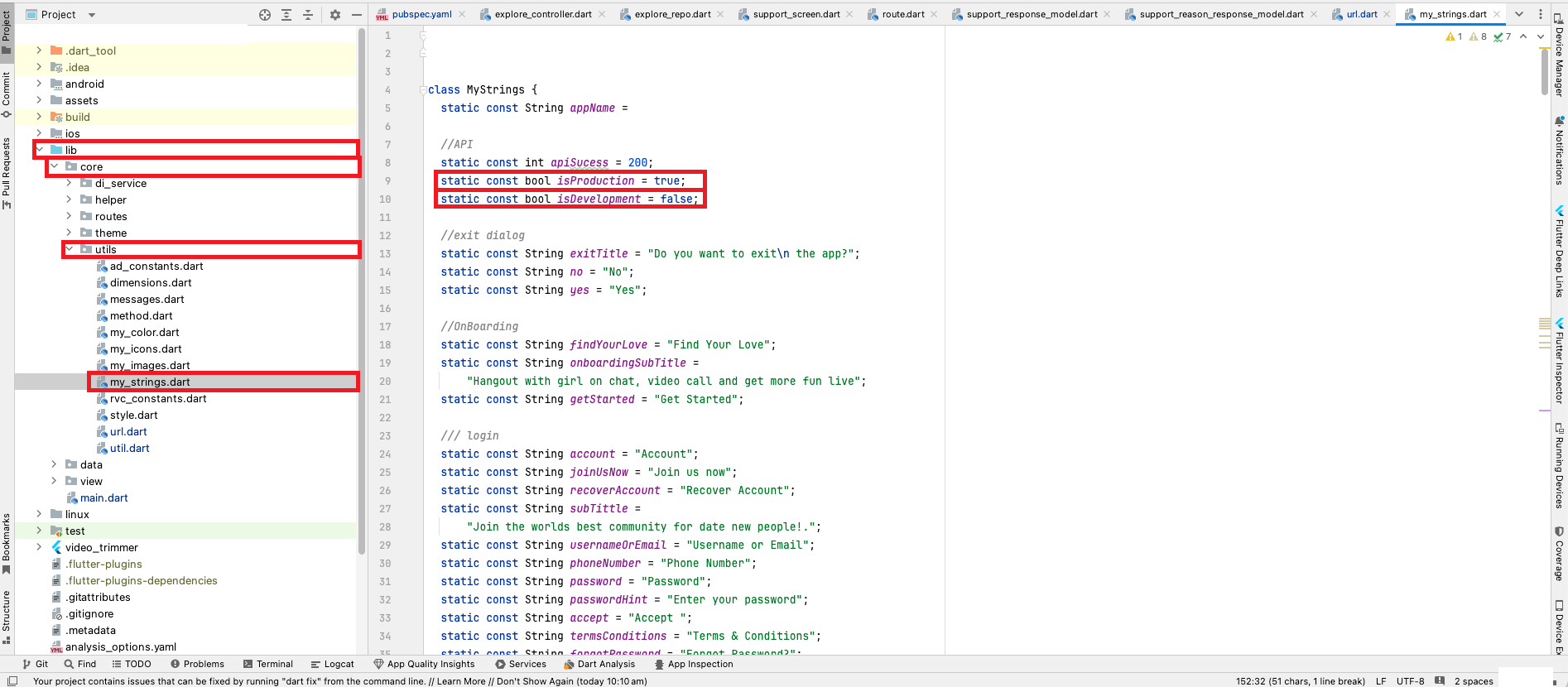
- Change isProduction and isDevelopment variable in lib > core > utils > my_strings.dart as shown in the image below.
- For running the app on a production server, set isProduction = true and isDevelopment = false.
- For running the app on a development server, set isProduction = false and isDevelopment = true.
- For running the app on a local server, set isProduction = false and isDevelopment = false.
Change Package Name
- Android
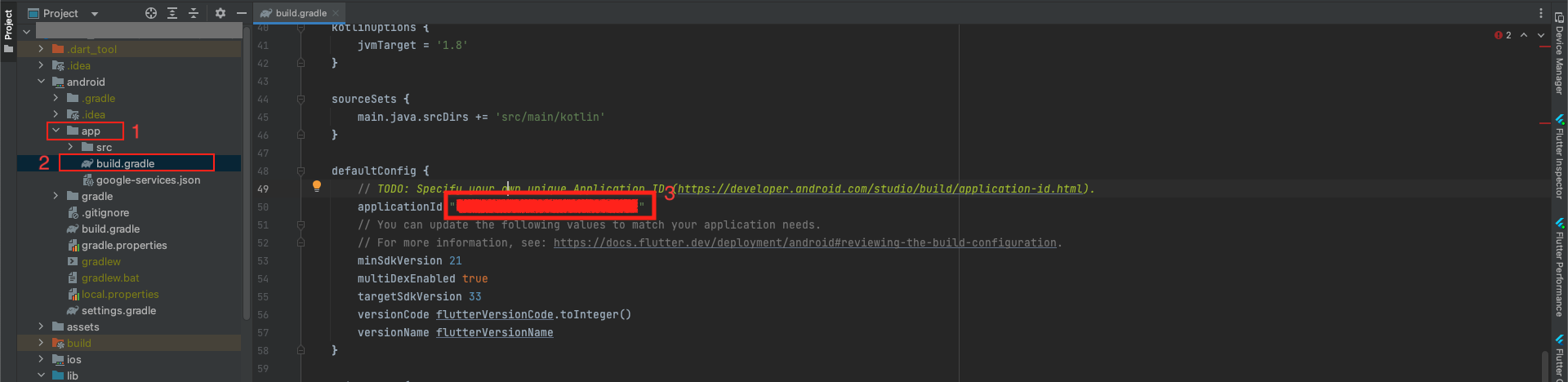
- Navigate to the "android/app" directory and locate the "build.gradle" file.
- Within this file, update the "applicationId" and its corresponding dependencies as necessary
- IOS
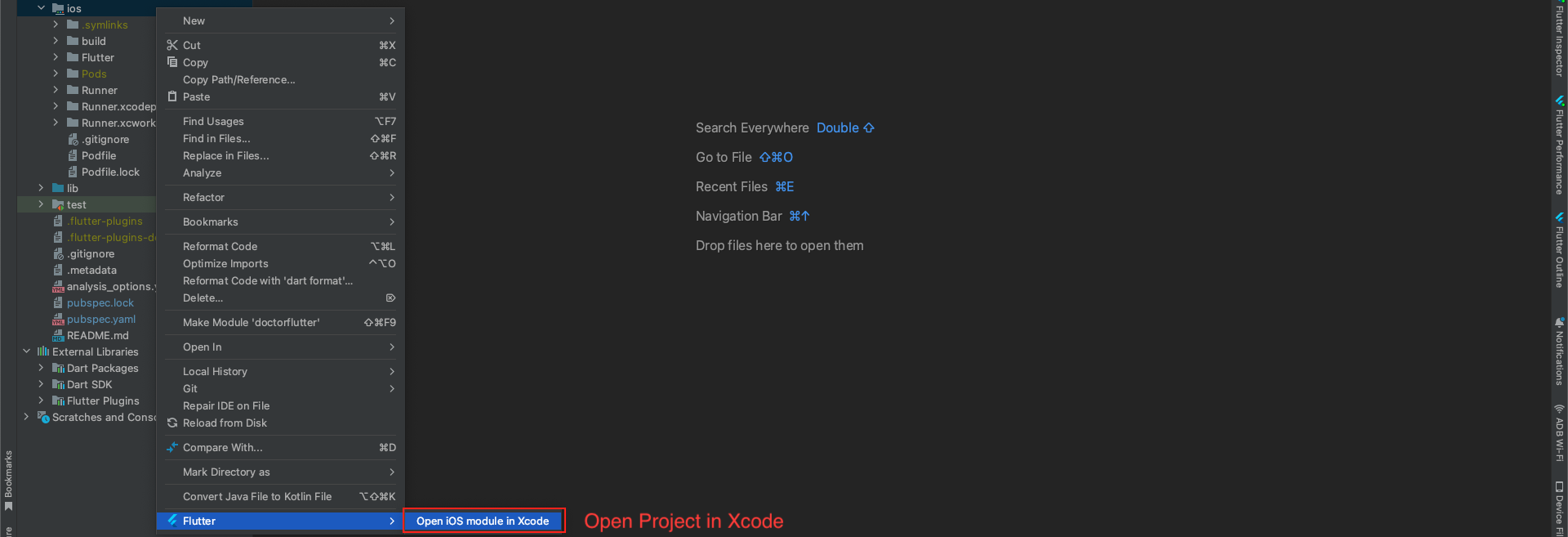
- Please initiate a right-click on the iOS directory, followed by selecting "Flutter" and then "Open iOS module in Xcode" to proceed further.
- After successfully opening the project in Xcode, proceed to the following steps:
- Navigate to "Runner" > "Signing & Capabilities".
- Modify the bundle identifier according to your requirements.
- Save the changes, and the process is complete.

Change App Color
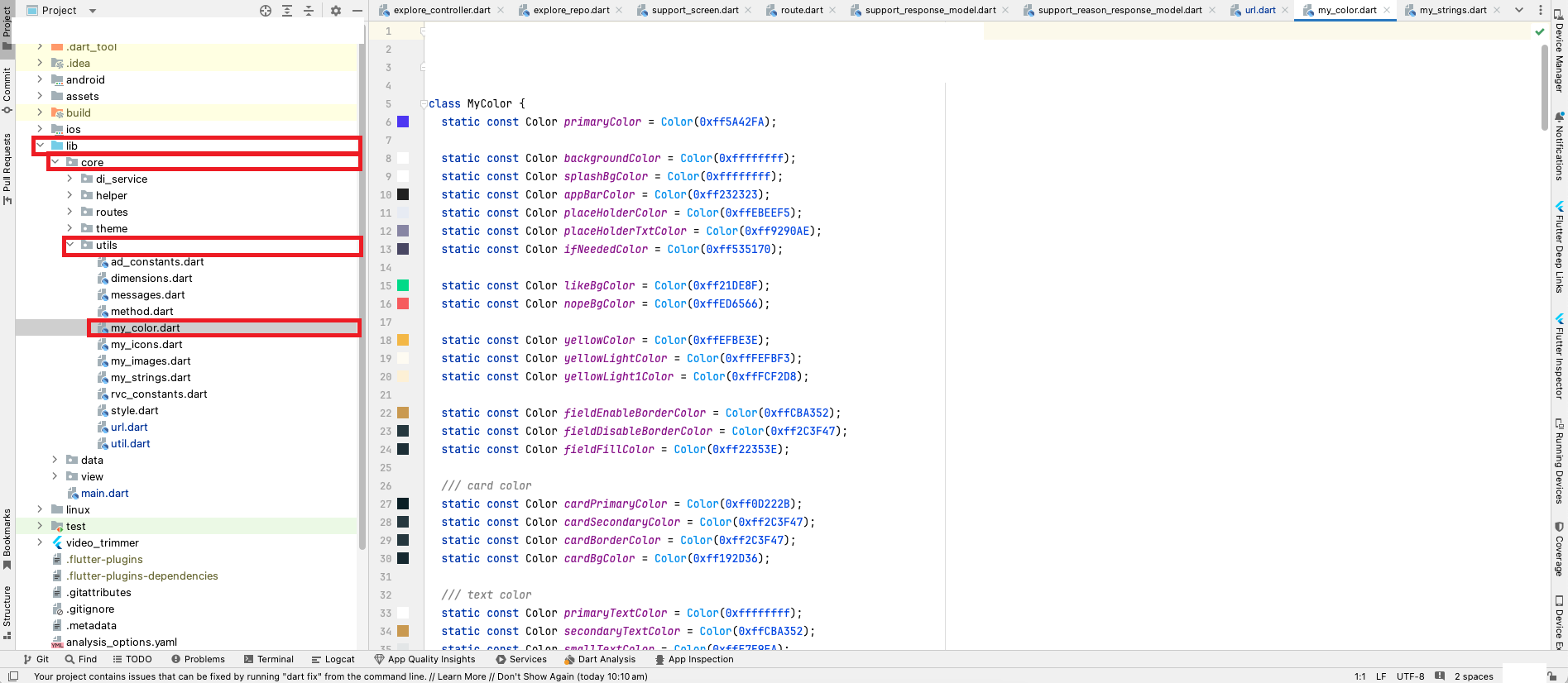
- Go to your project lib > core > utils > my_color.dart as shown in the below image.
Change App Icon
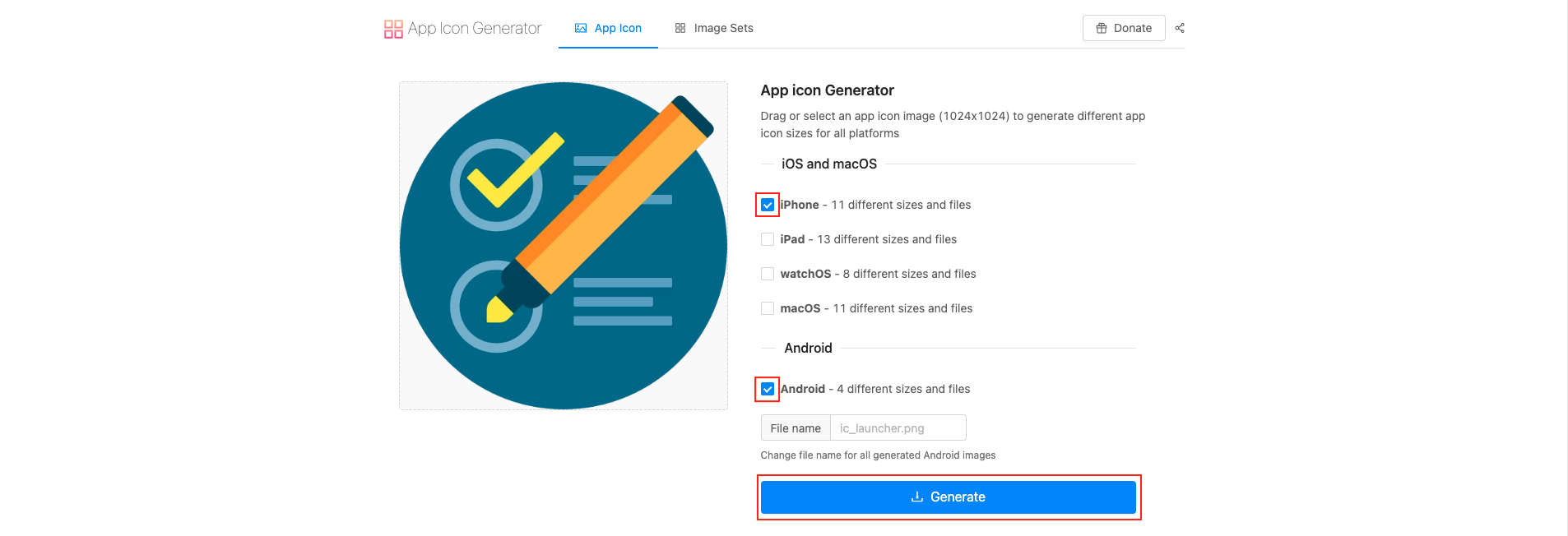
- To generate icons of various sizes for both iOS and Android platforms,visit
- Upload the icon image, select the desired options for iPhone and Android compatibility, and click on "Generate". This website will efficiently produce icons in multiple sizes for both platforms simultaneously.
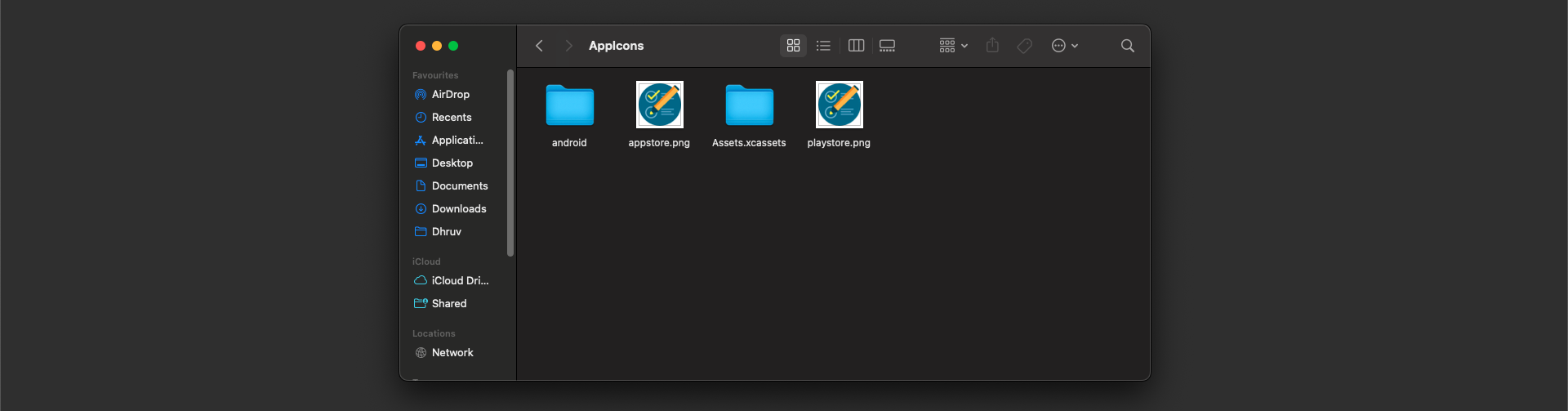
- Upon completion, the website will download a ZIP file named "AppIcons", containing folders named "android" and "Assets.xcassets", along with images suitable for the App Store and Google Play Store. These assets can be directly uploaded as icons in both app stores.
- Please open your project in Android Studio.
- Android
- Navigate to the "android/app/src/main/res" directory in your project. Right-click on the "res" folder and select "open in Finder". Once in Finder, delete all the existing mipmap folders. Then, paste the mipmap folders from the AppIcon/android directory that you have downloaded.
- IOS
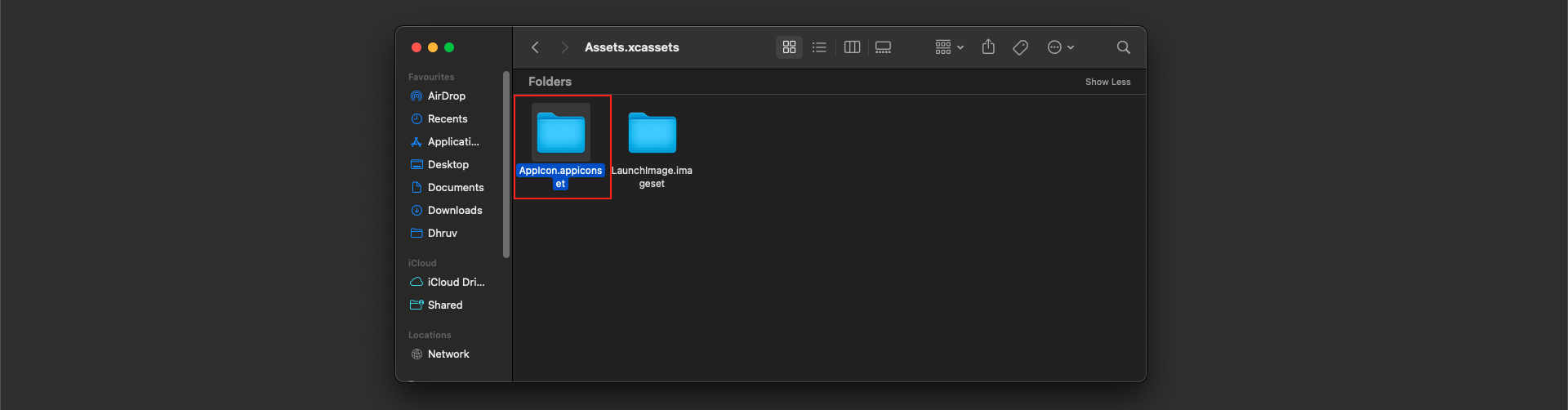
- Navigate to the "ios/Runner directory and locate the ".xcassets" file. Right-click on the "Runner" folder and select "open in Finder". Once in Finder, delete the "Assets.xcassets" folder. Then, paste the "Assets.xcassets" folder from the "AppIcon" directory that you have downloaded.
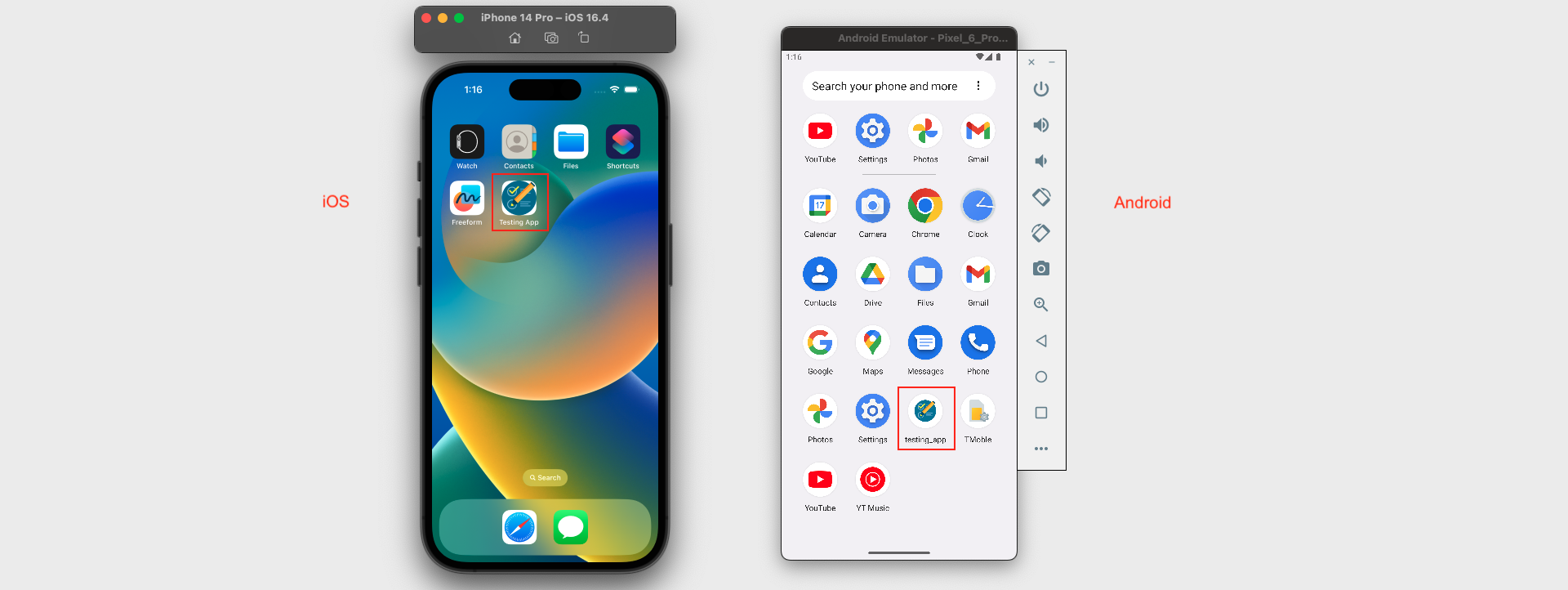
- After replacing the images in the Android and iOS folders manually, proceed to "lib/main.dart" and run the Flutter project using the following command in the Flutter console.

Change App Name
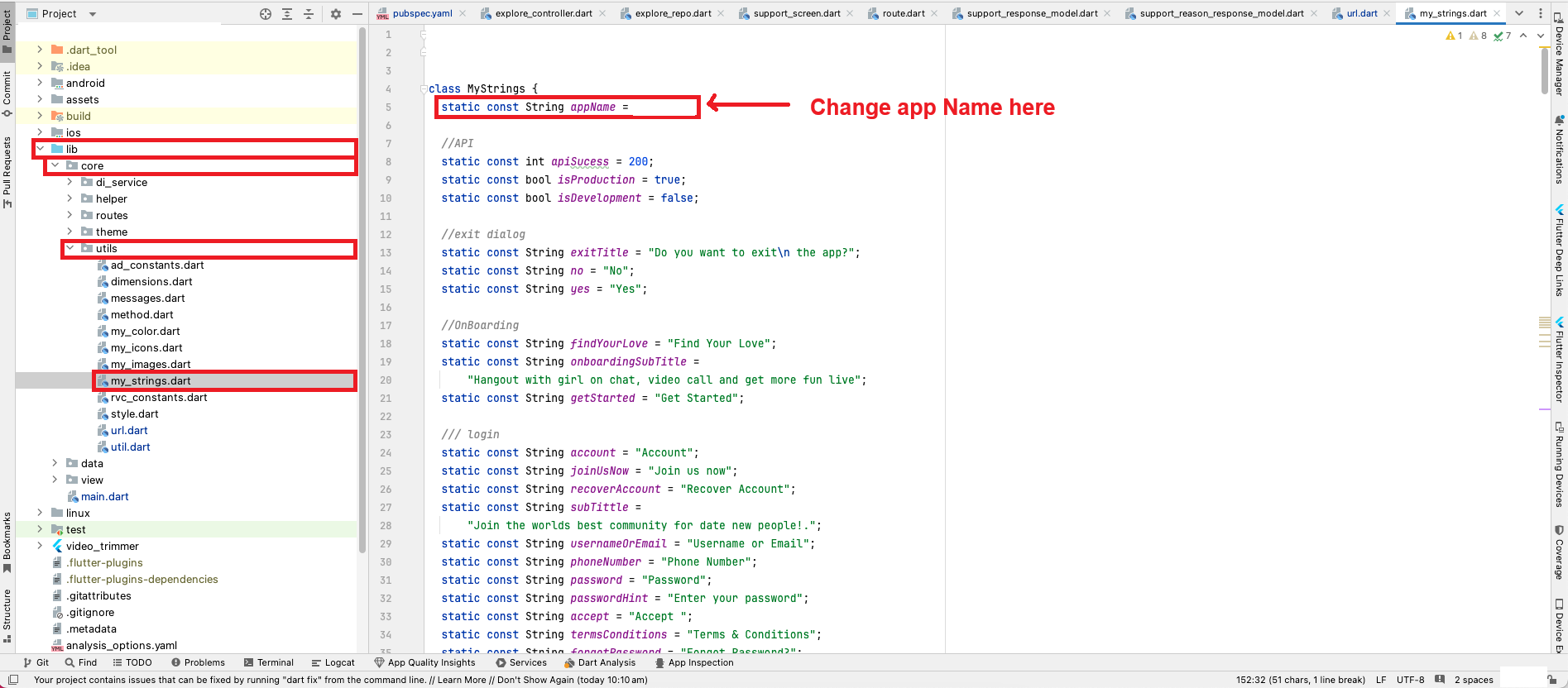
- Navigate to "lib/core/utils/my_strings.dart" and make the changes as depicted in the provided image.
- Android
- Navigate to "android/app/src/main/AndroidManifest.xml" and make the changes as depicted in the provided image.
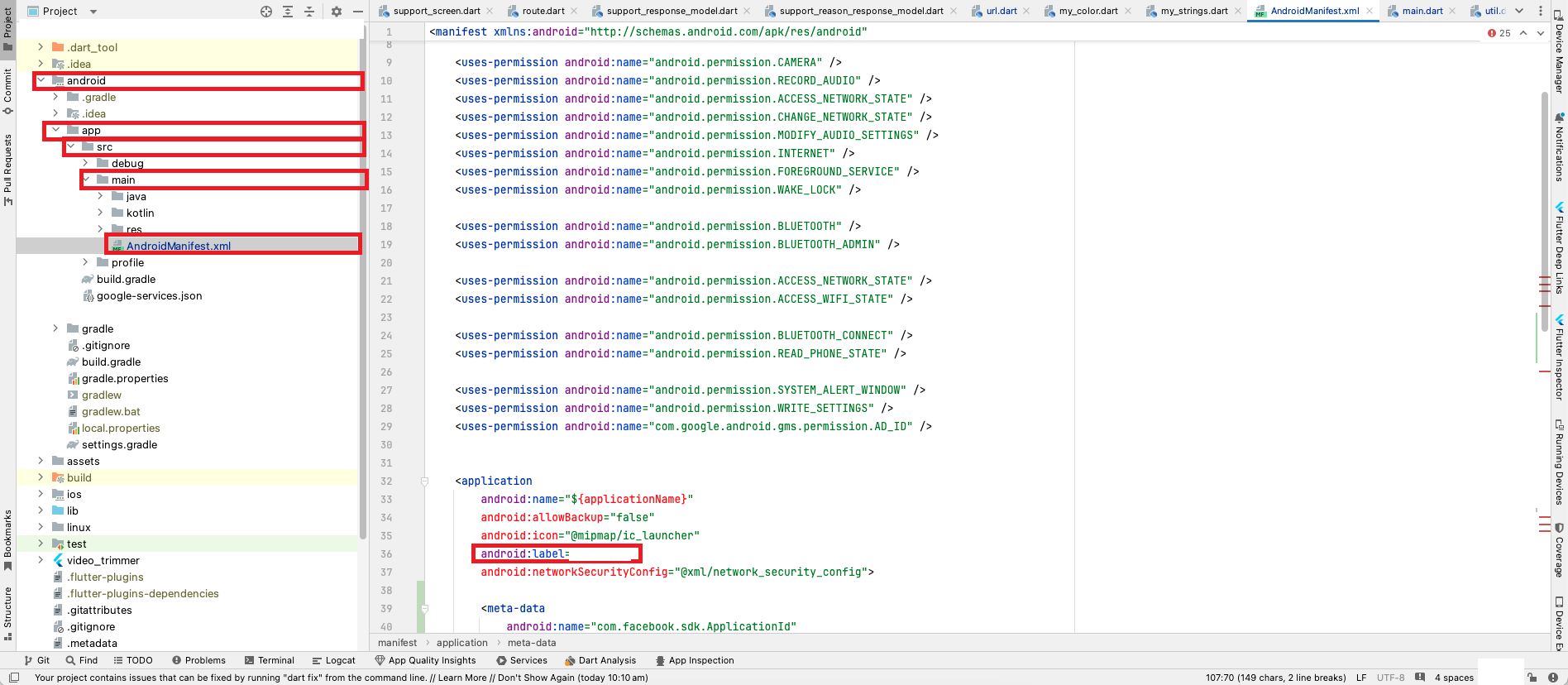
- IOS
- Please right-click on the "iOS" directory, then navigate to "Runner", and select "info.plist". Finally, open the iOS module in Xcode.
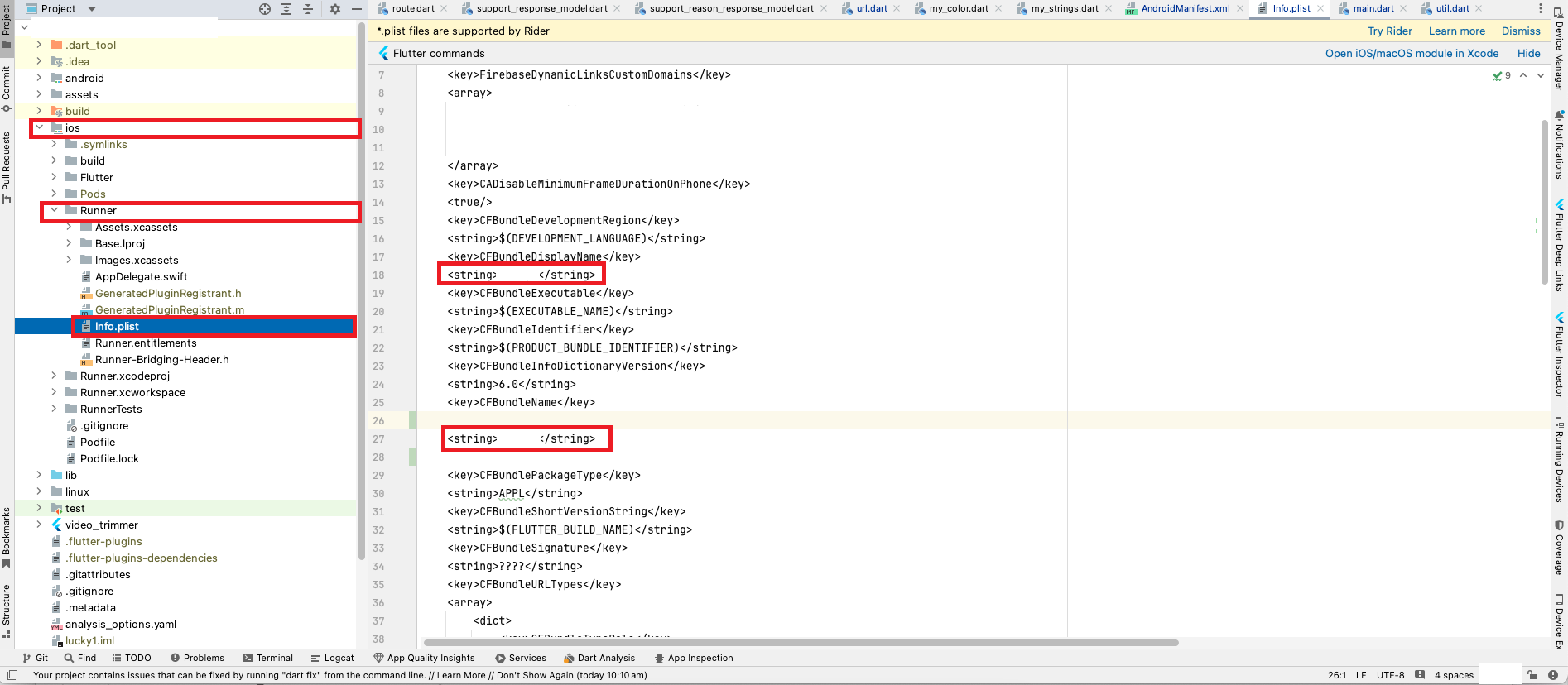
Build Debug APK
- To generate APK (Application Package File) for distribution and installation on Android devices, Flutter provides a straightforward method using the "flutter build apk" command. Below, we outline the steps involved in building APK files for Android using Flutter.
- Navigate to your project location.
- Access the build options by following this path: "Build" > "Flutter" > "Build APK".
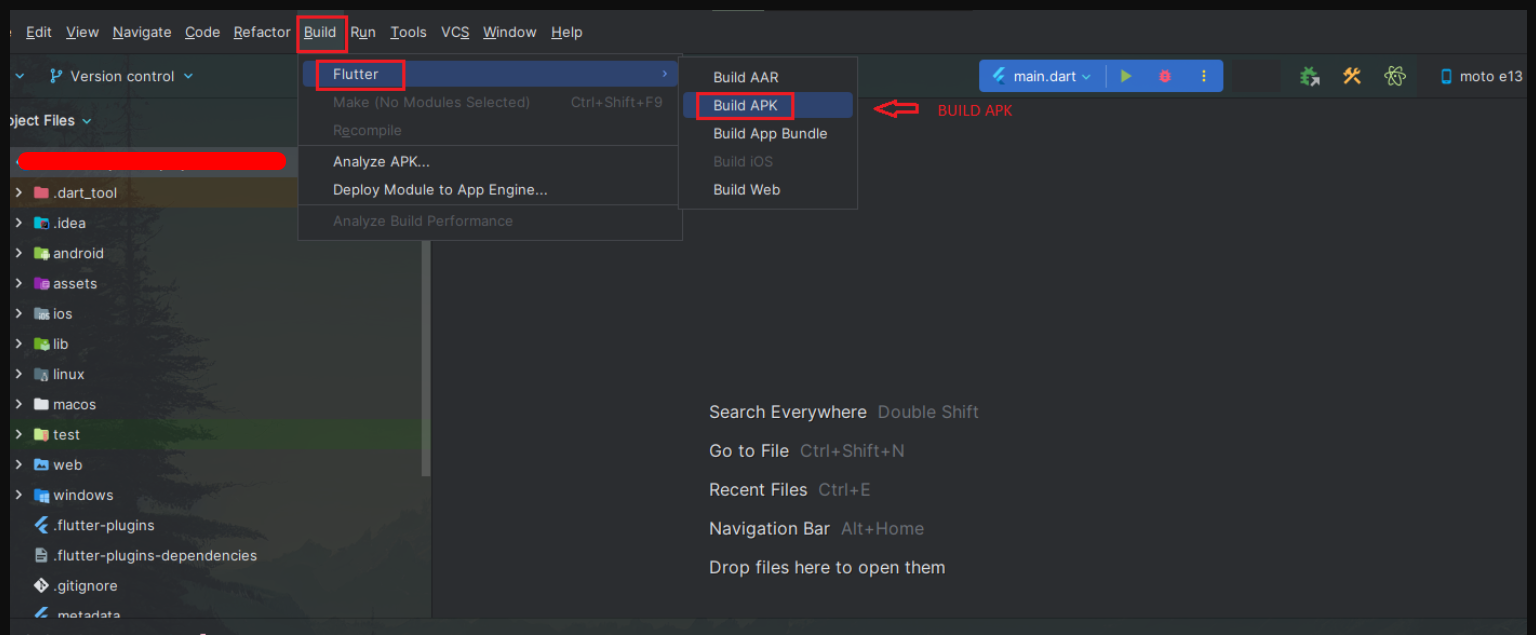
- Execute the following command: "flutter build apk --release", as demonstrated in the image below.
- Once the APK has been successfully generated, it will be automatically saved to the specified destination, as illustrated in the image below.
Release APK

Manage Publish
Android
- You need to publish your app on play store in testing mode (Closed testing).
- Make sure you have added the tester Gmail ids for test the in app purchase (the location is mentioned below under manage releases).
- Upload the app
- After you’ve signed up for a Google Play developer account, you can upload apps to Google Play using your Play Console.
- Create an app
- Go to your Play Console.
- Select all applications. >Create application.
- Select a default language and add a title for your app. Type the name of your app as you want it to appear on Google Play.
- Create your app’s
- Store listing
- Enter details in mandatory field (screenshots, icon, and descriptions etc).
- Manage releases
- Create closed track >Enter track name>Create track
- Create new release>upload your APK
- After that add your testers list under Manage testers and choose this list for testing.
- Add your testers Gmail account under Console > Settings > Licence Testing > Gmail accounts with testing access > Enter account id.

- Content rating questionnaire
- Select your app category > SOCIAL NETWORKING, FORUMS, BLOGS AND UGC SHARING >
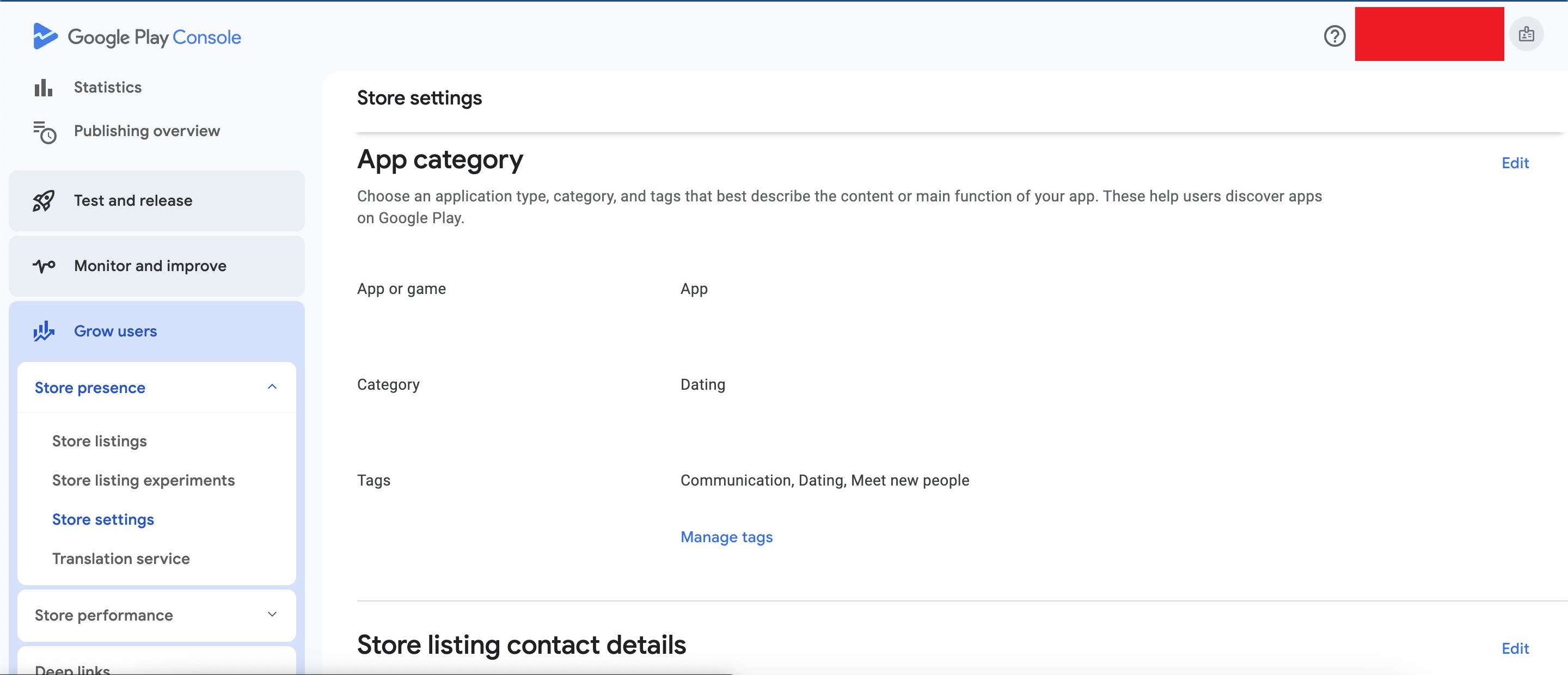
Note: you need to choose “yes” for last one option “purchase digital goods”.
IOS
Before publishing the app to the iOS store there are certain things that are required to add. Here is the detailed list of documents that are required while uploading the app to the app store.
- Screenshots: App store requires at most 10 screenshots for two device displays, namely 5.5” and 6.5” display. The resolution of these are 1080 x 1920 px and 1242 x 2688 px.
- Name: Name of the app as seen by users
- Promotional Text: This text will appear above your description on the App Store for customers with devices running iOS 11 or later, and macOS 10.13 or later.
- Support URL : A URL with support information for your app. This URL will be visible on the App Store.
- Marketing URL: A URL with marketing information about your app.
- Keywords: Separate keywords with a comma.
- Privacy Policy URL: A URL containing your app’s privacy policy.
- Terms & Condition URL: A URL containing your app’s terms and condition.
- App Icon: This icon will be used on the App Store and must be in the JPG or PNG format, with a minimum resolution of at least 72 DPI, and in the RGB color space. It must not contain layers or rounded corners.
- Demo Account: The username and password for a full-access account for your app. Include details for additional accounts in the Notes field.
- Custom EULA: If you are adding in app purchases.
Publishing Steps
- In your browser, navigate to Apple’s Developer Portal
- Log in
- Click Identifiers
- Click the “+” in the top right of the screen
- Name the App ID the same as your app
- Make sure the Bundle ID follows the standard naming convention: com.yourcompanyname.yourappname
- Check any App Services the app needs, click Continue
- Verify the services are correct, then click Submit
Create a Bundle Identifier
The bundle identifier is the name of your app, as seen by both the App Store and iOS devices.
- Open a program called KeyChain Access
- In the top left menu, click Certificate Assistant
- Click Request a Certificate From a Certificate Authority…
- User email: Enter your email address
- Common Name: We recommend using the name of the app
- CA email is not actually required
- Check Saved to Disk, click Continue
- Save the Certificate Signing Request for later
Create a Certificate Signing Request
Certificate Signing Requests are used to link your computer to your Apple developer account.
- In your browser, navigate to Apple’s Developer Portal
- Click Certificates
- Click the “+” in the top right of the screen
- Click the App Store Production
- Currently named “App Store and Ad Hoc” under Production
- Click Continue
- Upload the Certificate Signing Request created earlier
- Download the Certificate
- Install the certificate on your computer by double-clicking
- Keep this file somewhere safe
Create an App Store Production Certificate
Code Signing Certificates are used to link iOS apps to your Apple developer account.
- In your browser, navigate to Apple’s Developer Portal
- Log in
- Click Provisioning Profiles
- Click the “+” in the top right of the screen
- Click the App Store Distribution option, click Continue
- Select the Bundle ID created earlier, click Continue
- Select the Certificate created earlier, click Continue
- Make sure the Profile Name follows the standard naming convention: App Name App Store Distribution
- Click Generate
- Download it
- Install the provision profile on your computer by double-clicking
- Keep this file somewhere safe
Create a Production Provisioning Profile
Provisioning Profiles are packaged with iOS apps so user’s devices can install them.
- Start in your browser, navigate to iTunes Connect
- Log in
- Click My Apps
- Click the “+” in the top left of the screen
- Click “New iOS App”
- Bundle ID: choose the one created on Developer Portal
- For convenience, make the SKU match the Bundle ID created earlier
- Click Create to create the first version listing
Create App Store Listing
Reserve a slot in the App Store for your app for users to see.
- Start Xcode
- Open the project or workspace
- Update the version and build numbers
- Open Build Settings
- Make sure All settings is selected
- Scroll to Code Signing
- Use the provisioning profile created earlier
- Use the code signing identity created earlier
- In the top menu, select Generic iOS Device as the build destination if no actual device is connected
- Menu, Project, Archive
- Click Distribute
- Sign in as your apple developer account
- Submit to app store
- Wait for the confirmation
Make the release build
Package the actual binary that users will be uploading to the store.
- Enter all of the information assembled in step 1
- Select the build you wish to tie to the version (Note: This usually appears 10-15 minutes after sending from Xcode)
- Fill in pricing information
- Click Save
- Fit any errors based on the messages that appear and save changes
Fill In Version Information
Users will decide whether or not to install your app based on your store listing.
- Select the release type
- Manual release – after the app is accepted, a Release button will appear
- Automatic release – as soon as the app is accepted, it will be released
- Wait for approval
- This process usually takes 2-3 weeks for a new submission
- If your app was not approved, review the notes in the Resolution Center and make any necessary changes to the app or version information then resubmit
Submit Version for Review
Every app that is submitted to the store has to be reviewed by the Apple team before release.
- If you selected Manual release, click Release your app when ready
- Wait for the green “Ready for Sale” version status (This might take from 1 hour to 1 day after release)
Release
Uploading step.
When submitting a new version of your app, you will only have to repeat steps 6 through 9.